Loading...
Loading...
Loading...
Loading...
Loading...
Loading...
Loading...
Loading...
Loading...
Loading...
Loading...
Loading...
Loading...
Loading...
Loading...
Loading...
Loading...
Loading...
Loading...
Loading...
Loading...
Loading...
Loading...
This Guide utilises the Unifi Integration Designer portal interface which allows you to configure and manage integrations much more intuitively and with greater efficiency.
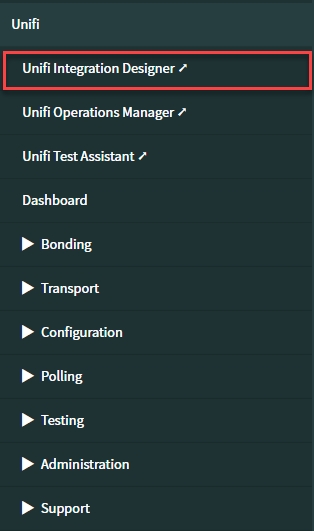
From within native ServiceNow, open the Unifi Integration Designer portal by navigating to Unifi > Unifi Integration Designer.
You will be greeted with the following Dashboard (which opens in a new window):
Any existing Processes will be listed as tiles, showing the number of Active Integrations for each. The total number of Active Integrations is also shown on the Dashboard.
Hovering over the tile of an existing Process will display 'Show integrations'. Clicking it will take you to the Integrations page (for that Process).
If appropriate, you can either edit the Settings of, or add a New Integration to an existing Process by clicking the ellipsis (at the bottom right of the tile).
In the next section, we shall look at configuring the Process.
Follow this guide to configure a simple outbound integration to the table API of your Personal Developer Instance. It is given as an aid for those new to Unifi, or to play as part of a trial.
Congratulations on your decision to use Unifi, the only integration platform you need for ServiceNow. We are sure you will be more than satisfied with this extremely powerful, versatile and technically capable solution.
We have created this Outbound Incident Guide as an aid to customers who are beginning their journey in deploying the Unifi integration platform. We would not want you to be overwhelmed by exploring all that Unifi has to offer here, so we have deliberately limited the scope of this document. It will guide you through an example of how to configure a basic Incident integration, sending outbound messages via the REST API to the table API of another ServiceNow instance (i.e. your Personal Developer Instance, ‘PDI’).
We do not recommend synchronous integrations for enterprise ticket exchange. This Guide is purely here for you to have a play as part of a trial. It is designed to connect to a PDI without Unifi being installed on the other side.
For more technical information on how to use Unifi, please see our .
Do not build integrations directly within the Unifi application scope. This can create issues with upgrades and application management.
The prerequisite to configuring Unifi is to have it installed on your instance. As with any other ServiceNow scoped application, Unifi must be purchased via the ServiceNow Store before installation.
We recommend you follow the Setup instructions prior to configuring your Integration.
Congratulations on completing this Outbound Incident Integration Guide.
This Guide has shown us how to configure a basic Incident integration, sending outbound messages via the REST service. The elements we configured were:
Process
Integration
Connection
Messages
Fields
The items automatically created by Unifi were:
Web Service (not used in this Guide)
Trigger
In testing our integration, we created, updated and resolved an Incident - following the data as it flowed from our ServiceNow Incident record, through the Unifi transaction message bus, to the external system's Incident record.
By Using the Unifi integration platform, we have discovered that building and testing our integration is simpler and more efficient, saving both time and money. Our hope is that this Guide has been a valuable aid to you in that process.
For further information please see our .
If you have any feedback or questions, please contact us via our website .
The first element to configure is the Process, which is the top level configuration element where all Integrations are contained.
The first thing to do when creating a new integration is to assign it to its Process. For instance, a new Incident integration would be created within an Incident Process. If you do not yet have a Process defined, then you will need to create a new Process
From the Unifi Integration Designer Dashboard, click on New Process.
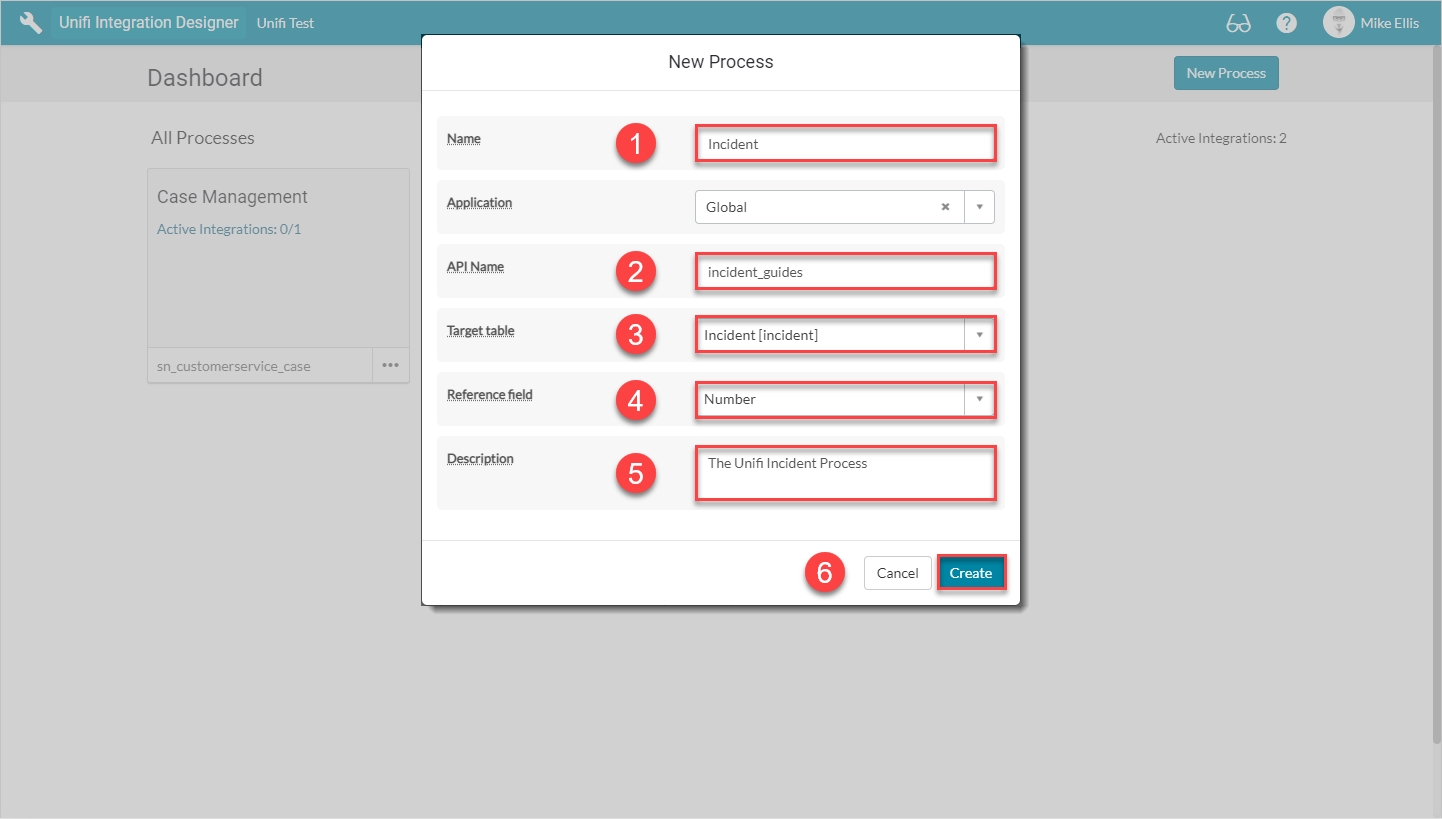
On the 'New Process' modal, the fields to be configured are as follows:
The name of the ServiceNow process being integrated.
<SN Process Name> (e.g. Incident)
API Name*
The unique name of this process for use with the API.
<your_unique_api>
Target table
The primary target or process table that this integration uses.
'Incident' [incident]
Reference field
The field on the target table that is used as the reference for the external system.
'Number'
Description
Describe what this Process is for.
<Your description>
Your 'New Process' modal should look like this:
Click Create.
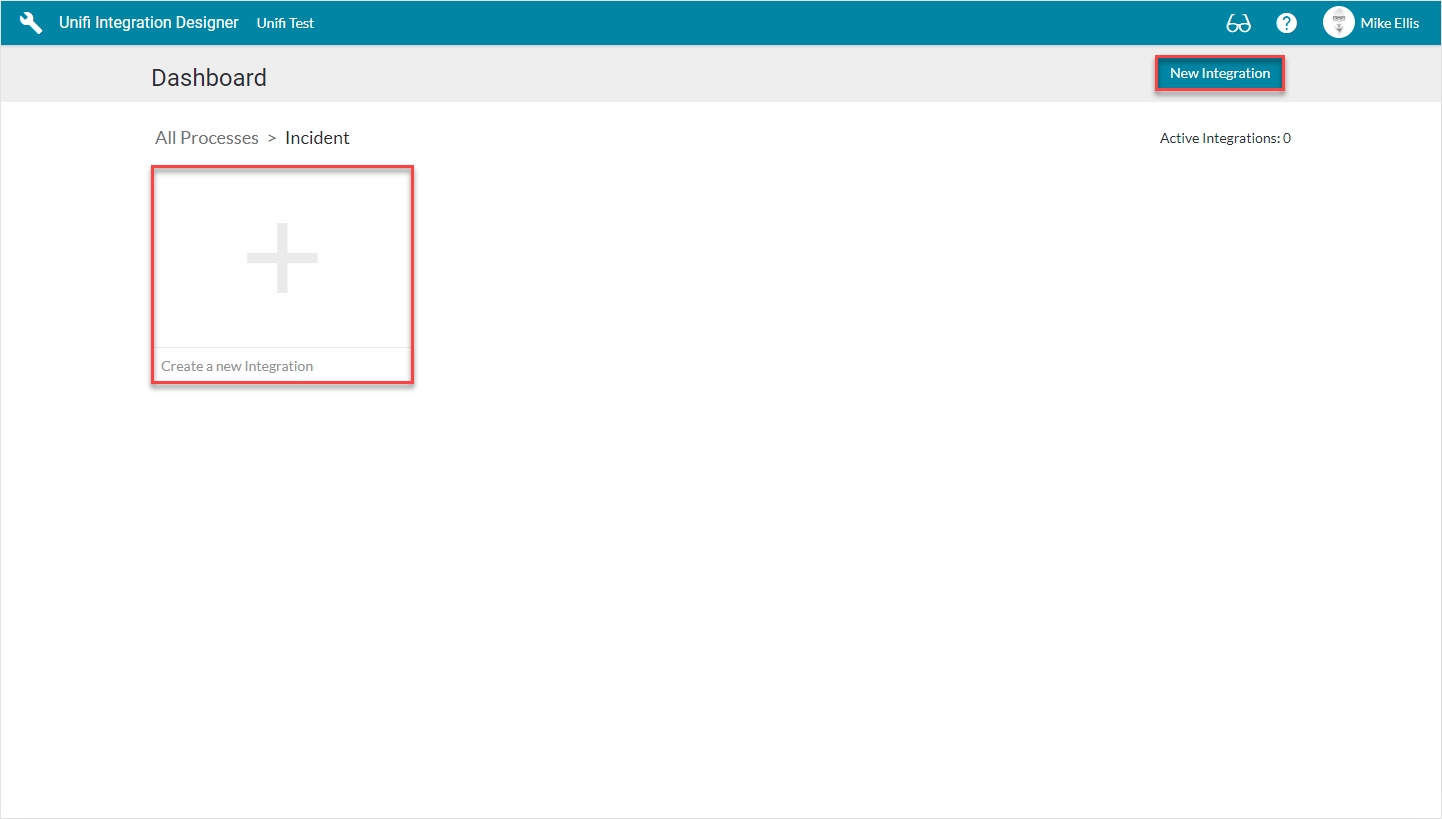
You will be redirected to your Process Dashboard:
Click either the '+' tile or 'New Integration' in preparation to configure the Integration.
Name
For each of our Scenarios we will need to configure the relevant Messages & Fields. This scenario will need to be tested before moving on to the next.
The Messages we shall be configuring for the Create Scenario are:
CreateIncidentResponse
CreateIncident
We will define which Field records require configuring for each of those Messages at the appropriate time.
The scenario will need to be successfully tested before we can say it is complete.
We shall look in detail at each of the Messages and their respective Fields in turn over the next few pages, before moving on to Test.
The ResolveIncident Message is an update type message that we will configure to deal specifically with our resolve scenario (resolve the bonded records).
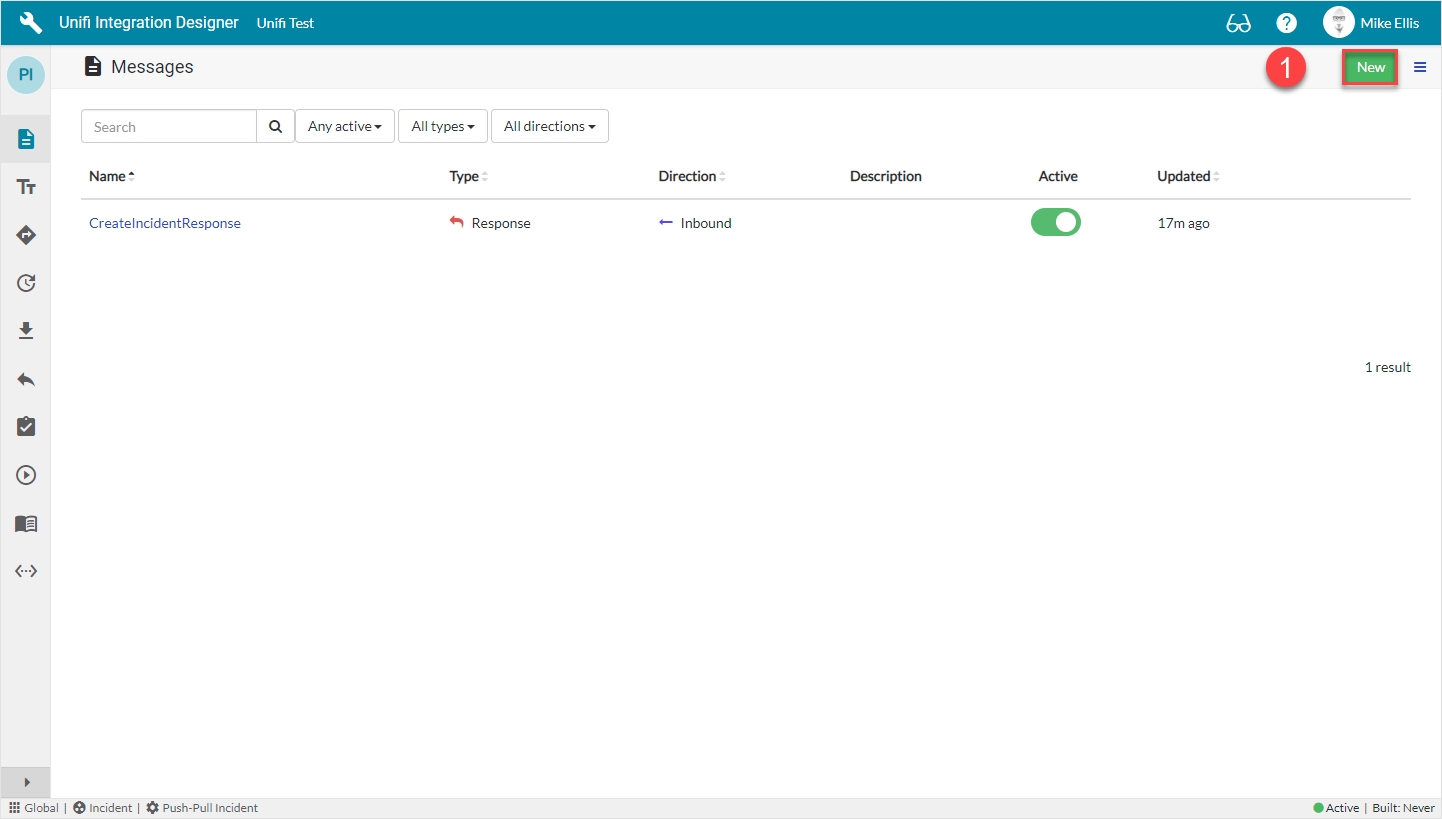
Again, after clicking the 'Messages' icon, you are directed to the following screen (note: the four previously configured messages are now visible in the list):
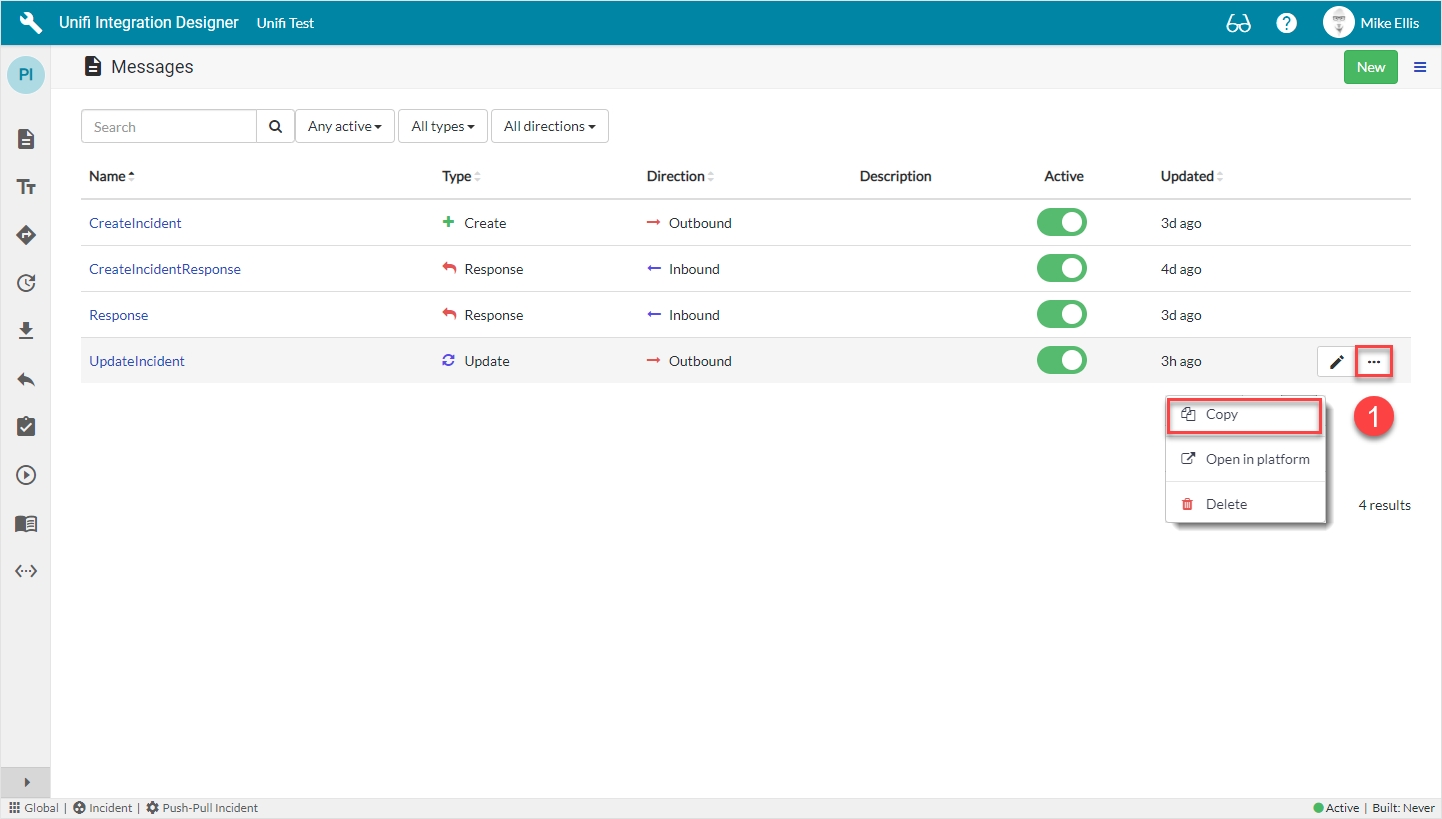
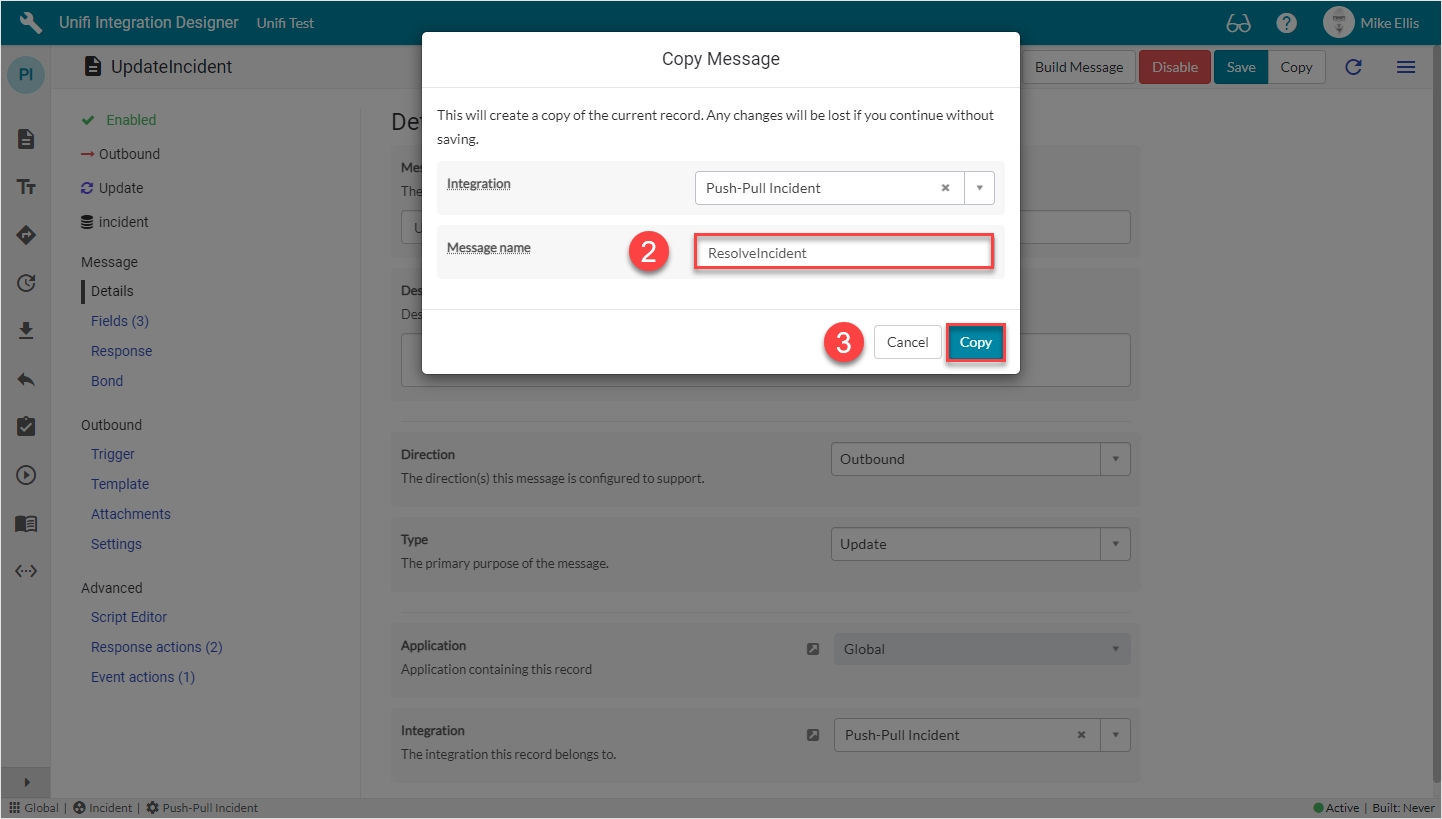
Click the ellipsis to the right of the UpdateIncident Message & then click Copy.
It is now easier than ever to create the ResolveIncident Message. Rather than create it from scratch, it will be quicker to copy the UpdateIncident Message and make some minor changes.
For each of our Scenarios we will need to configure the relevant Messages & Fields. This scenario will need to be tested before moving on to the next.
The Messages we shall be configuring for the Update Scenario are:
Response
UpdateIncident
We will define which Field records require configuring for each of those Messages at the appropriate time.
The scenario will need to be successfully tested before we can say it is complete.
For each of our Scenarios we will need to configure the relevant Messages & Fields. This scenario will need to be tested before moving on to the next.
The Message we shall be configuring for the Resolve Scenario is:
ResolveIncident
We will define which Field records require configuring for that Message at the appropriate time.
The scenario will need to be successfully tested before we can say it is complete.
We shall look in detail at the Message and its respective Fields in turn over the next few pages, before moving on to Test.
The fields to edit for the Copy Message modal are as follows:
Message name
The message name that is unique for this integration.
'ResolveIncident'
Your Copy Message modal should look like this:
Click Copy.
You will be redirected to the Details page of the newly created ResolveIncident Message.
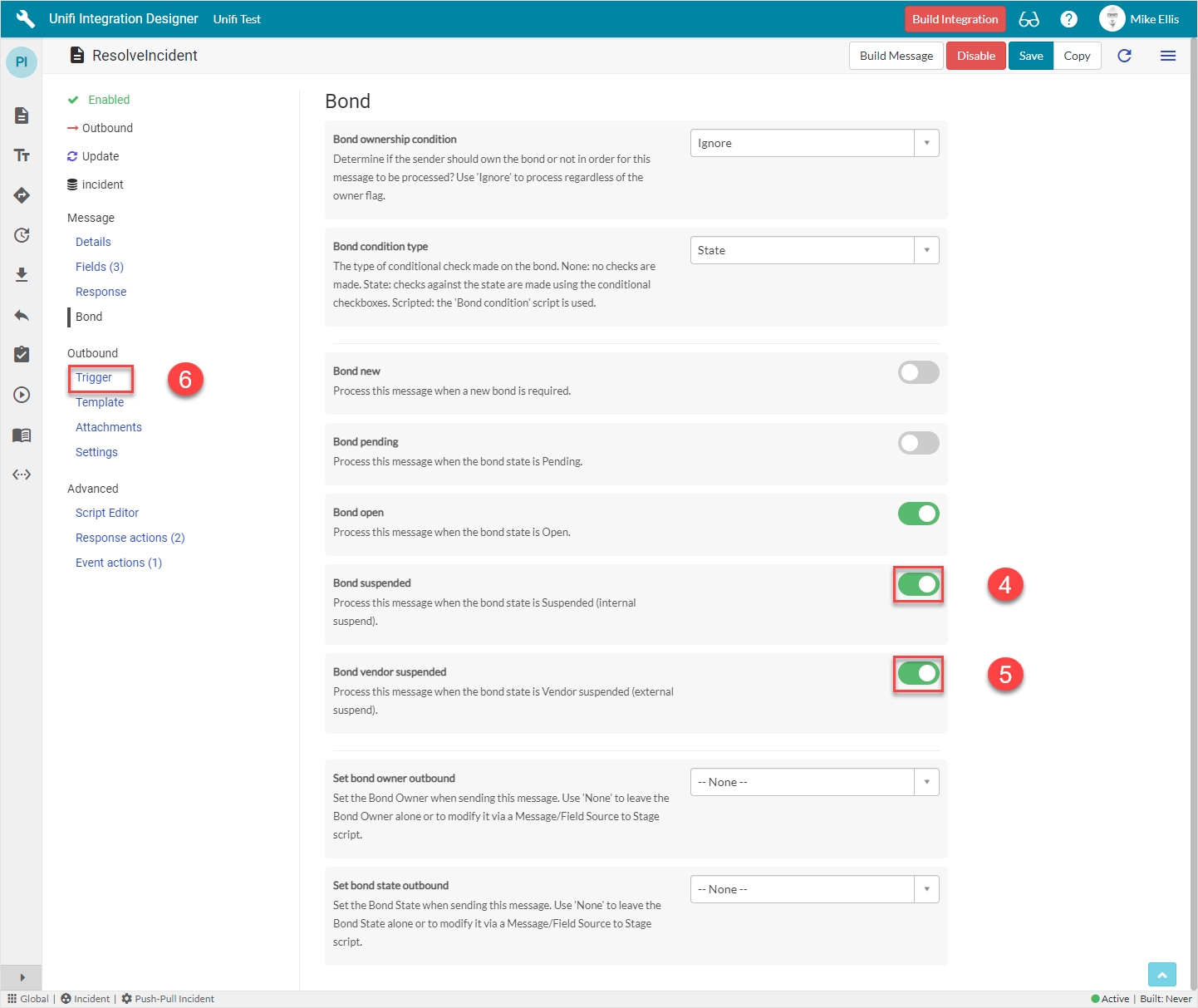
Navigate to Message > Bond.
The Bond fields to be edited are as follows:
Bond suspended
Process this message when the bond state is Suspended (internal suspend).
<true>
Bond vendor suspended
Process this message when the bond state is Vendor suspended (external suspend).
<true>
Your Bond form should look like this:
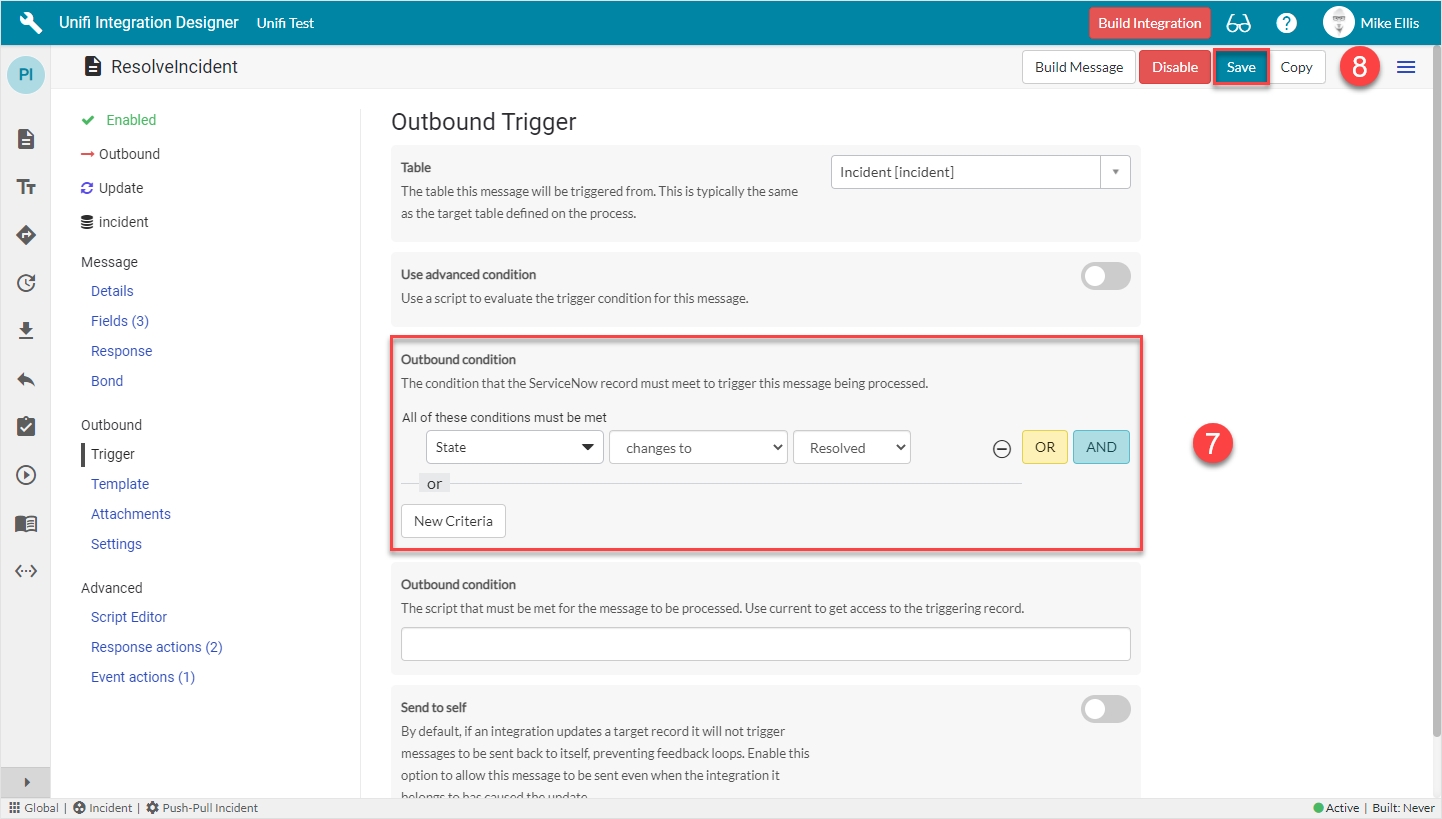
Navigate to Outbound > Trigger.
The Outbound Trigger (as required)* fields to be edited are as follows:
Outbound condition_*_
The condition that the ServiceNow record must meet to trigger this message being processed.
'State > changes to > Resolved'
Your Outbound Trigger form should look like this:
Click Save.
We are now ready to configure the Fields for the ResolveIncident Message.
Unifi will automatically create a Trigger (Business Rule) for the Process being integrated (if one doesn't already exist) when you run 'Build' either on the Integration or Message once your Create Message is configured.
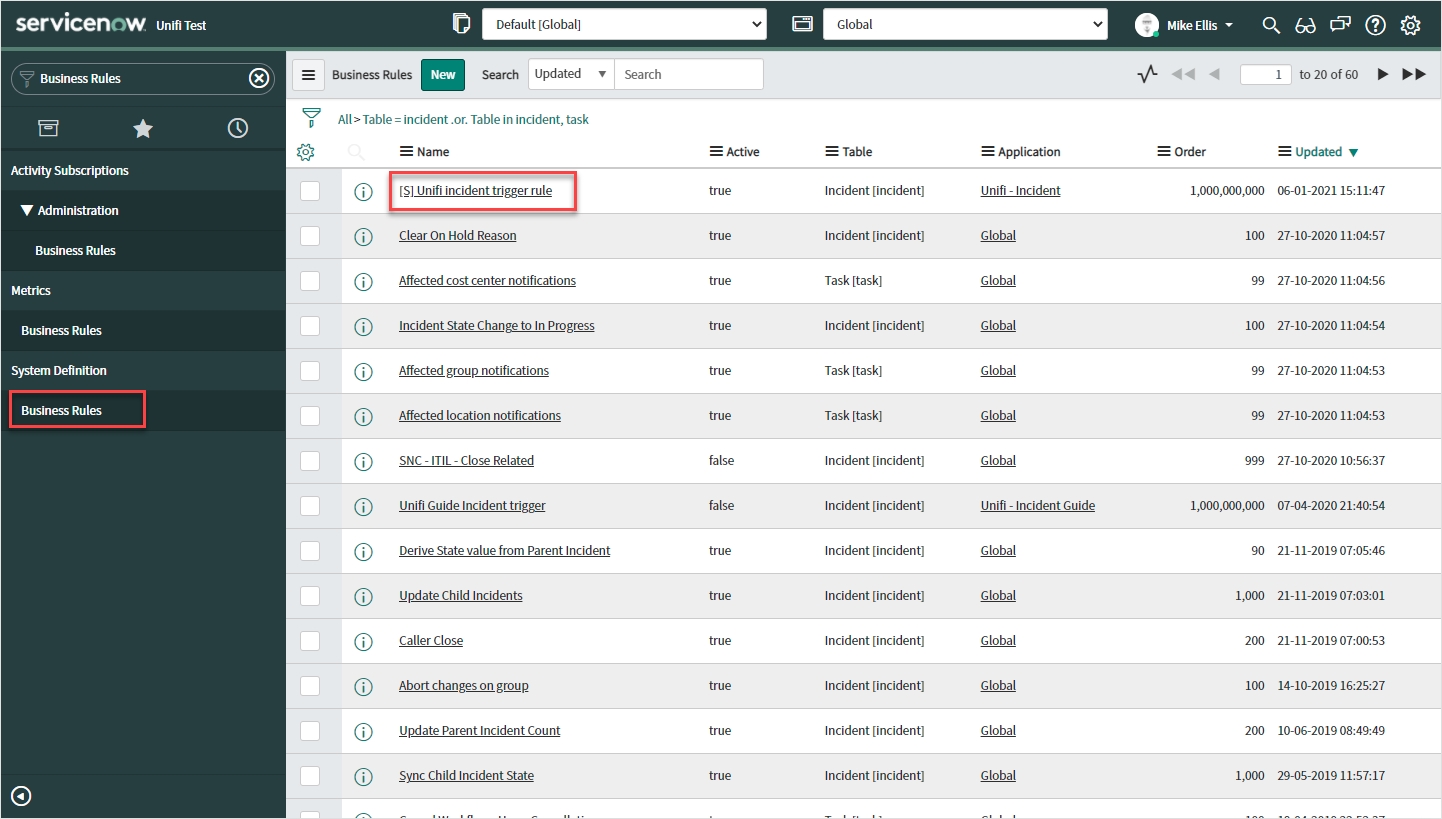
In native ServiceNow, navigate to System Definition > Busines Rules. Find and navigate to the automatically generated Business Rule.
The top section of your Business Rule record should look like this:
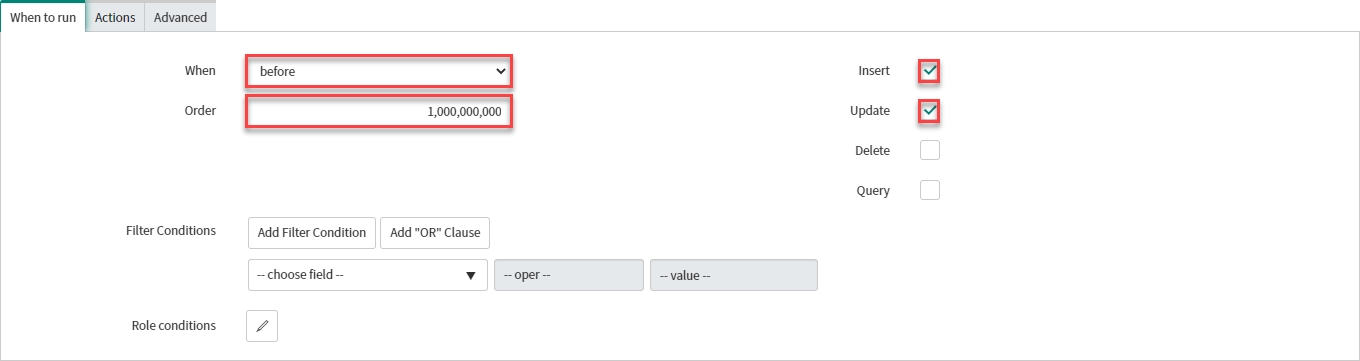
Your 'When to run' tab should look like this:
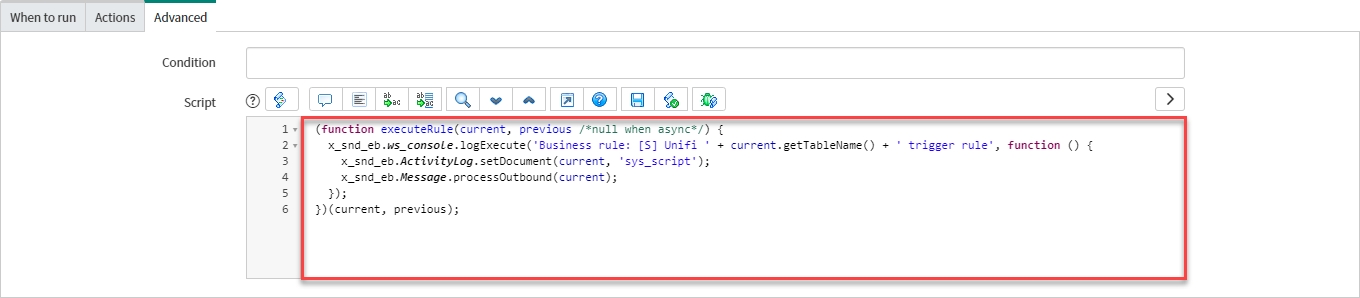
The code in the script field should look like this:
Your 'Advanced' tab should look like this:
We have confirmed the main elements are in place for our Integration to work. We are now ready to Test our CreateIncident Message.
It is possible to run the Build process from the Integration. This will cause the process to cycle through each of the Messages on the Integration in turn.
We have been running the Build process at the Message level so as to see the changes in our Message Scripts as we go. This may be considered good practice (particularly when first starting out) as any discrepancies can be discovered & rectified as you go (in potentially fewer, smaller batches). Once you are more practiced and confident in the accuracy of your configurations, you can run the Build process at the Integration level. This means that the process will cycle through all the Field records on each of the Messages on the Integration in turn & auto-generate all the relevant Message Script code.
As mentioned in 'CreateIncidentResponse Fields', we saw that a 'Build Integration' button had appeared in the banner at the top of the page. This was because, whenever a change is made to a Field record that is associated to a Message (whether that is being created, updated, or deleted) the button will be available and act as a visual reminder that changes have been made and Message Script(s) need to be built.
To run the Build Process at the Integration level we have two choices. We can either either run it from the Integration record, or we can use the 'Build Integration' button which appears in the banner at the top of the page.
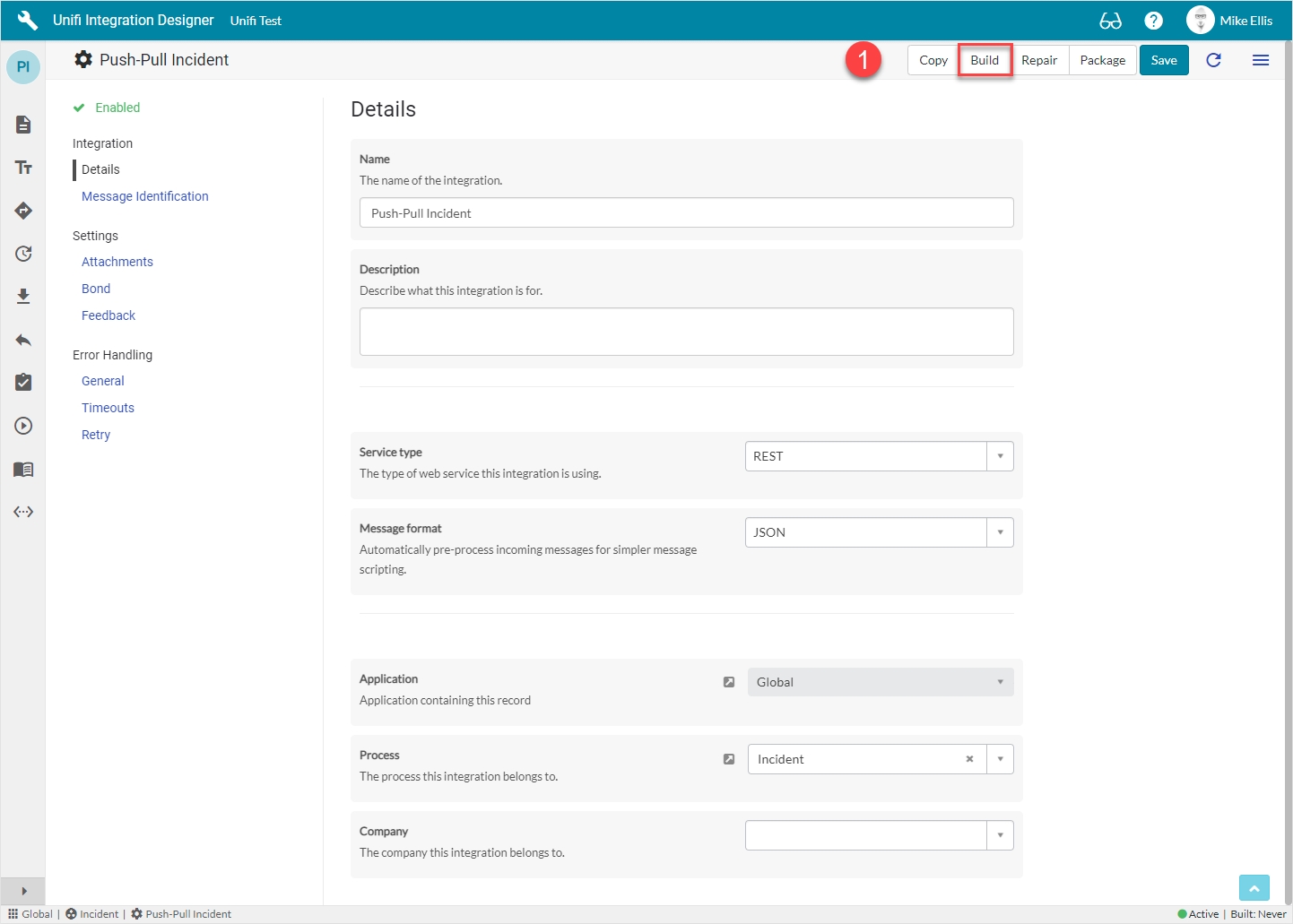
To run it from the Integration record. In Unifi Integration Designer, navigate to: 'Integration' icon.
Click Build.
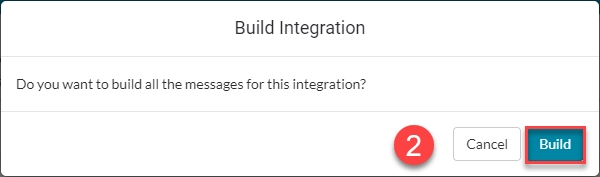
On the Build Integration modal, click Build.
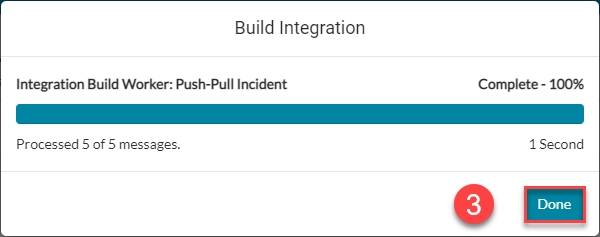
When complete, you will see the following Integration Build Worker modal:
Click Done.
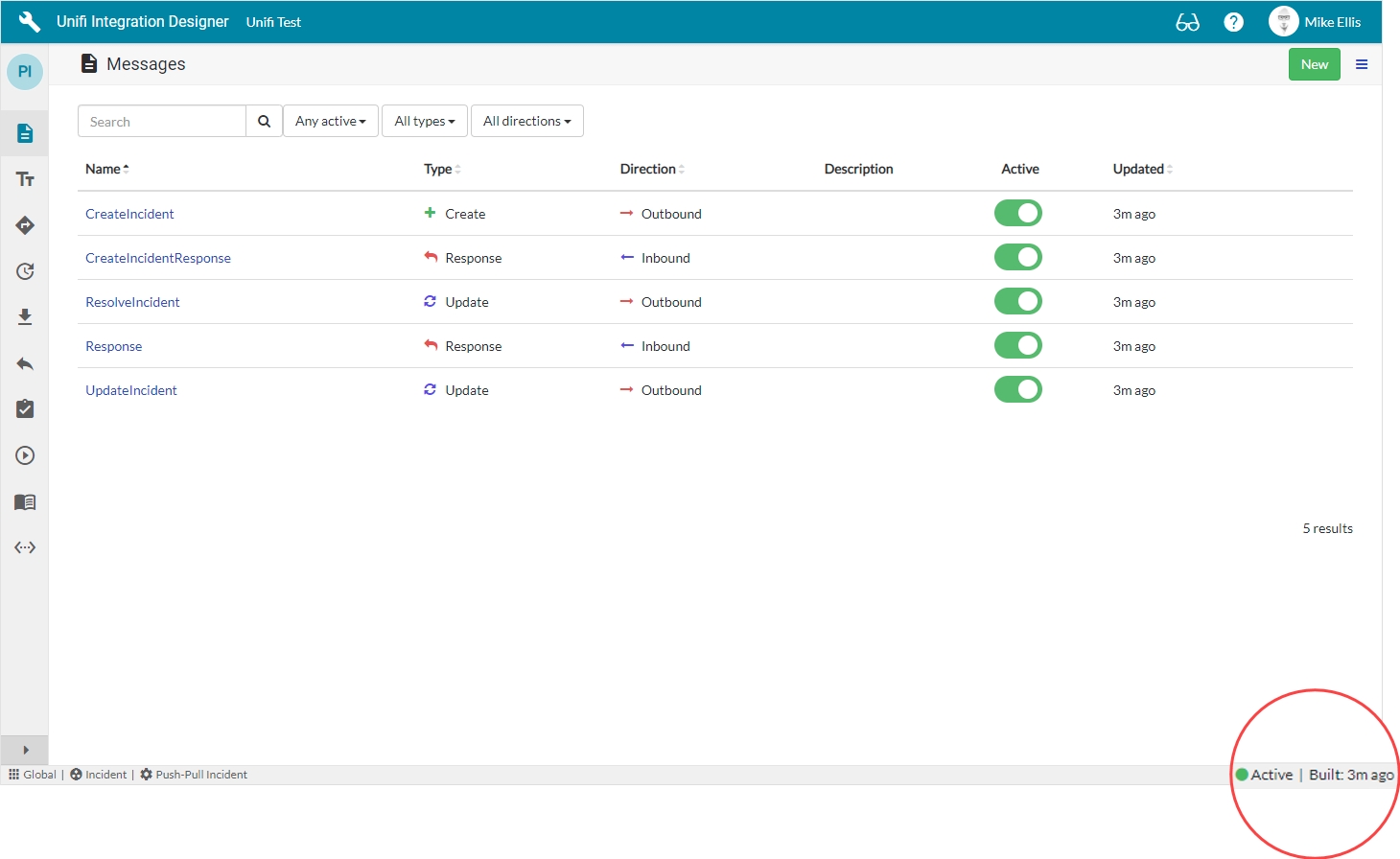
Navigate to: 'Messages' icon.
Feature Alert: At the bottom right of the window you will see a widget that displays whether the Integration is Active and when 'Build' was last run.
Click through each Message in turn, navigating to Advanced > Script Editor to view the auto-generated code in the Message Scripts.
We have now built and tested the Outbound Incident Integration.
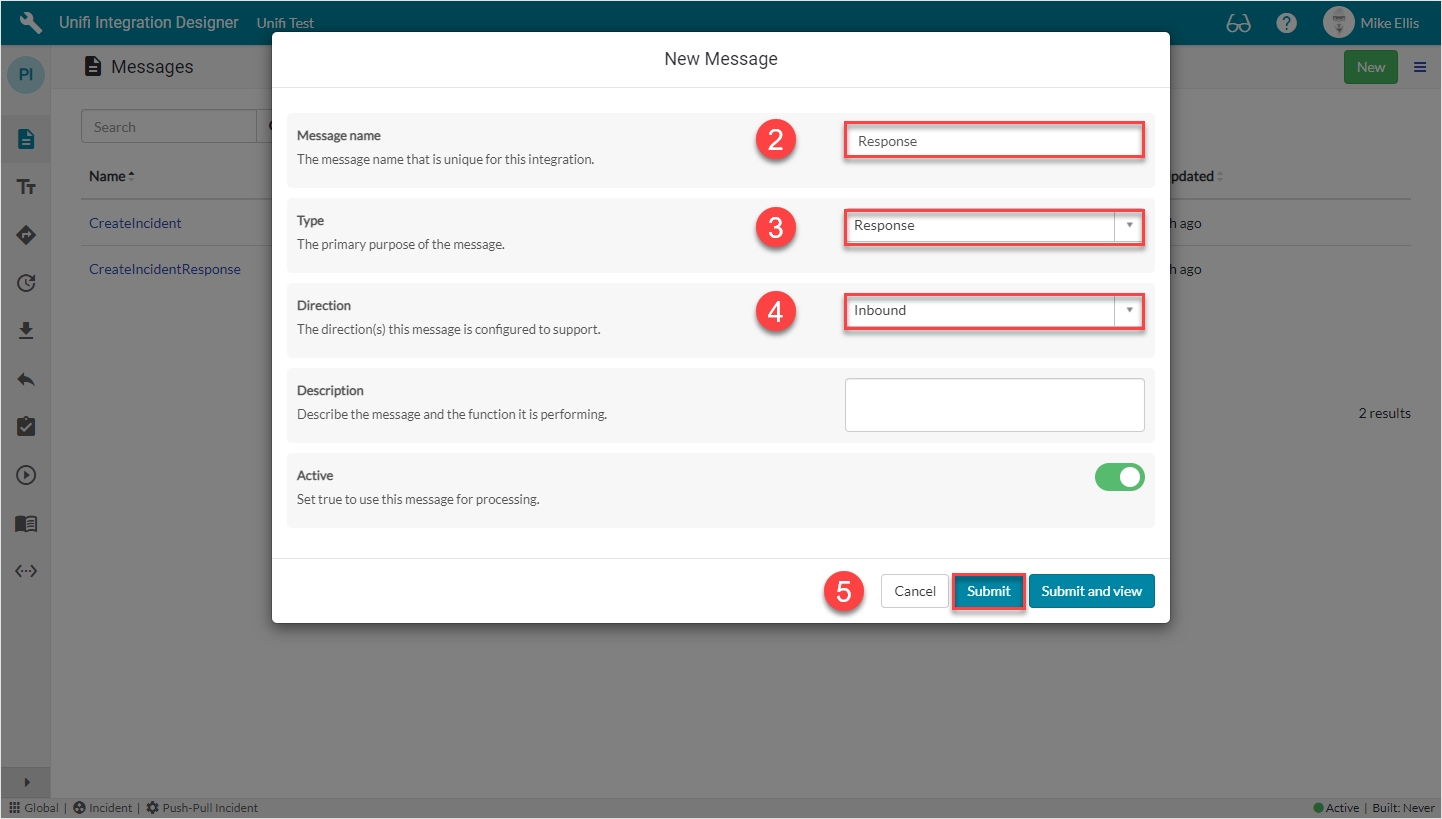
The Response Message is the immediate synchronous response that is sent to acknowledge the successful transport of another Message.
As previous, after clicking the 'Messages' icon, you will see the following screen (note: both the previously configured messages are now visible in the list):
Click New.
The fields to be configured for the Response New Message modal are as follows:
Your Response New Message modal should look like this:
Click Submit.
You will be redirected to the Messages page. You need not configure the Response Message any further.
Now it's time to move on and configure the UpdateIncident Message.
This is what defines the connection between a Process and the single system it's connecting with. It is also where most of the configuration and settings are stored.
The CreateIncidentResponse Message is the immediate, synchronous response that is sent after processing the Createincident Message.
(function executeRule(current, previous /*null when async*/) {
  x_snd_eb.ws_console.logExecute('Business rule: [S] Unifi ' + current.getTableName() + ' trigger rule', function () {
    x_snd_eb.ActivityLog.setDocument(current, 'sys_script');
    x_snd_eb.Message.processOutbound(current);
  });
})(current, previous);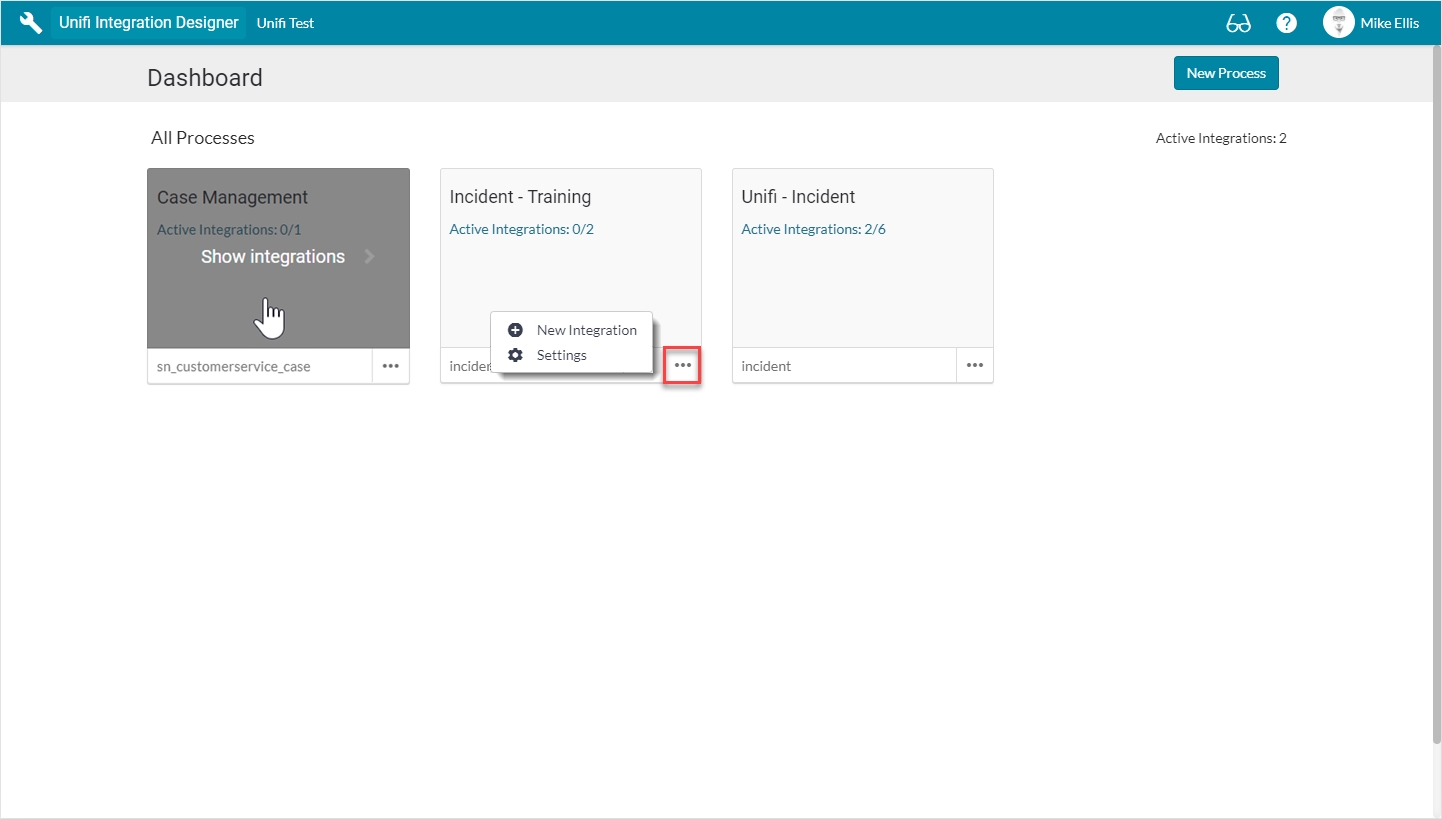
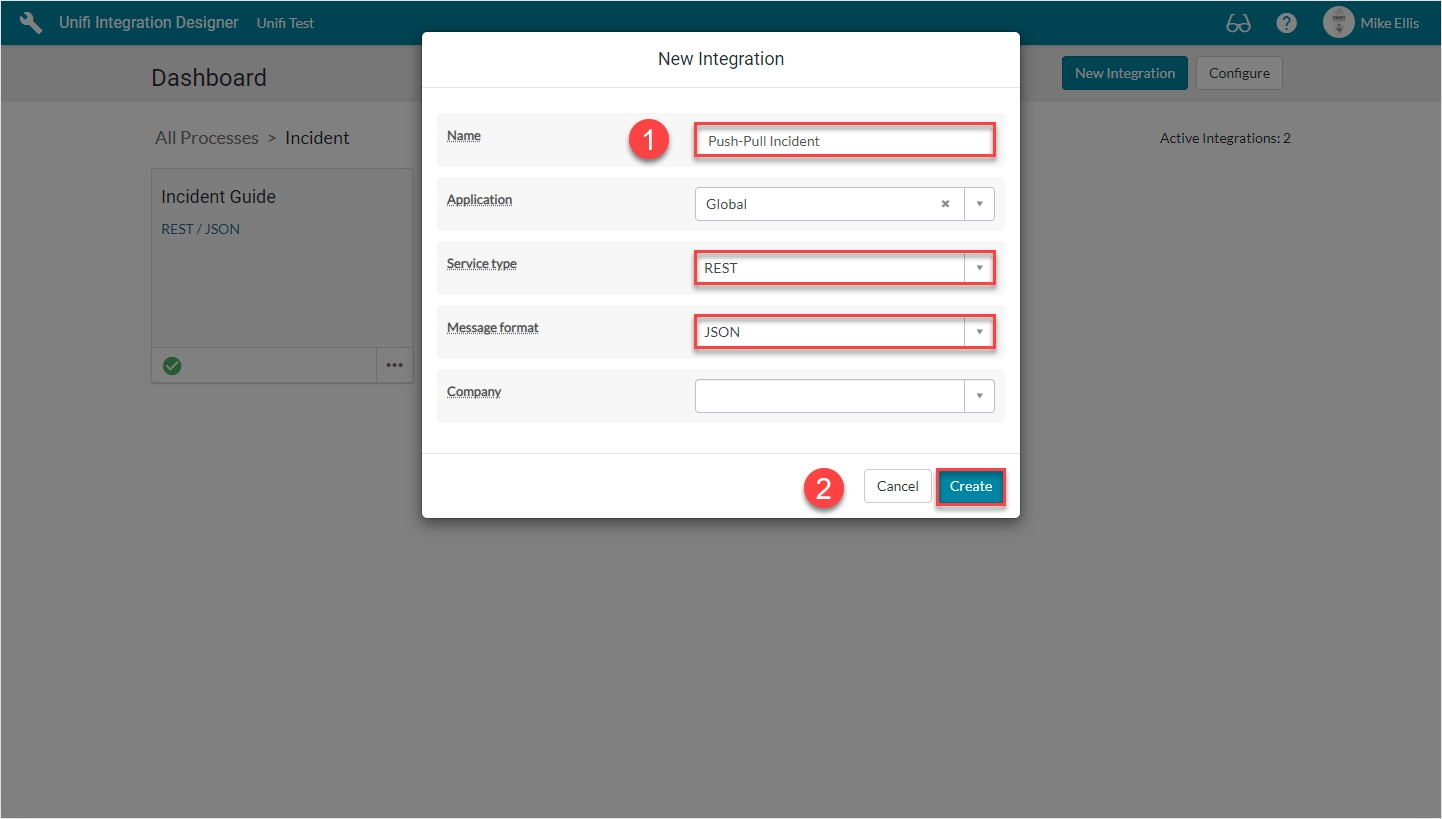
Name
The name of the integration.
<Your Name>
Service type*
The type of web service this integration is using (Choices: SOAP/REST).
'REST'
Message format*
Automatically pre-process incoming messages for simpler message scripting. (Choices: XML, JSON, Advanced)
'JSON'
Your 'New Integration' modal should look like this:
Click Create.
You will be redirected to the Details page of the newly created Integration.
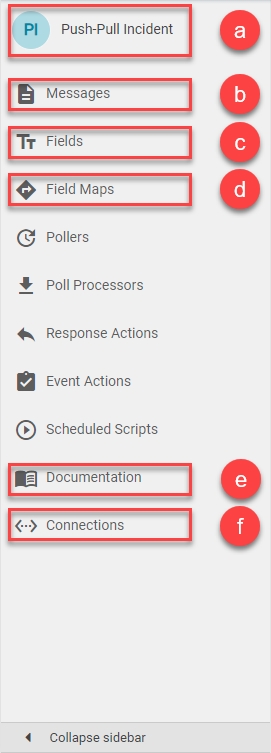
The icons are:
a) 'Integration' icon: Opens the current integration's Details page.
b) 'Messages' icon: Opens the current integration's Messages page.
c) 'Fields' icon: Opens the current integration's Fields page.
d) 'Field Maps' icon: Opens the current integration's Field Maps page.
e) 'Documentation' icon: Opens the automatically generated documentation for the current integration. (Another awesome feature in Unifi.)
f) 'Connections' icon: Opens the current integration's Connections page.
The Details page of your Integration form should look like this:
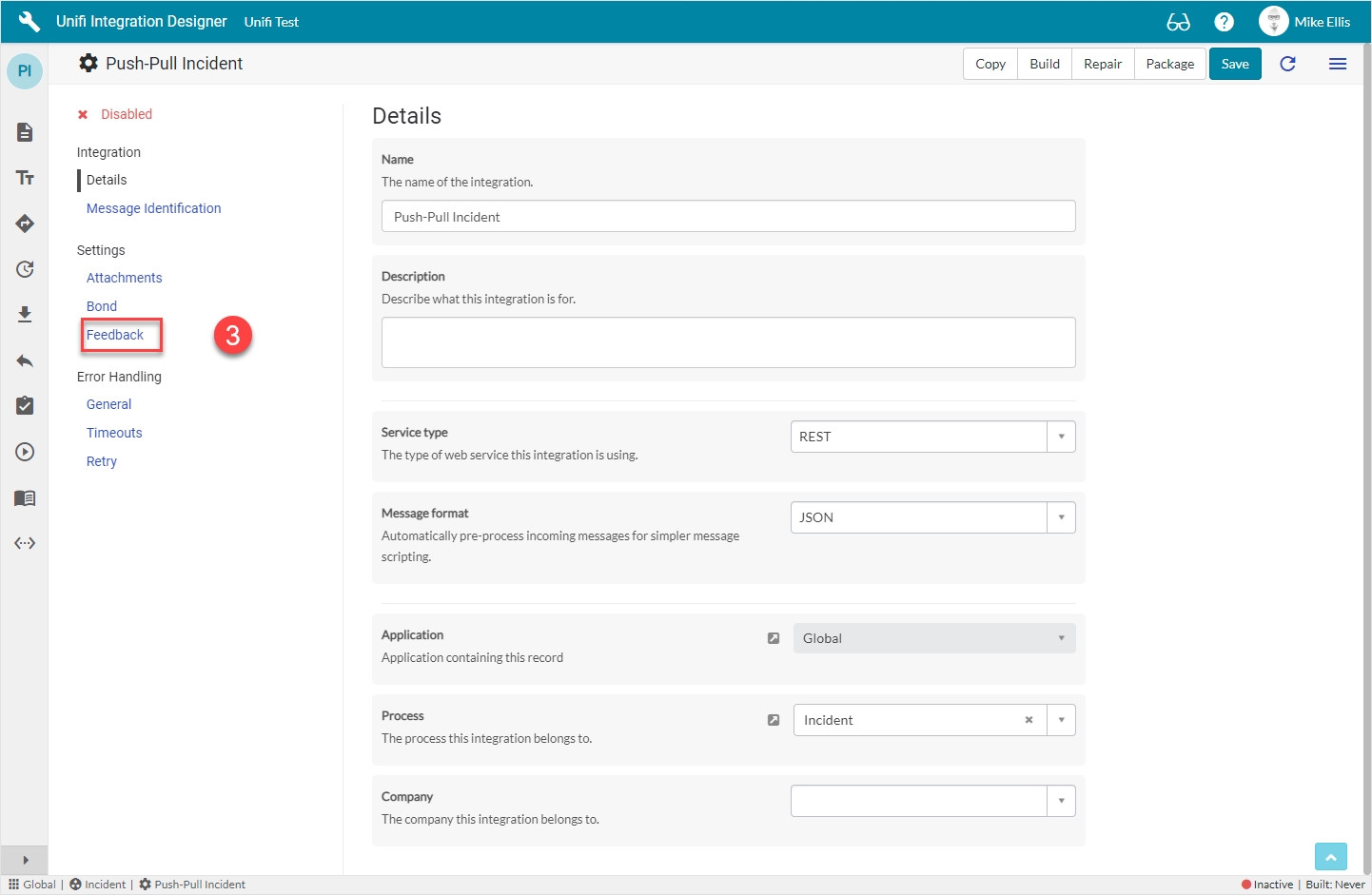
Navigate to Settings > Feedback.
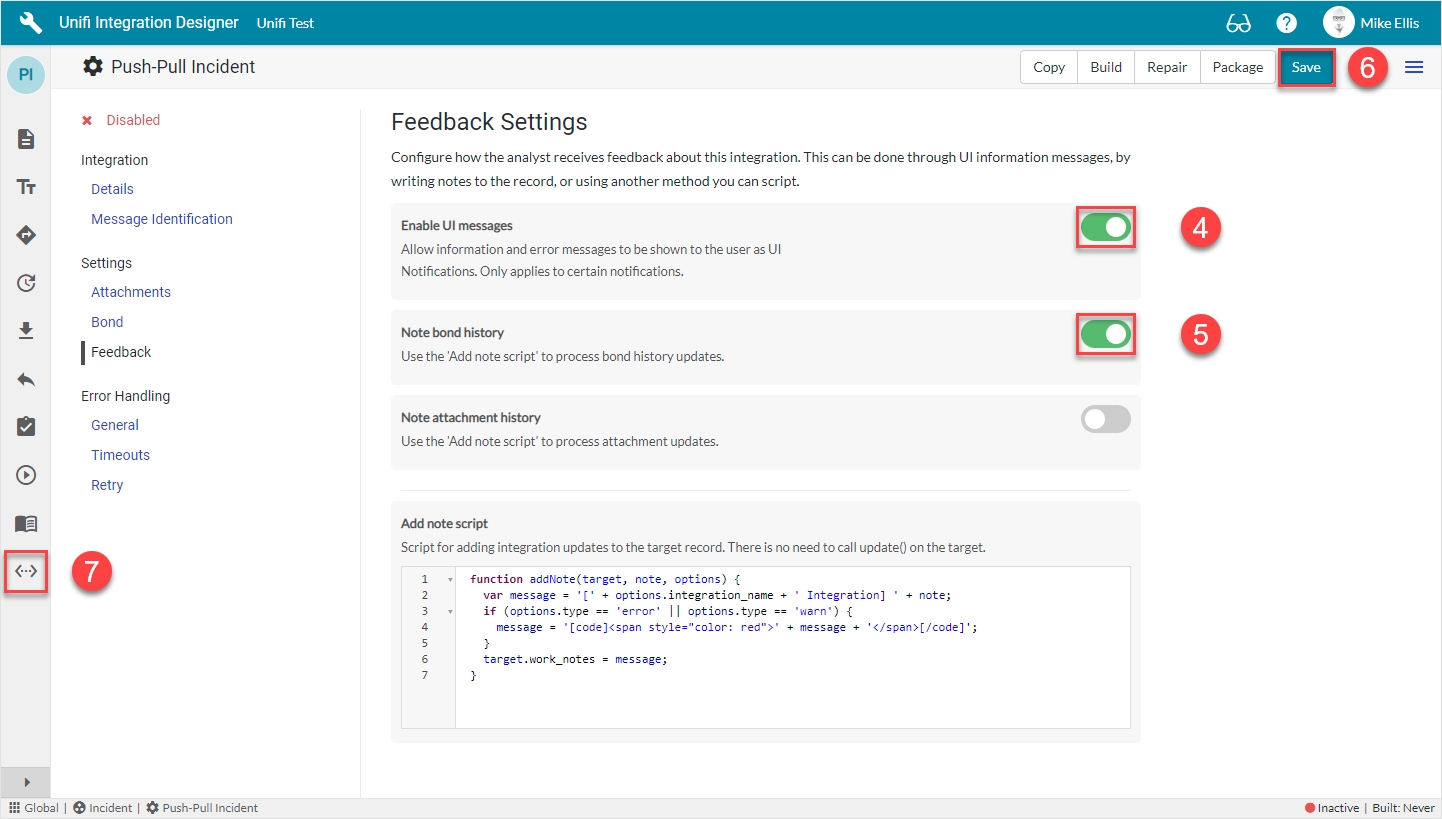
The Feedback fields to be configured for the Integration record are as follows:
Enable UI messages
Allow information and error messages to be shown to the user as UI Notifications. Only applies to certain notifications.
<true>
Note bond history
Use the 'Note bond history' to process bond history updates. (Set to true for the history to be promoted to the work notes fields of the record we're integrating - for the analyst to view)
<true>
The Feedback Settings fields should look like this:
Click Save.
Click the 'Connections' icon to move on and configure the Connection.
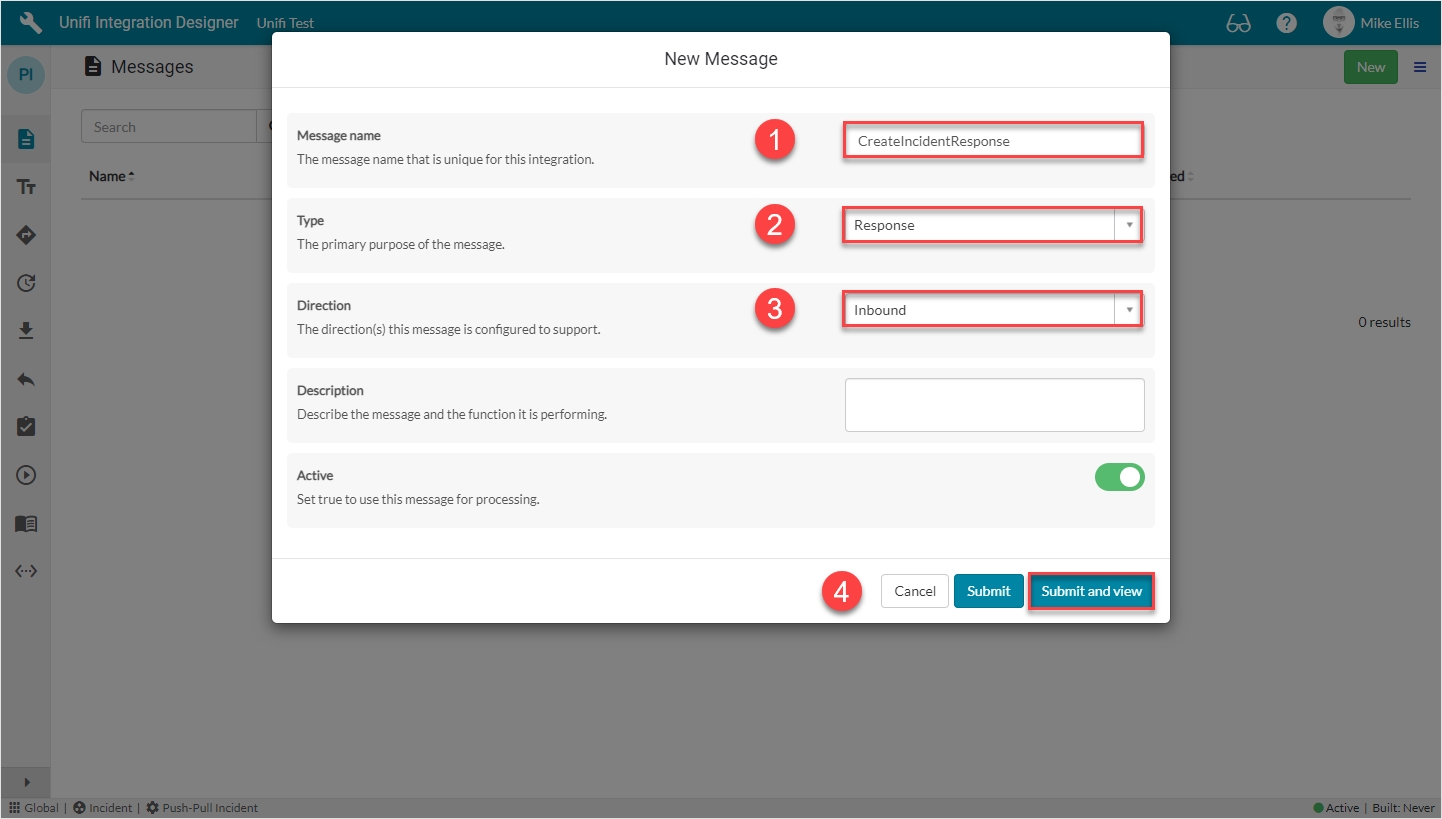
Message name
The message name that is unique for this integration.
'CreateIncidentResponse'
Type
The primary purpose of the message.
'Response'
Direction
The direction(s) this message is configured to support. (Choices: Inbound, Outbound, Bidirectional)
'Inbound'
Your CreateIncidentResponse New Message modal should look like this:
Click Submit and view to further configure the Message.
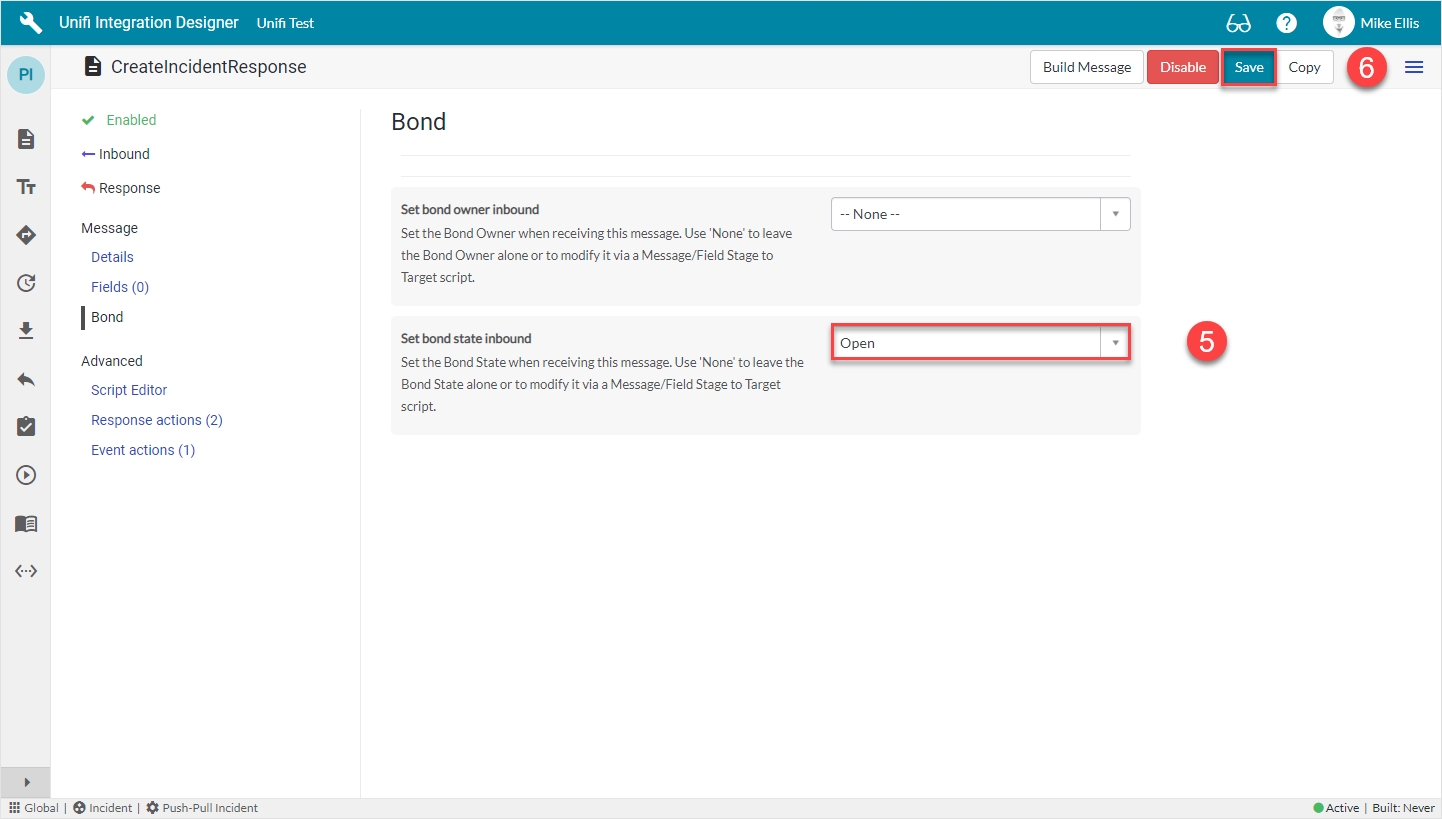
Navigate to Message > Bond.
The Bond fields to be configured are as follows:
Set bond state inbound*
Set the Bond State when receiving this message. Use 'None' to leave the Bond State alone or to modify it via a Message/Field Stage to Target script.
'Open'
Your Bond form should look like this:
Click Save.
We are now ready to configure the Fields for our CreateIncidentResponse Message.
Message name
The message name that is unique for this integration.
'Response'
Type
The primary purpose of the message.
'Response'
Direction
The direction(s) this message is configured to support. (Choices: Inbound, Outbound, Bidirectional)
'Inbound'
We will test our ResolveIncident Message.
Navigate to < Your Incident > created in the earlier test.
Update the Incident record as follows:
Your Incident record should look like this:
Right-click & Save.
You should see an Info Message, confirming the ResolveIncident Message is being sent to your Integration:
The Activities stream is updated with the details:
Click through to the Bond record from the related list on the Incident.
Your Bond record should have been updated as follows:
Transaction:
Message: 'Resolveincident'
Direction: 'Outbound'
Transaction state: 'Complete' (The data has been successfully transported)
Process state: 'Accepted' (The transaction was accepted as within the scope of the business logic that's in place)
Click through to the Transaction record from the related list on the Bond.
Your Transaction record should look like this:
Transaction details:
Table: 'Incident [incident]'
Document: < Your Incident >
Integration: < Your Integration >
Connection: < Your Connection >
Errors:
Error: (If there was a transactional error the Transaction state would show as 'Error' and the details would be captured here).
Process error: (If there was a process error the Process state would show as 'Rejected' and the details would be captured here)
Stage:
Direction: 'Outbound'
Message: 'ResolveIncident'
Internal reference: < ServiceNow ticket reference > (Same as 'Document')
External reference: < External system's ticket reference >
Click through to the Stage record from the related list on the Transaction.
Check the values in the fields match what you expect.
Your Stage record should look like this:
Stage details:
Direction: 'Outbound'
External reference: < External system's ticket reference >
Internal reference: < ServiceNow ticket reference >
Snapshot: < Snapshot record reference >
Mapped Staged Data fields:
close_code: < Your Resolution code >
close_notes: < Your Resolution notes >
state: '6'
Click through to the HTTP Request record from the related list on the Transaction.
Your HTTP Request record should look like this:
HTTP Request details:
Integration: < Your Integration >
Connection: < Your Connection >
Transaction: < Your Transaction >
Message: 'ResolveIncident'
Response details:
Status code: '200'
Response headers: < The header of the response being received >
Response payload: < The payload of the response being received >
Navigate to the corresponding Incident in the external system.
Check the values in the fields match those you noted when you saved the Incident in the internal system.
Your external system's Incident record should look like this (depending on the system you're integrating with, your record may look different; the important matter is that the values match):
State: 'Resolved'
Activities: < Your Resolution code/notes & State > (added by < your.external.system.user >)
Navigate to the Resolution Information tab.
Your Resolution Information tab should look like this:
Resolution code: < Your Resolution code >
Resolution notes: < Your Resolution notes >
So far, when configuring our scenarios we have built the Message Scripts for each Message individually. Let's now see how we can run the Build process at the Integration level.
We will test our UpdateIncident Message.
Navigate to < Your Incident > created in the previous test.
Your Incident record should look like this:
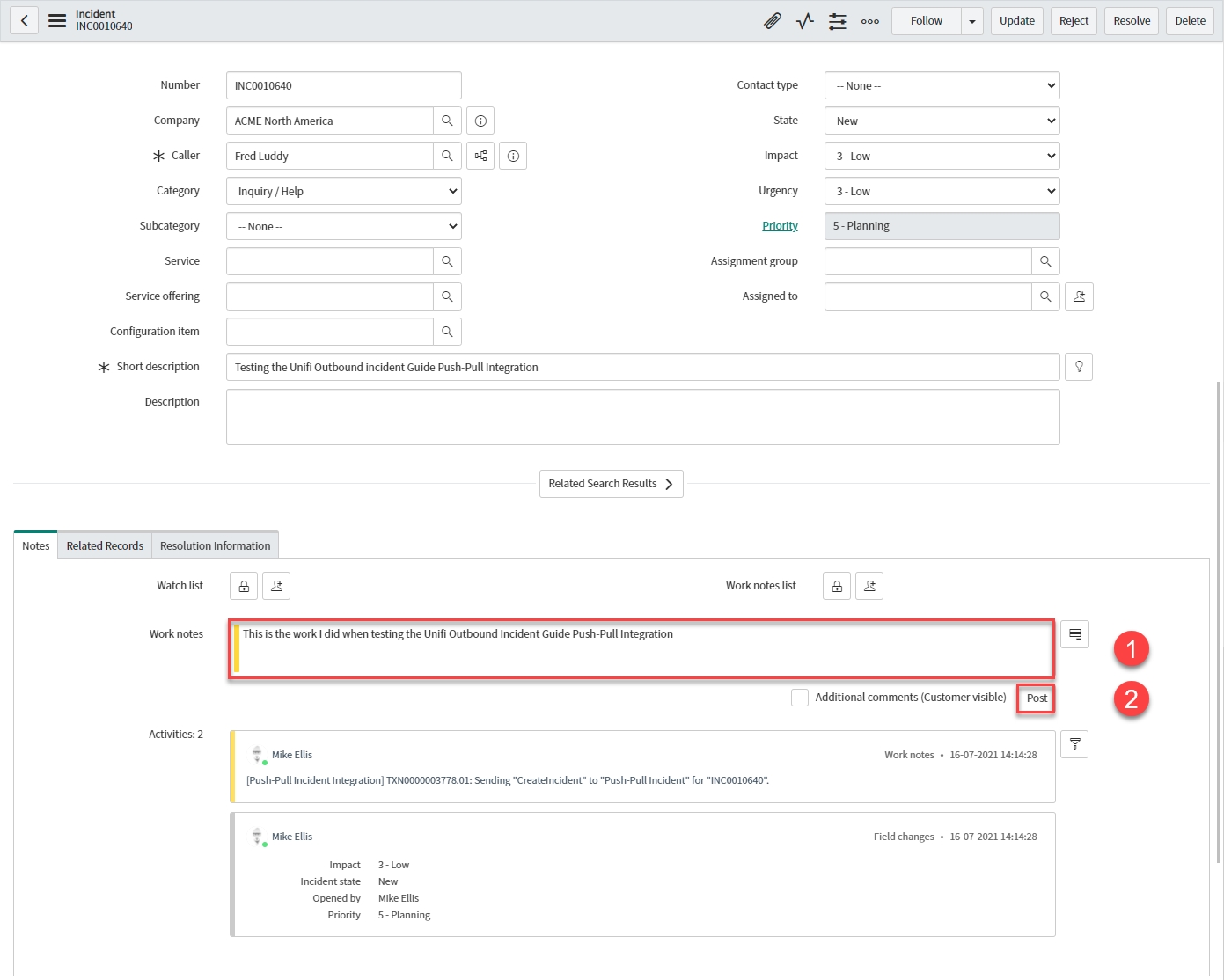
Enter < Your Work notes > in the 'Work notes' field.
Click Post.
The following activities are added to the 'Notes' tab (confirming sending the UpdateIncident Message to your integration):
Click through to the Bond record from the related list on the Incident.
Your Bond record should have been updated as follows:
Transaction:
Message: 'Updateincident'
Direction: 'Outbound'
Transaction state: 'Complete' (The data has been successfully transported)
Process state: 'Accepted' (The transaction was accepted as within the scope of the business logic that's in place)
Click through to the Transaction record from the related list on the Bond.
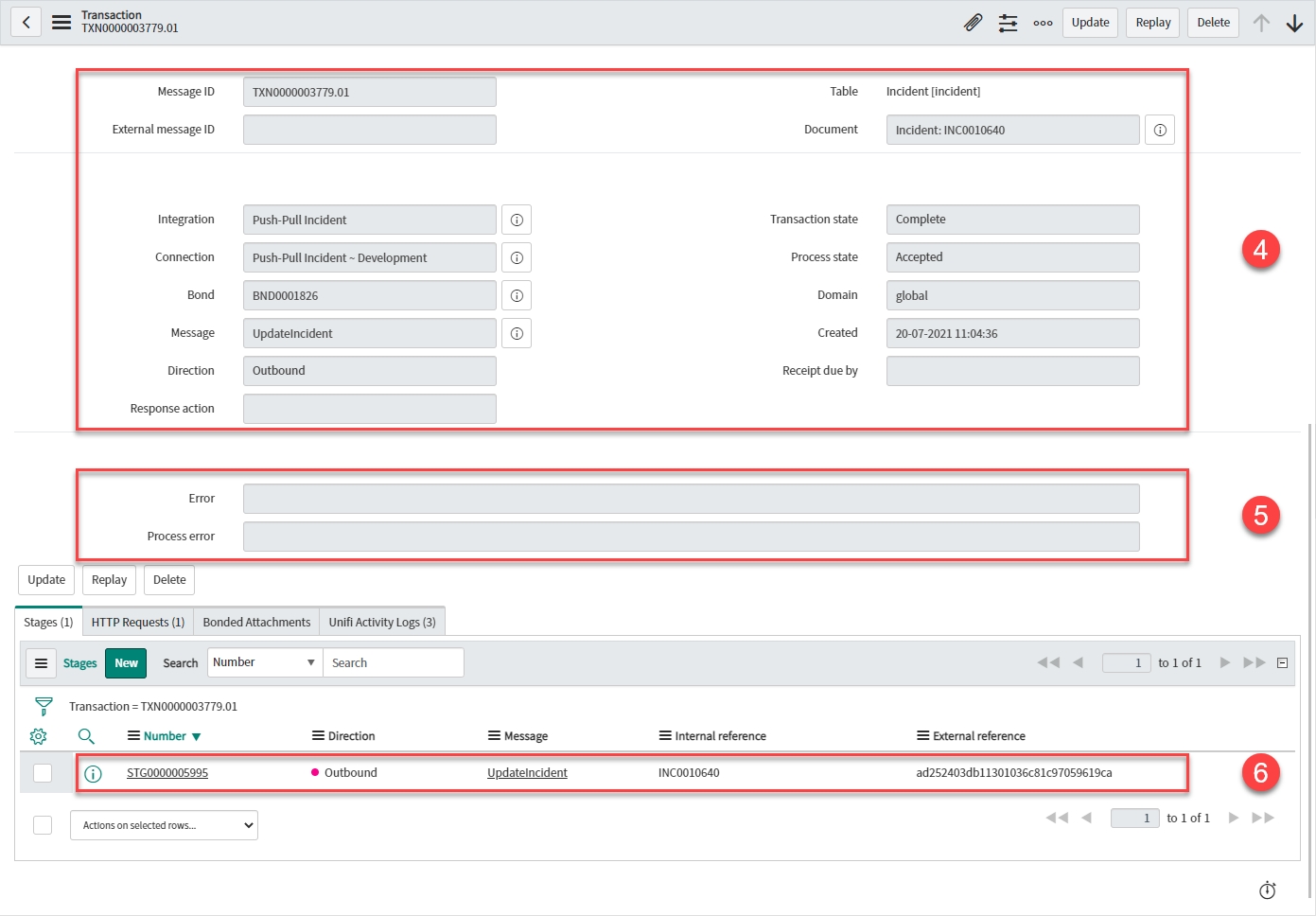
Your Transaction record should look like this:
Transaction details:
Table: 'Incident [incident]'
Document: < Your Incident >
Integration: < Your Integration >
Connection: < Your Connection >
Errors:
Error: (If there was a transactional error the Transaction state would show as 'Error' and the details would be captured here).
Process error: (If there was a process error the Process state would show as 'Rejected' and the details would be captured here)
Stage:
Direction: 'Outbound'
Message: 'UpdateIncident'
Internal reference: < ServiceNow ticket reference > (Same as 'Document')
External reference: < External system's ticket reference >
Click through to the Stage record from the related list on the Transaction.
Check the values in the fields match what you expect.
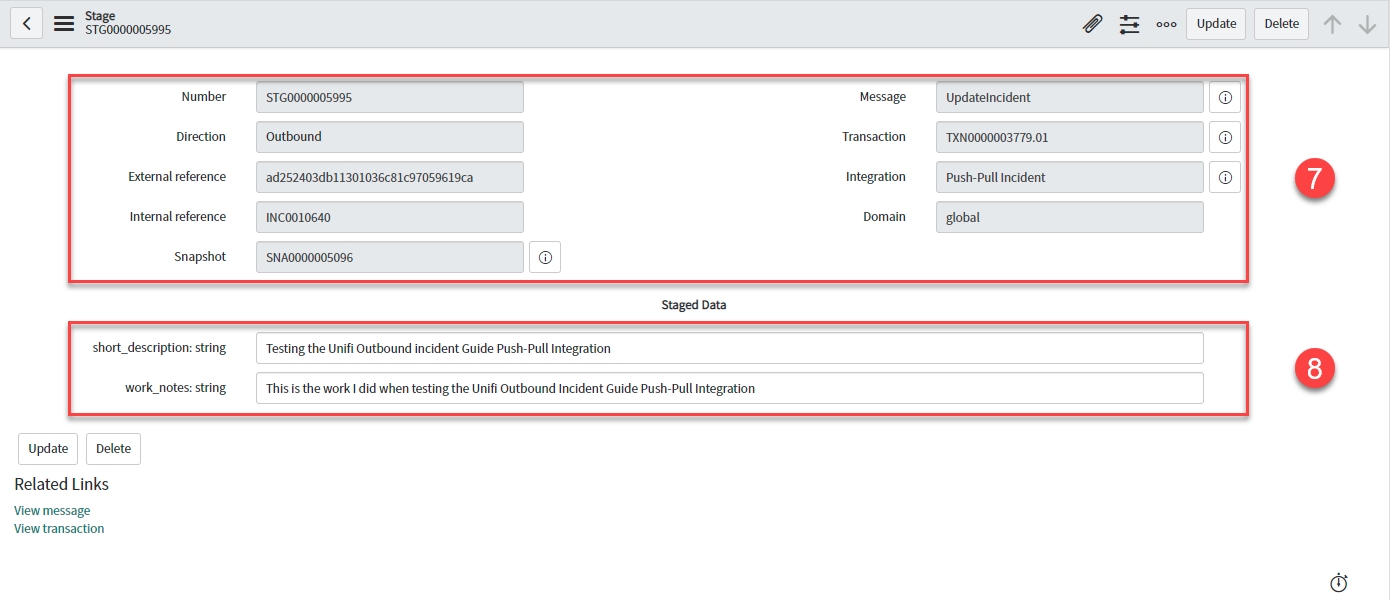
Your Stage record should look like this:
Stage details:
Direction: 'Outbound'
External reference: < External system's ticket reference >
Internal reference: < ServiceNow ticket reference >
Snapshot: < Snapshot record reference >
Mapped Staged Data fields:
Work notes: < Your Work note >
Click through to the HTTP Request record from the related list on the Transaction.
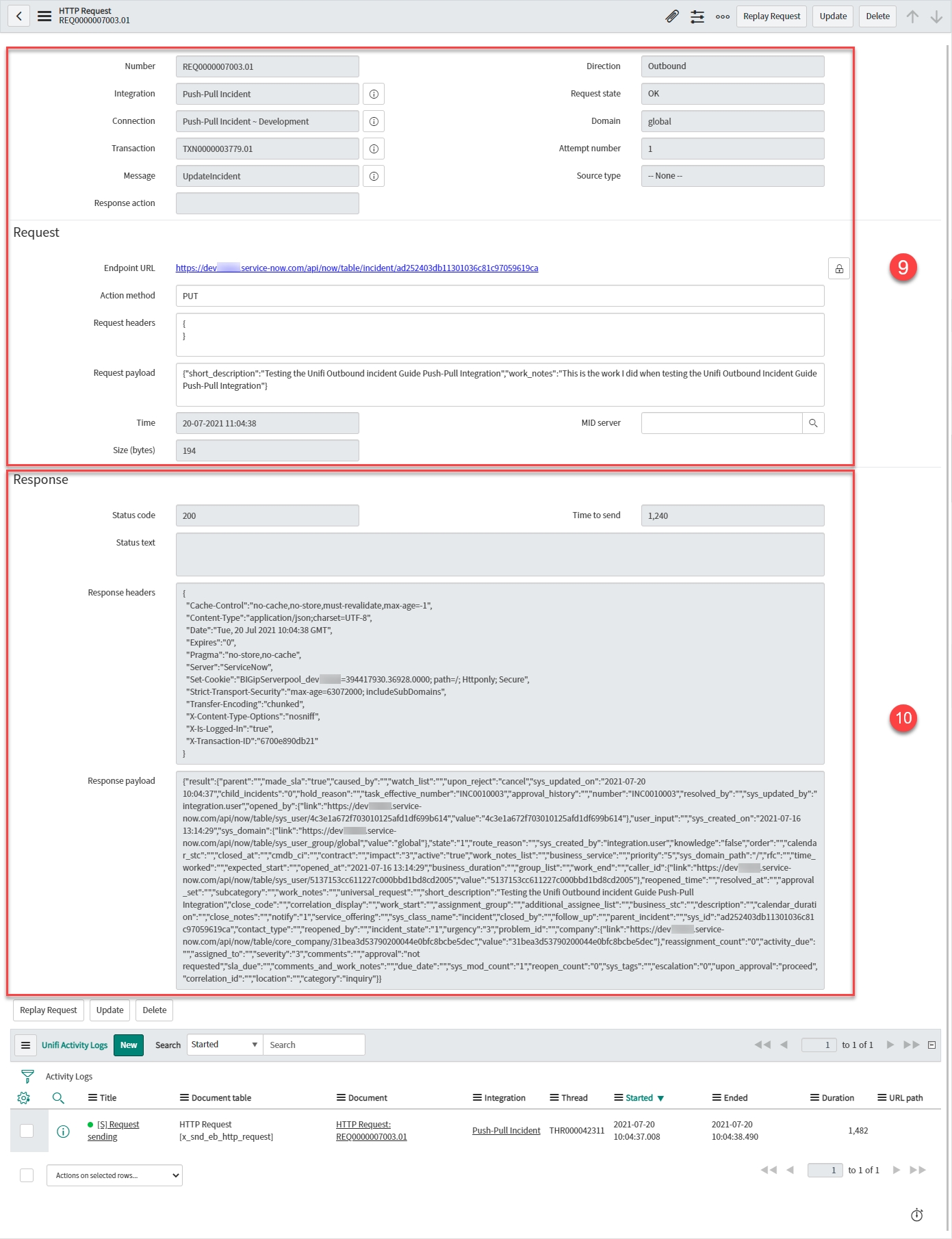
Your HTTP Request record should look like this:
HTTP Request details:
Integration: < Your Integration >
Connection: < Your Connection >
Transaction: < Your Transaction >
Message: 'UpdateIncident'
Response details:
Status code: '200'
Response headers: < The header of the response being received >
Response payload: < The payload of the response being received >
Navigate to the corresponding Incident in the external system.
Check the values in the fields match those you noted when you saved the Incident in the internal system.
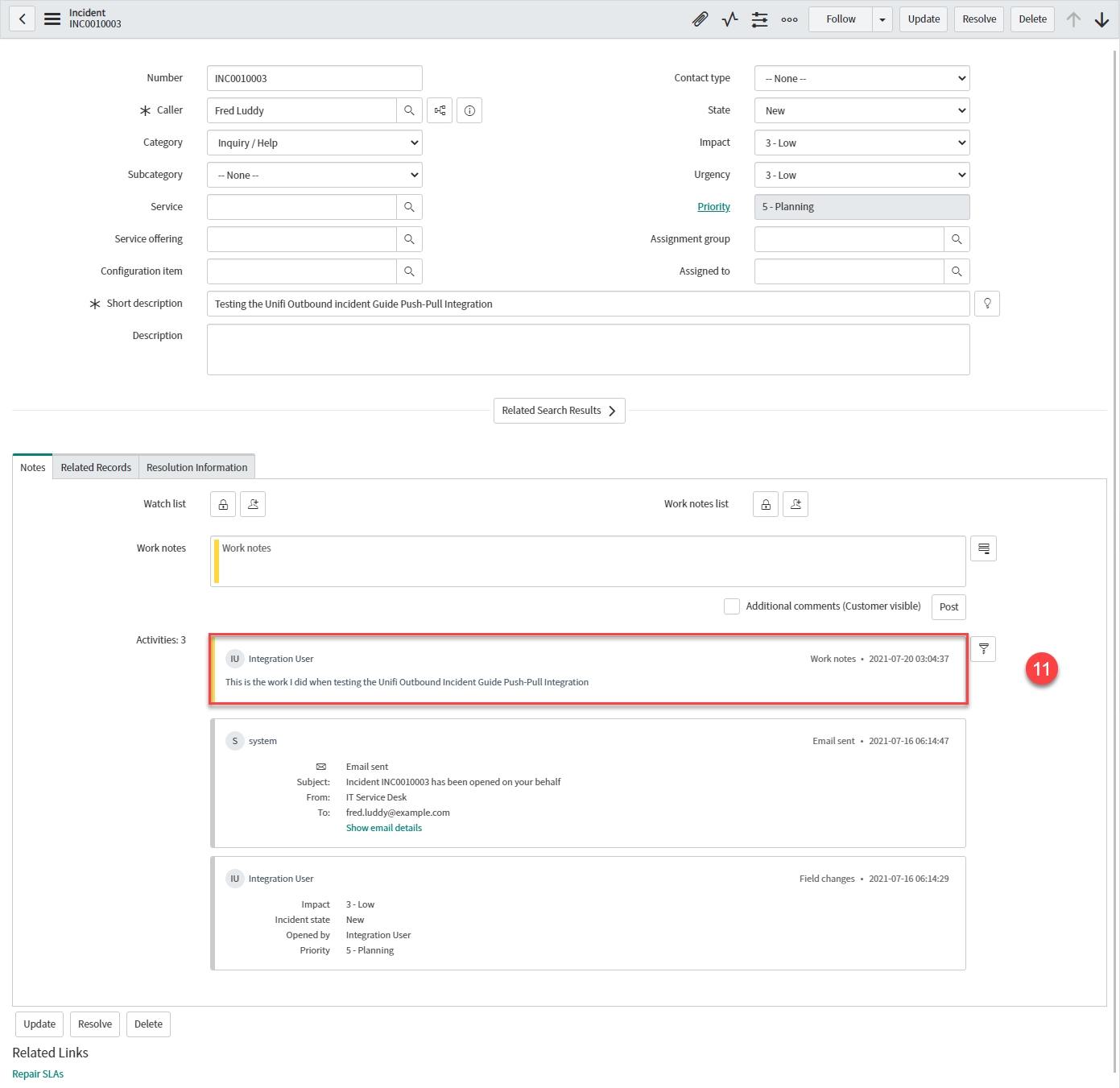
Your external system's Incident record should look like this (depending on the system you're integrating with, your record may look different; the important matter is that the values match):
Activities: < Your Work note > (added by < your.external.system.user >)
Repeat the steps above - this time placing a check in the 'Additional comments (Customer visible)' checkbox.
What do you expect to happen?
The CreateIncident Message will create a ticket on the target table of the integrated system.

Bond: < Your Bond >
Message: 'ResolveIncident'
Direction: 'Outbound'
Transaction state: 'Complete' (The data has been successfully transported)
Process state: 'Accepted' (The transaction was accepted as within the scope of the business logic that's in place)
Message: 'ResolveIncident'
Transaction: < Your Transaction >
Integration: < Your Integration >
Direction: 'Outbound'
Request state: 'OK' (There are no errors with the HTTP Request.)
Attempt number: < Number of HTTP Request attempts > (Failed requests are retried up to the maximum attempts number as configured on the Integration.)
Endpoint URL: < The external system’s access URL >
Action Method: 'PUT'
Request headers: < The header of the request being sent >
Request payload: < The payload of the request being sent >
State
The Incident lifecycle state.
'Resolved'
Resolution code
The Incident resolution code.
<Your Resolution code>
Resolution notes
The Incident resolution notes.
<Your Resolution notes>
Bond: < Your Bond >
Message: 'UpdateIncident'
Direction: 'Outbound'
Transaction state: 'Complete' (The data has been successfully transported)
Process state: 'Accepted' (The transaction was accepted as within the scope of the business logic that's in place)
Message: 'UpdateIncident'
Transaction: < Your Transaction >
Integration: < Your Integration >
Direction: 'Outbound'
Request state: 'OK' (There are no errors with the HTTP Request.)
Attempt number: < Number of HTTP Request attempts > (Failed requests are retried up to the maximum attempts number as configured on the Integration.)
Endpoint URL: < The external system’s access URL >
Action Method: 'PUT'
Request headers: < The header of the request being sent >
Request payload: < The payload of the request being sent >
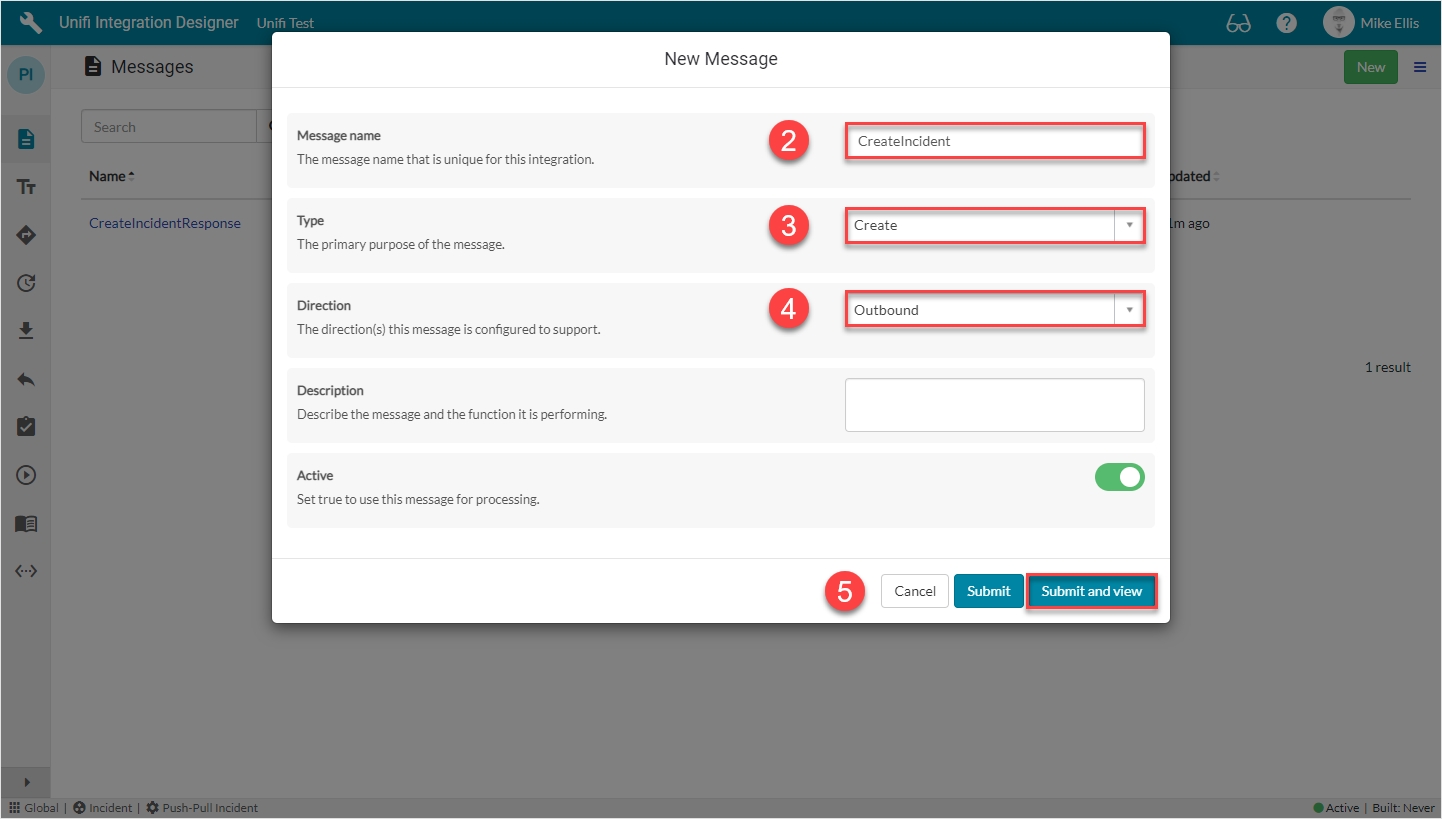
Message name
The message name that is unique for this integration.
'CreateIncident'
Type
The primary purpose of the message.
'Create'
Direction
The direction(s) this message is configured to support.
'Outbound'
Your CreateIncident New Message modal should look like this:
Submit and view to further configure the Message.
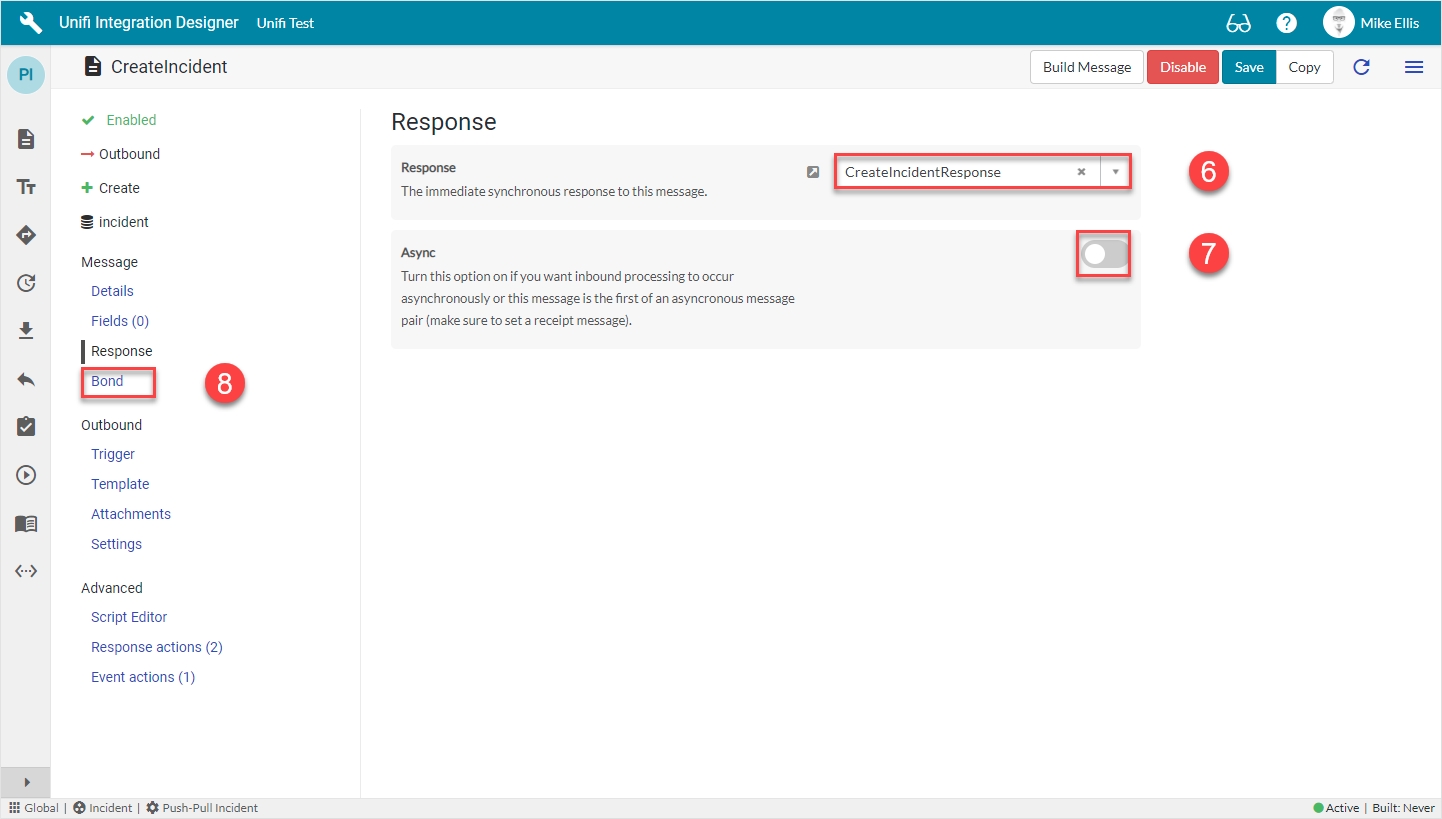
Navigate to Message > Response.
The Response fields to be configured are as follows:
Response
The immediate synchronous response to this message.
lookup: 'CreateIncidentResponse'
Async*
Turn this option on if you want inbound processing to occur asynchronously or this message is the first of an asynchronous message pair.
<false>
*This field is automatically defaulted to true.
Your Response form should look like this:
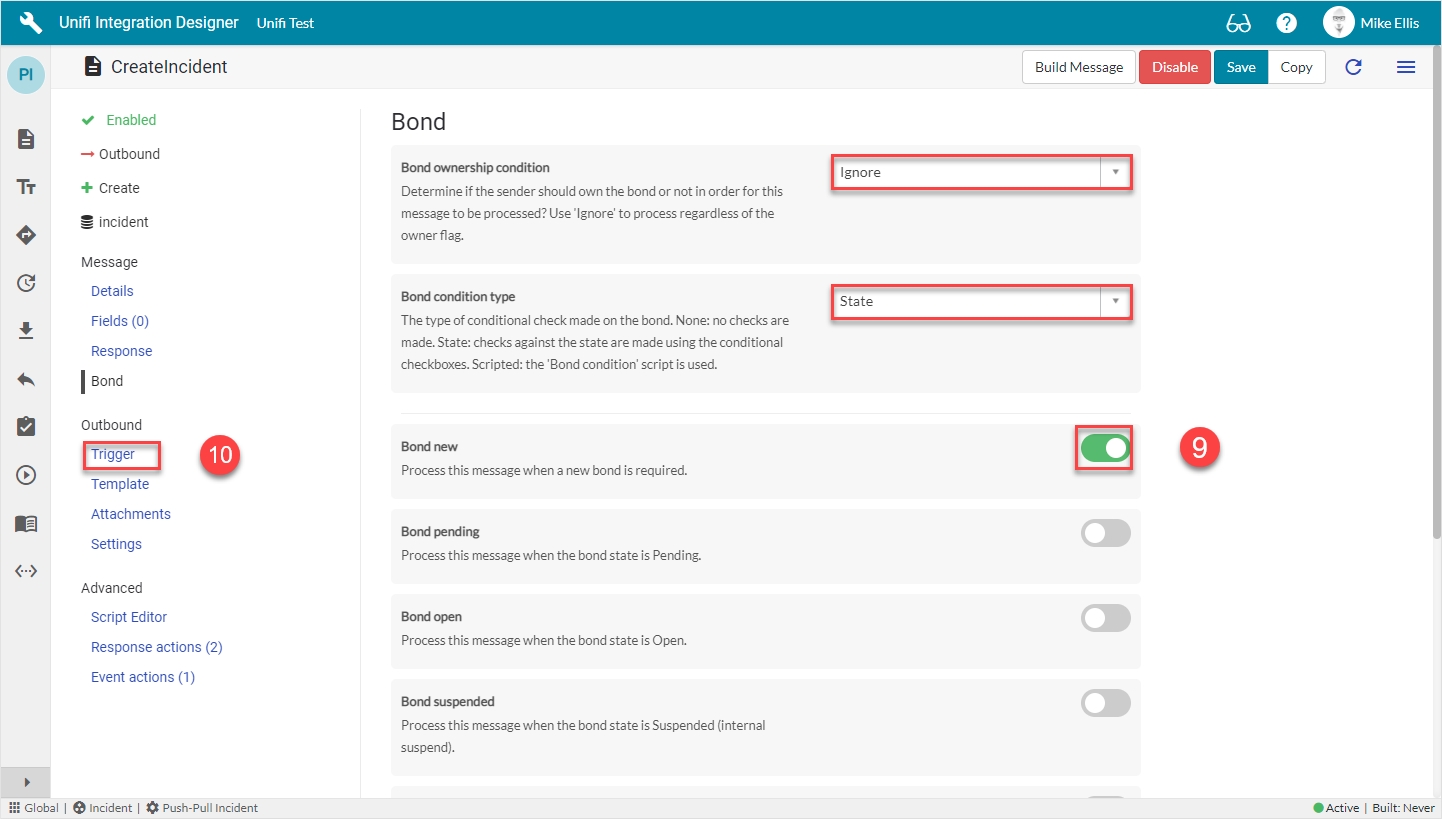
Navigate to Message > Bond.
The Bond fields to be configured are as follows:
Bond ownership*
Determine if the sender should own the bond or not in order for this message to be processed? Use 'Ignore' to process regardless of the owner flag. (Choices: Ignore, Must own, Must not own.)
'Ignore'
Bond condition type*
The type of conditional check made on the bond. (None: no checks are made. State: checks against the state are made using the conditional checkboxes. Scripted: the 'Bond condition' script is used.)
'State'
Bond new
Process this message when a new bond is required.
<true>
*These fields are automatically populated.
Your Bond form should look like this:
Navigate to Outbound > Trigger.
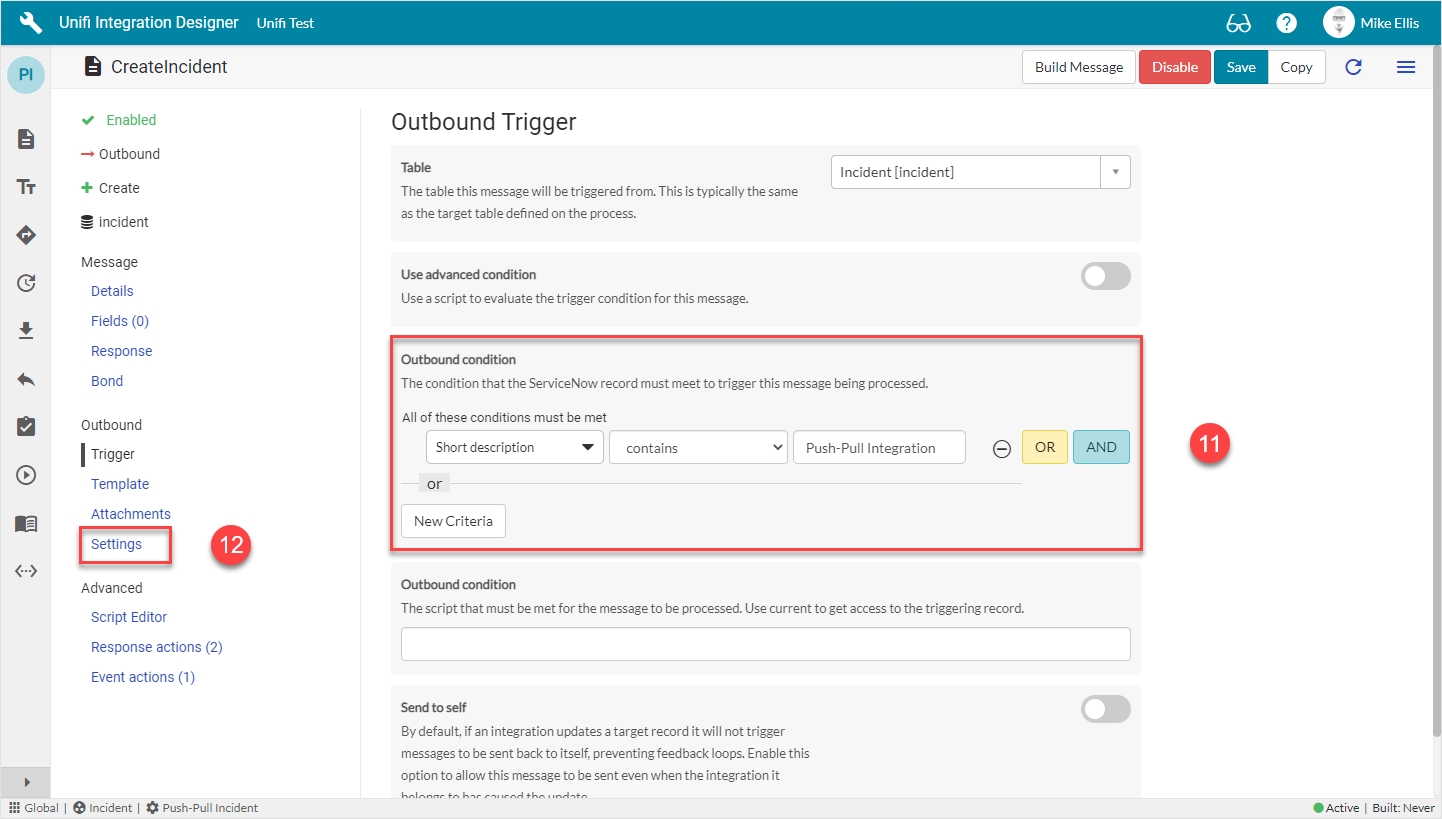
The Outbound Trigger fields to be configured (as required)* are as follows:
Outbound condition*
The condition that the ServiceNow record must meet to trigger this message being processed.
<Your condition> e.g. 'Short description contains Push-Pull Integration'
Your Outbound Trigger form should look like this:
Navigate to Outbound > Settings.
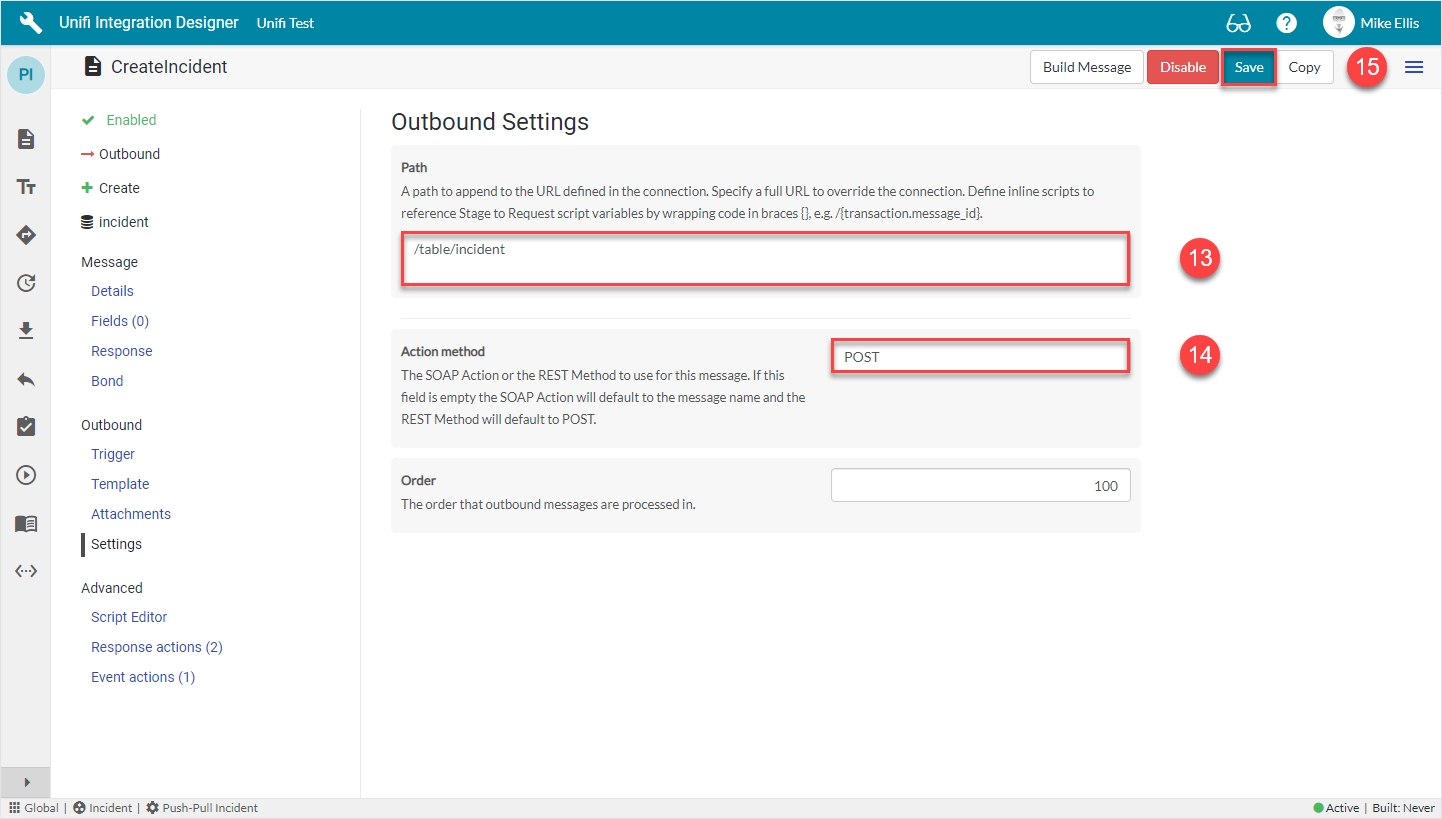
The Outbound Settings fields to be configured are as follows:
Path*
A path to append to the URL defined in the connection. Specify a full URL to override the connection. Define inline scripts to reference Stage to Request script variables by wrapping code in braces {}, e.g. /{transaction.message_id}.
'/table/incident'
Action method
The SOAP Action or the REST Method to use for this message. If this field is empty the SOAP Action will default to the message name and the REST Method will default to POST.
'POST'
Your Outbound Settings form should look like this:
Click Save.
We are now ready to configure the Fields for our CreateIncident Message.
The Connection allows messages to be sent and received and stores all the authentication details of the Integration specific to a single environment.
Before configuring the Connection, you need to ensure you have a user in the instance to use as the Inbound user for the Integration. To configure your Inbound user:
In the native ServiceNow window, navigate to User Administration > Users. Click New.
The fields to be configured for the User record are as follows:
The UpdateIncident Message is an update type message that sends updates to the bonded record.

User ID
The id of the user (to be used by the external system for authentication).
<your.integration_user>
First name
The integration user's first name.
<Your First Name>
Last name
The integration user's last name.
<Your Last Name>
Password
The user's password (to be used in basic authentication).
<Your Password>
Roles
The role required for access to the integrated records.
The x_snd_eb.integration role gives access to the Unifi web services. You may need to assign additional roles depending on the process functionality used i.e. things like gs.hasRole(‘itil’) in business rules/scripts etc.
We will, however, set up only one connection in the 'Development' environment.
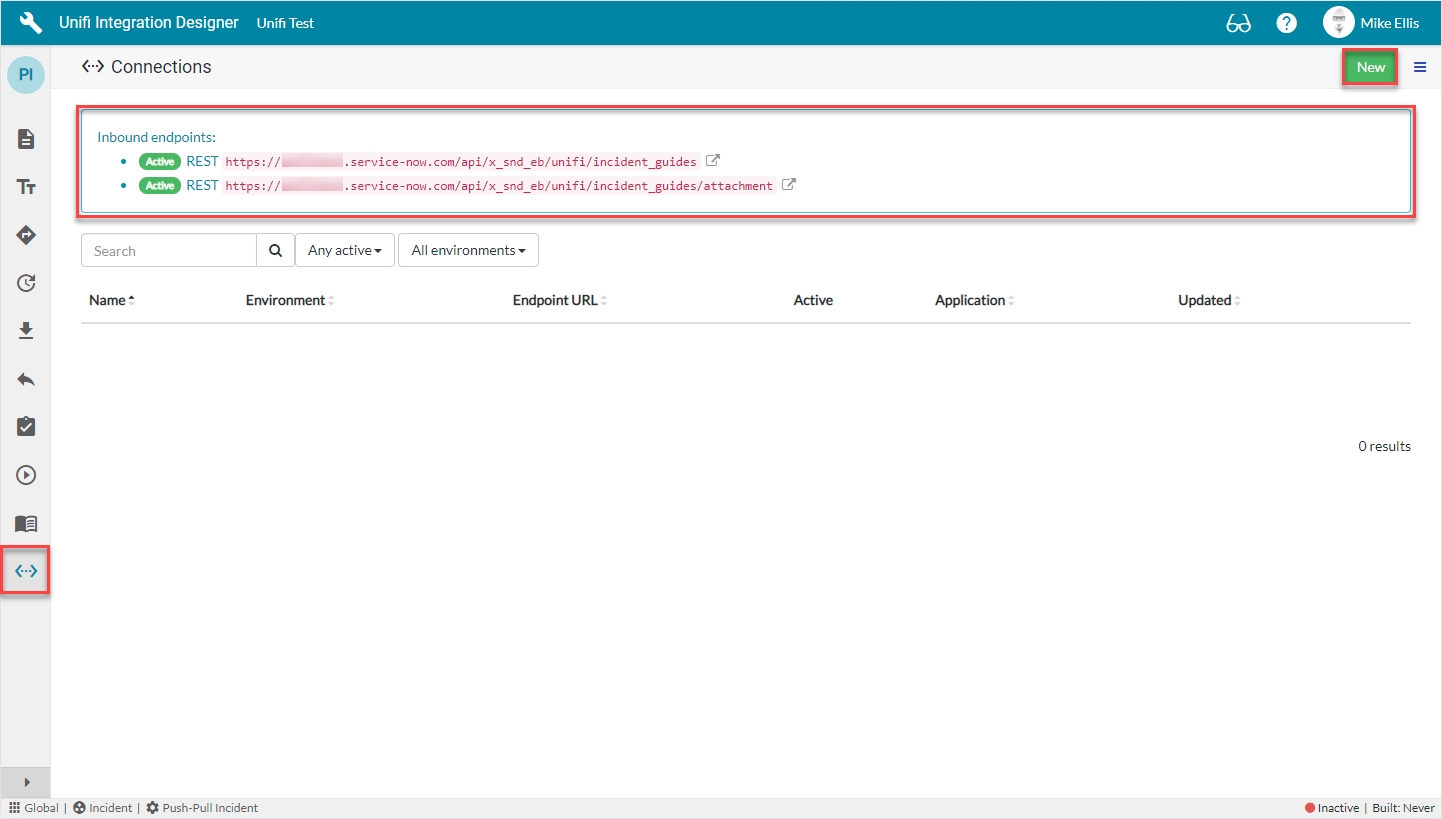
Click New.
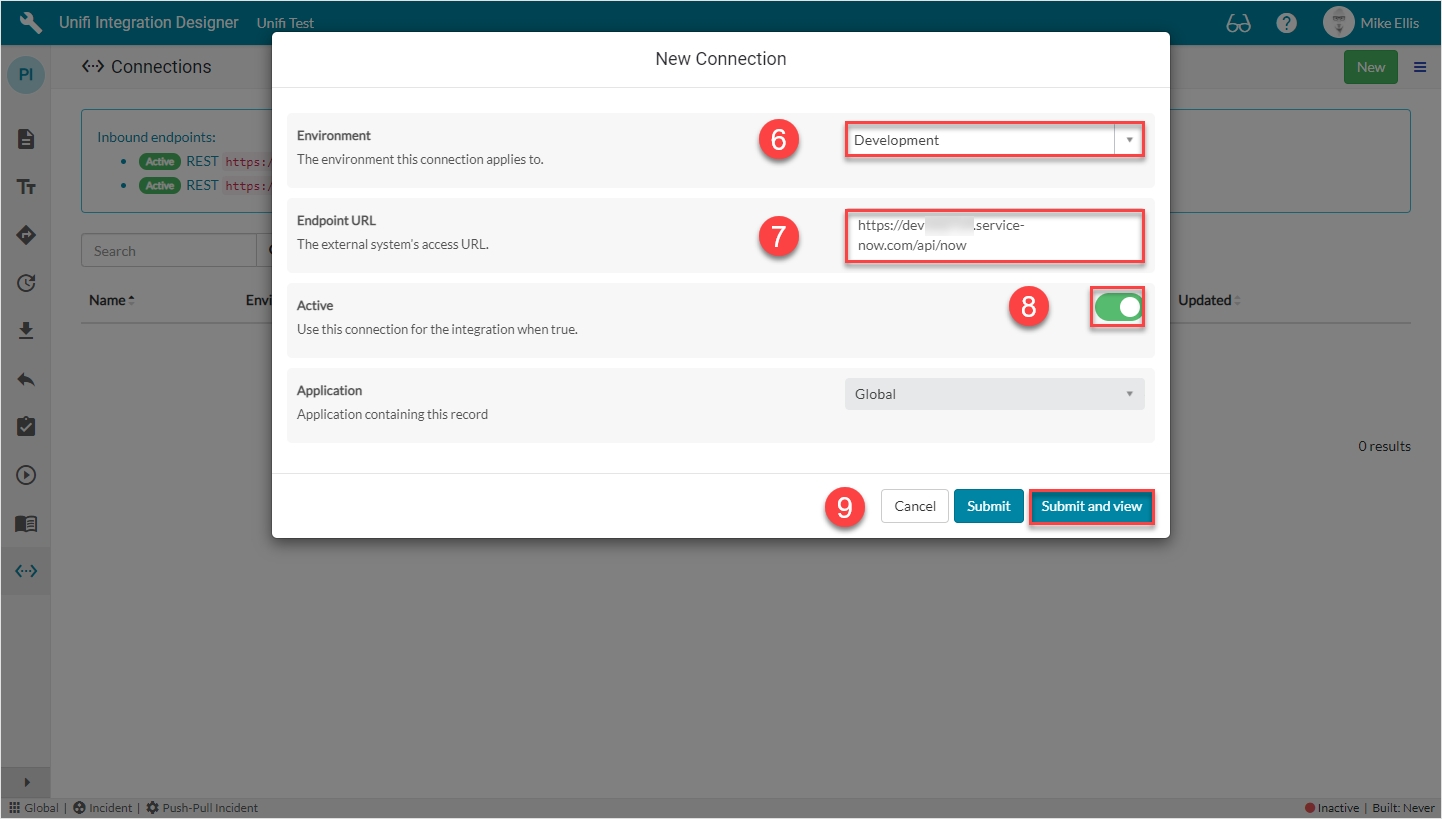
The fields to be configured for the New Connection modal are as follows:
Environment
The environment this connection applies to.
'Development'
Endpoint URL
The external system's access URL.
<External system Endpoint URL>
Active
Use this connection for the integration when true.
<true>
The format of the Endpoint URL for the ServiceNow Table API is as follows:
https://<your_developer_instance>.service-now.com/api/now/table/<table_name>
Your New Connection modal should look like this:
Click 'Submit and view'.
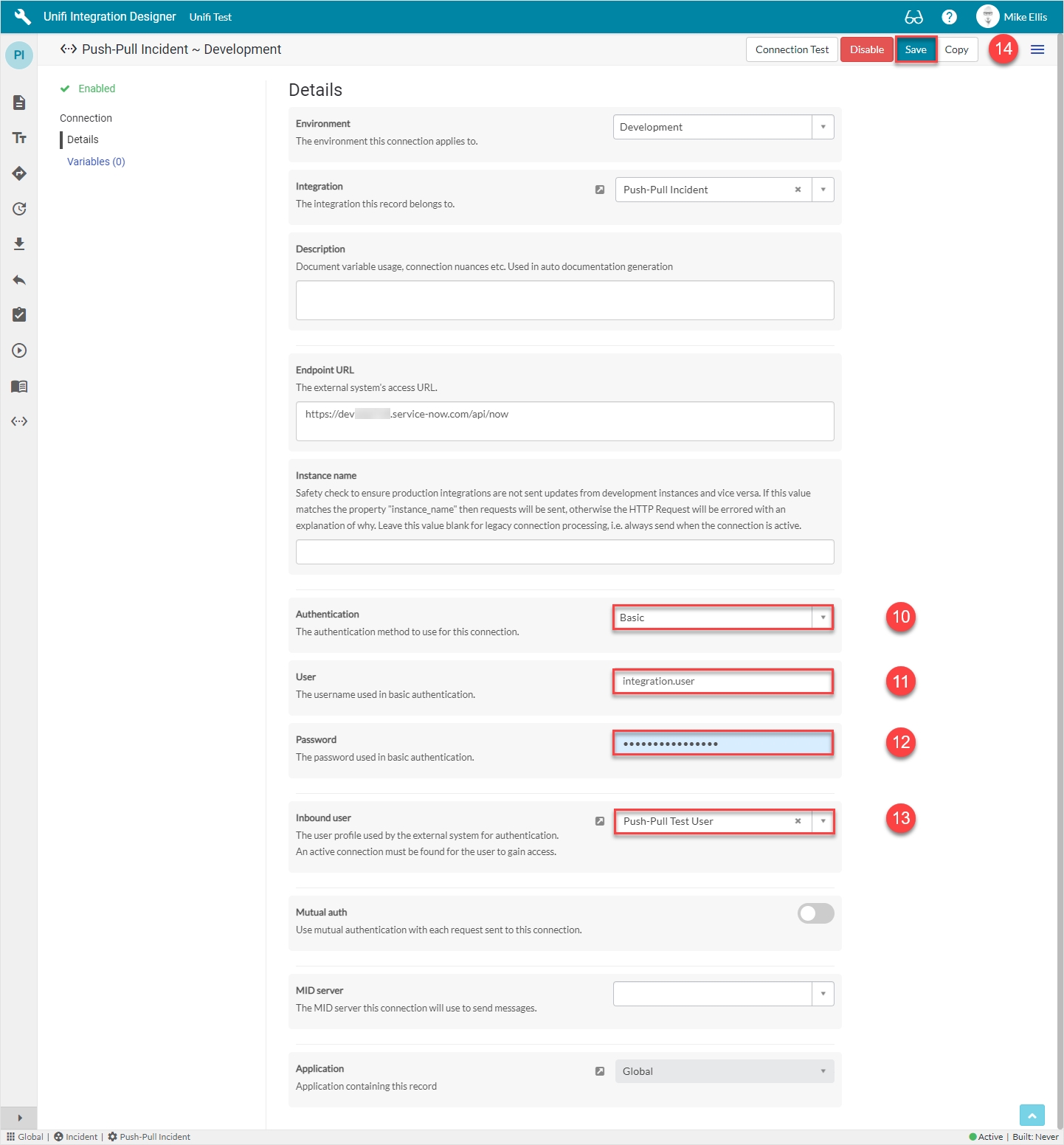
The fields to be configured for the Details form are as follows:
Authentication
The authentication method to use for this connection.
'Basic'
User*
The username used in basic authentication.
<external.system.user>
Password*
The password used in basic authentication.
<External system user password>
Your Details form should look like this:
Save the Connection.
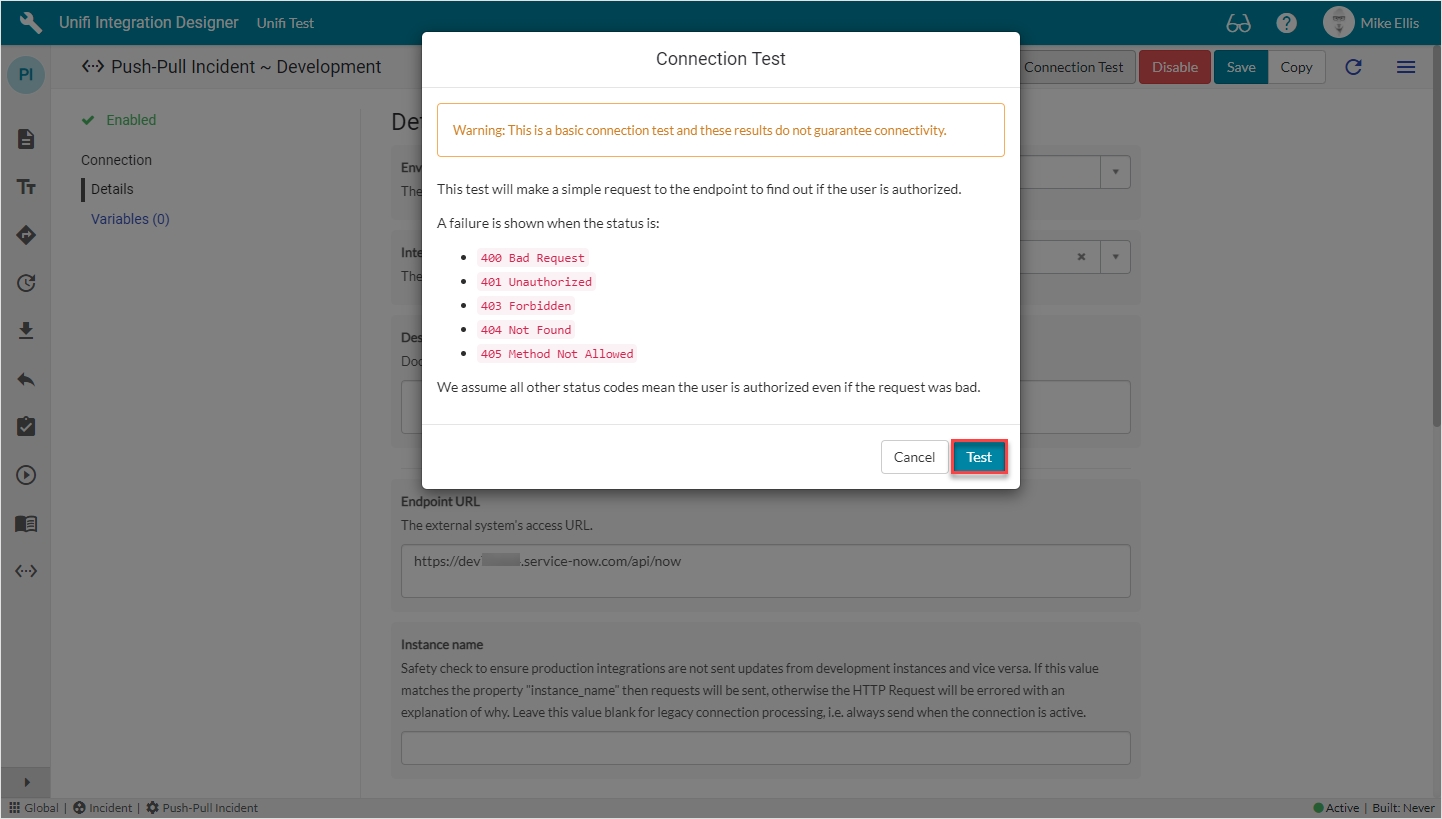
At this stage you can carry our a basic connection test which verifies whether the user is authorized (i.e. whether you've configured the user/password/roles correctly). To do this, click Connection Test.
Then, on the Connection Test modal, click Test.
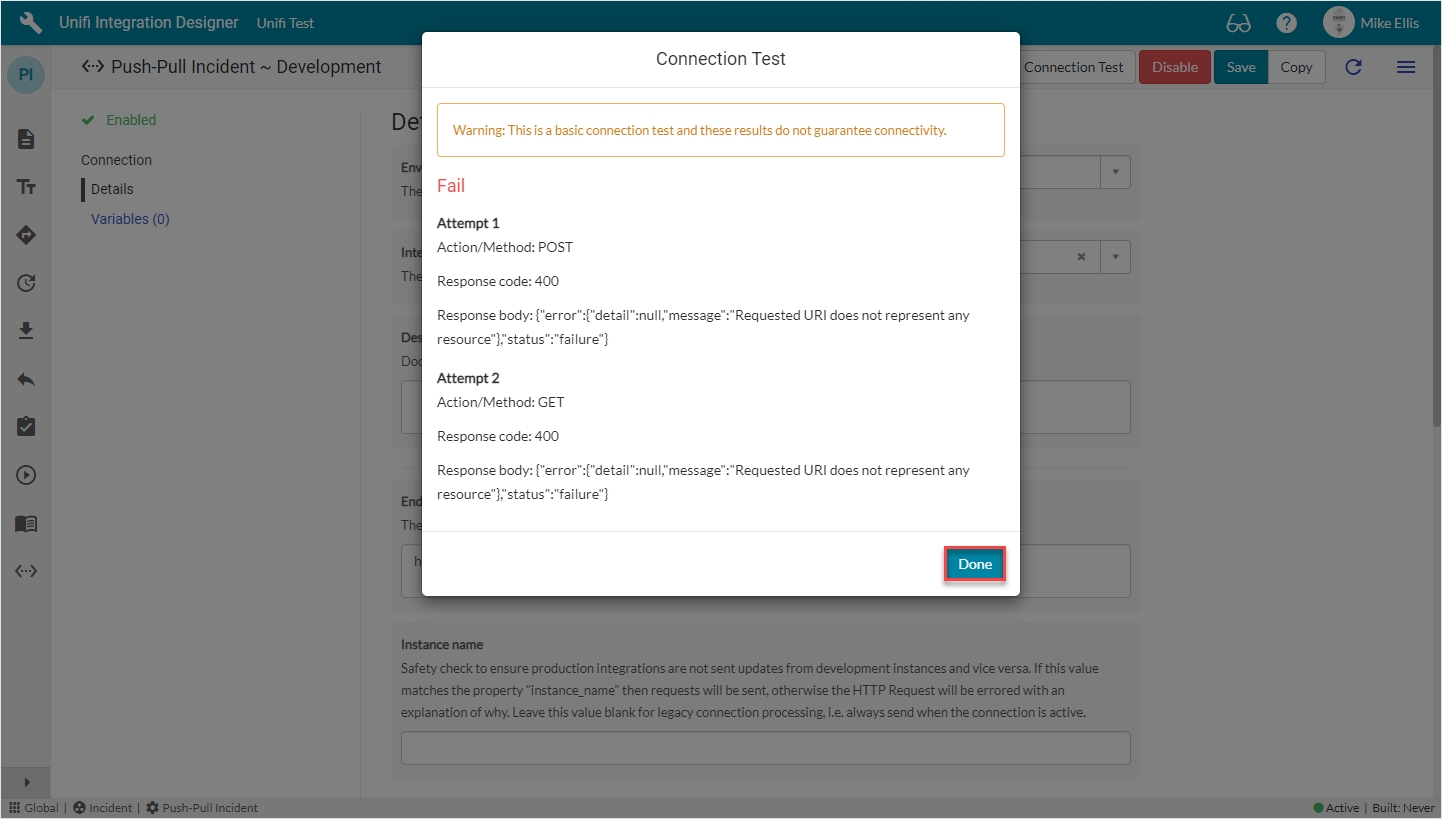
The results (Pass/Fail) will be displayed.
Click Done.
The main, manually configured elements are now in place for our Integration to work. We are now ready to configure and test each of our Scenarios in turn.
Message name
The message name that is unique for this integration.
'UpdateIncident'
Type
The primary purpose of the message.
'Update'
Direction
The direction(s) this message is configured to support.
'Outbound'
Your UpdateIncident New Message modal should look like this:
Submit and view to further configure the Message.
Navigate to Message > Response.
The Response fields to be configured are as follows:
Response
The immediate synchronous response to this message.
lookup: 'Response'
Async*
Turn this option on if you want inbound processing to occur asynchronously or this message is the first of an asynchronous message pair.
<false>
*This field is automatically defaulted to true.
Your Response form should look like this:
Navigate to Message > Bond.
The Bond fields to be configured are as follows:
Bond ownership*
Determine if the sender should own the bond or not in order for this message to be processed? Use 'Ignore' to process regardless of the owner flag. (Choices: Ignore, Must own, Must not own.)
'Ignore'
Bond condition type*
The type of conditional check made on the bond. (None: no checks are made. State: checks against the state are made using the conditional checkboxes. Scripted: the 'Bond condition' script is used.)
'State'
Bond open
Process this message when the bond state is Open.
<true>
*These fields are automatically populated.
Your Bond form should look like this:
Navigate to Outbound > Trigger.
The Outbound Trigger fields to be configured (as required)* are as follows:
Outbound condition*
The condition that the ServiceNow record must meet to trigger this message being processed.
<Your condition> e.g. 'Work notes changes' OR 'Additional comments changes'
Your Outbound Trigger form should look like this:
Navigate to Outbound > Settings.
The Outbound Settings fields to be configured are as follows:
Path*
A path to append to the URL defined in the connection. Specify a full URL to override the connection. Define inline scripts to reference Stage to Request script variables by wrapping code in braces {}, e.g. /{transaction.message_id}.
'/table/incident/{bond.getValue("external_reference")}'
Action method
The SOAP Action or the REST Method to use for this message. If this field is empty the SOAP Action will default to the message name and the REST Method will default to POST.
'PUT'
Your Outbound Settings form should look like this:
Click Save.
We are now ready to configure the Fields for our UpdateIncident Message.
We will utilise the Field & Field Map records to configure the Message Scripts for the CreateIncidentResponse Message.
The Field Map we shall use for our CreateIncidentResponse Field record is:
Source Reference
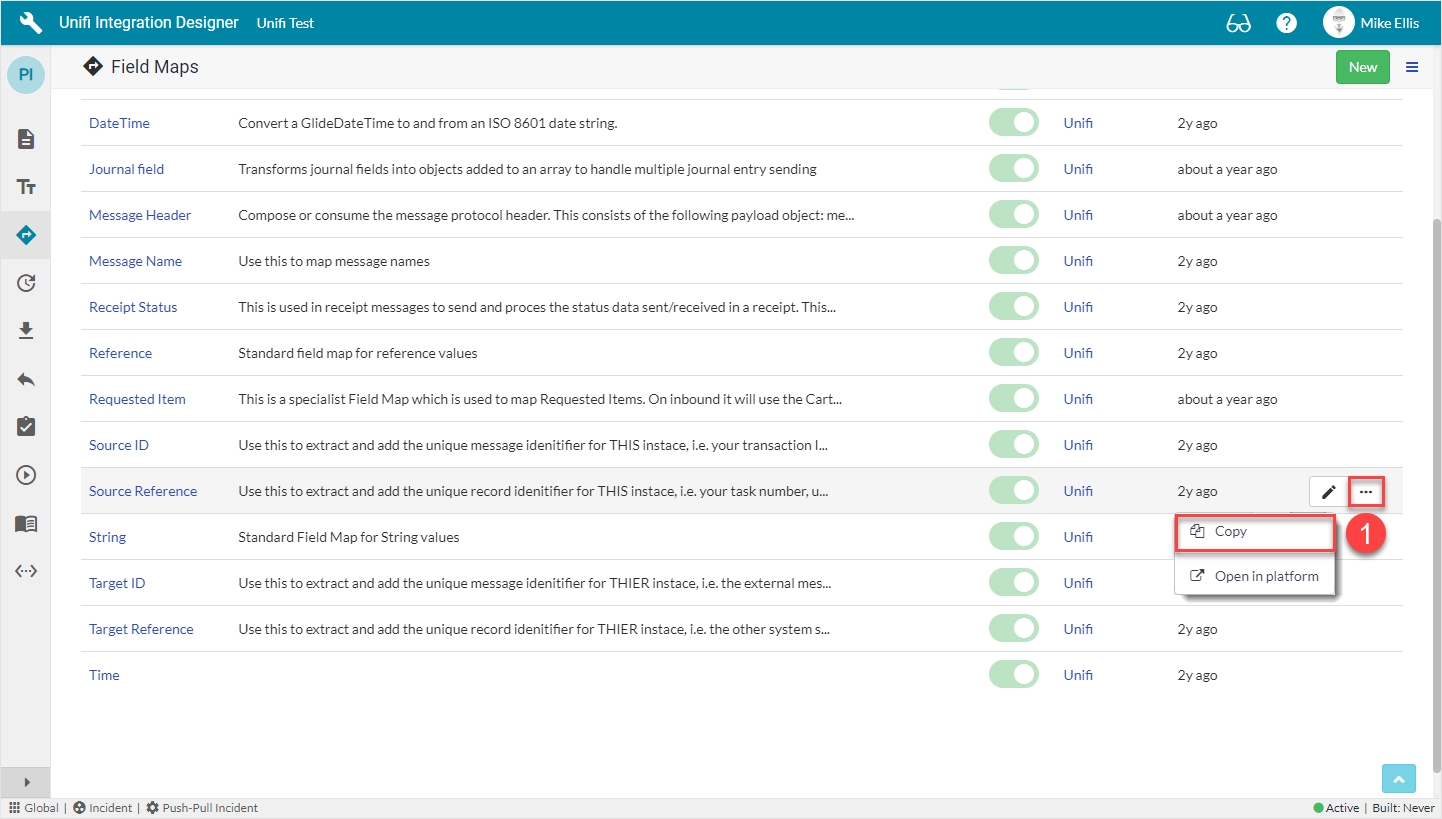
To copy the Source Reference Field Map, navigate to the 'Field Maps' icon.
Click on the ellipsis to the right of the Source Reference Field Map & click Copy.
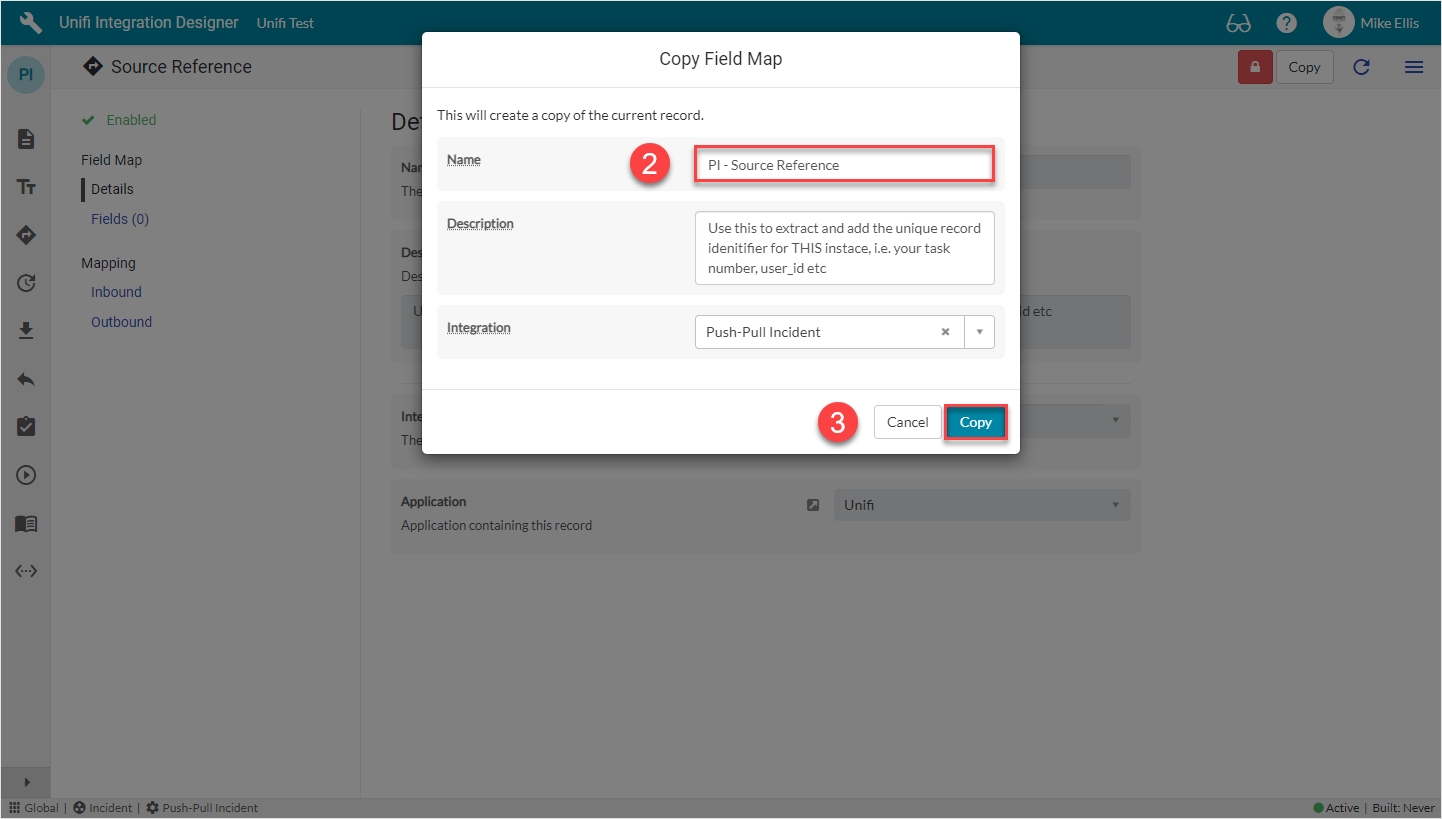
The fields to edit for the Copy Field Map modal are as follows:
*Name: We have chosen to prefix the existing Field Map Name with the initials of our Integration (you are free to choose any appropriate means of identifying/differentiating your copy).
Your Copy Field Map modal should look like this:
Click Copy.
You will be redirected to the Details page of the newly created Field Map.
In Unifi Integration Designer, from the CreateIncidentResponse page, navigate to Message > Fields. Click New.
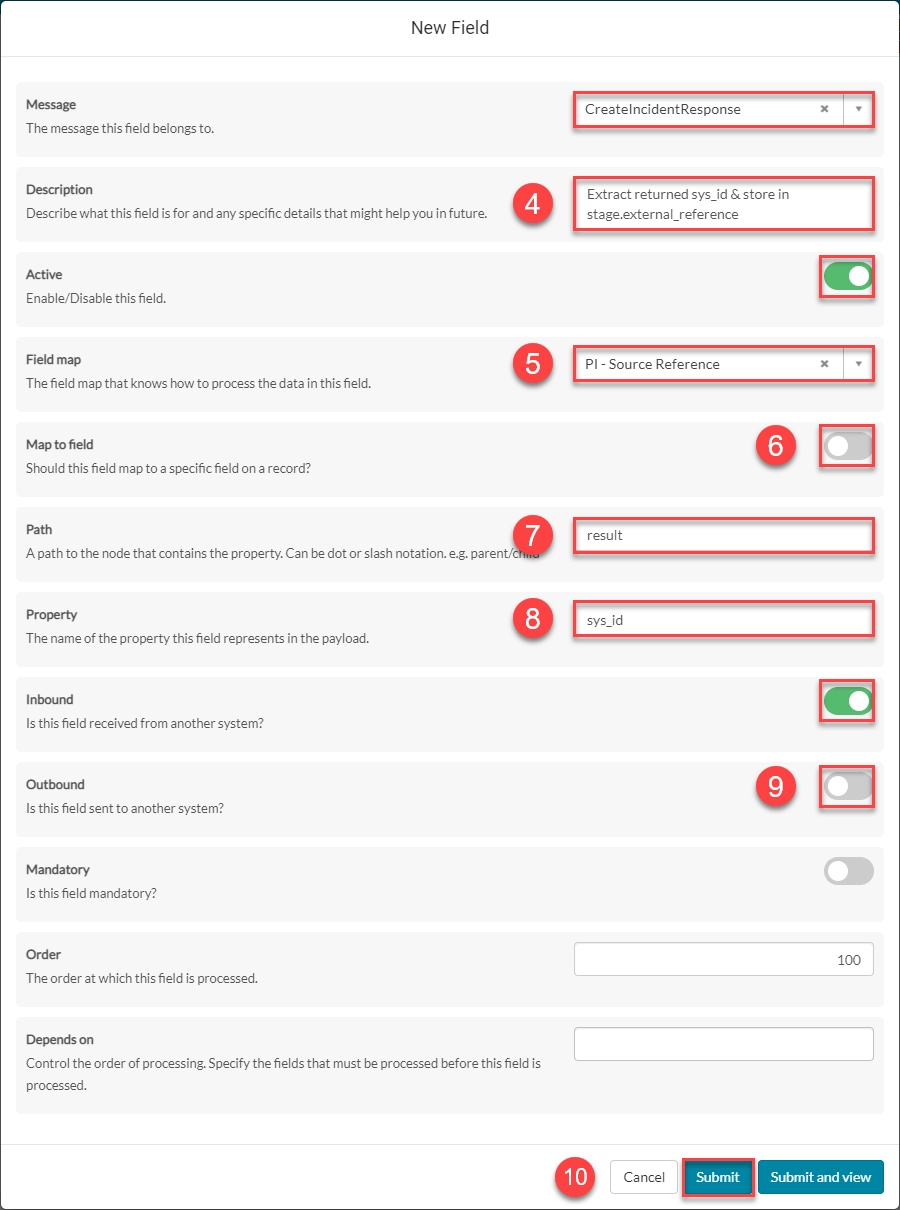
The fields to be configured for the sys_id New Field modal are as follows:
*These fields are automatically defaulted to true, or automatically populated.
**Field map: Value may vary. Choose the copy Field Map you created for your Integration.
The 'result.sys_id' New Field modal should look like this:
Submit the record.
You will be redirected back to the Fields page of the CreateIncidentResponse Message.
Now that we’ve configured the Field records for the CreateIncidentResponse message, we are ready to build our message scripts.
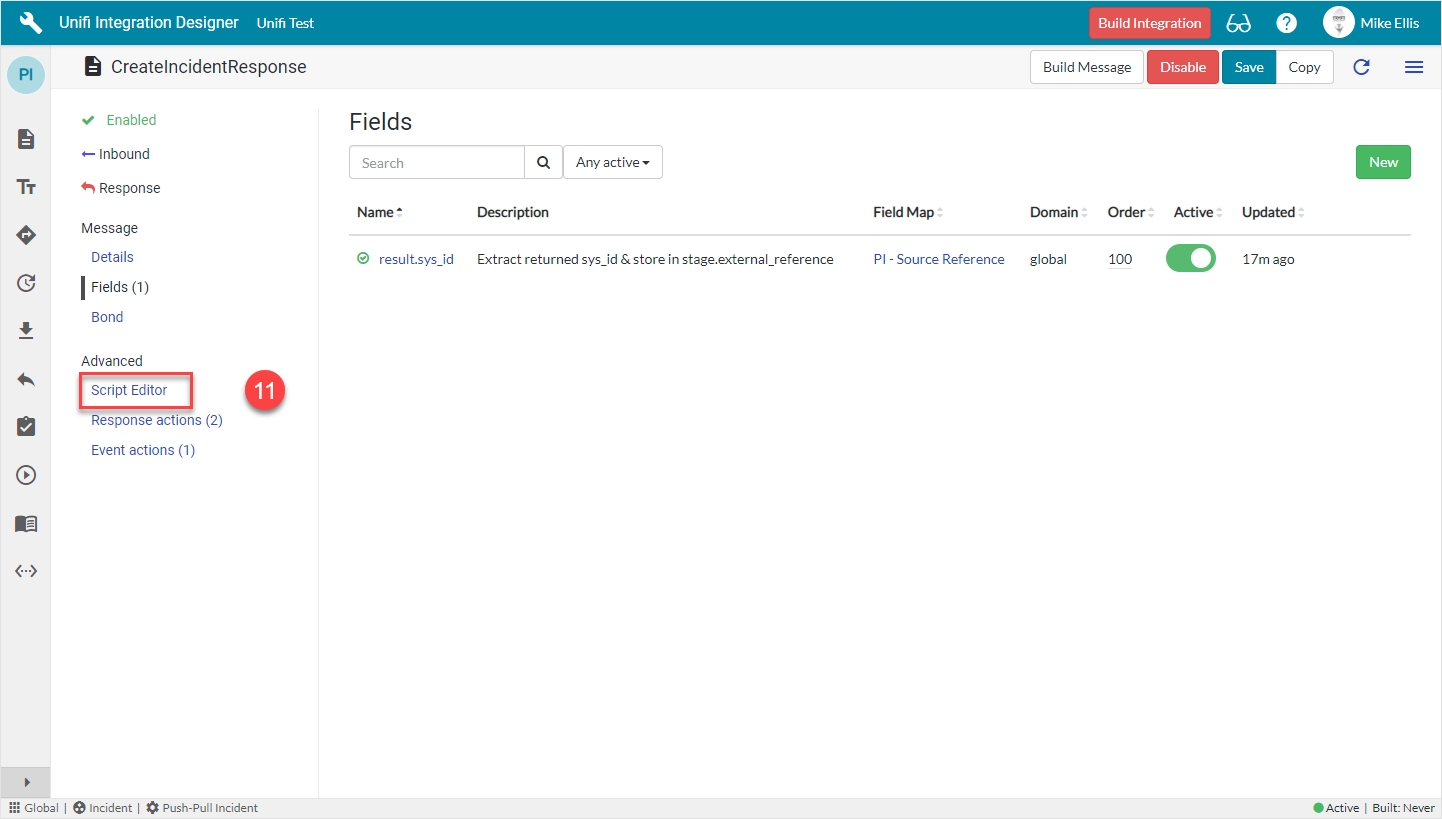
The following Field record should now be in place for your CreateIncidentResponse messsage:
Feature Alert: In the picture above you will notice that a 'Build Integration' button has appeared in the banner at the top of the page. Whenever a change is made to a Field record that is associated to a Message (whether that is being created, updated, or deleted) the button will be available and acts as a visual reminder that changes have been made and Message Script(s) need to be built. We will talk more about this feature in the page.
Navigate to Advanced > Script Editor.
When you first open the Script Editor, you will see the following:
Having visibility of your message scripts in the one pane makes scripting so much more efficient.
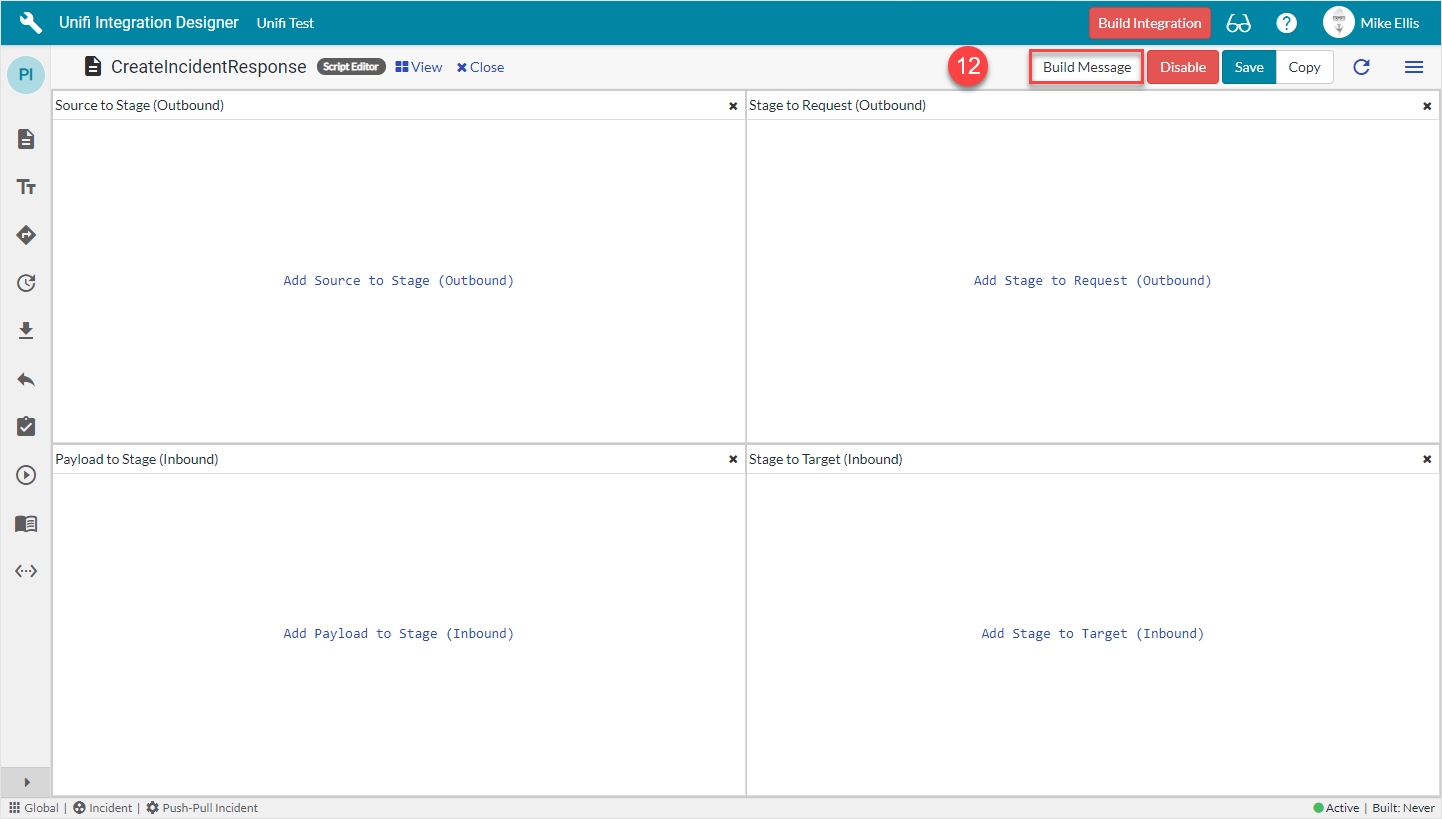
Click on Build Message.
You will see the 'Message build successful' Info Message.
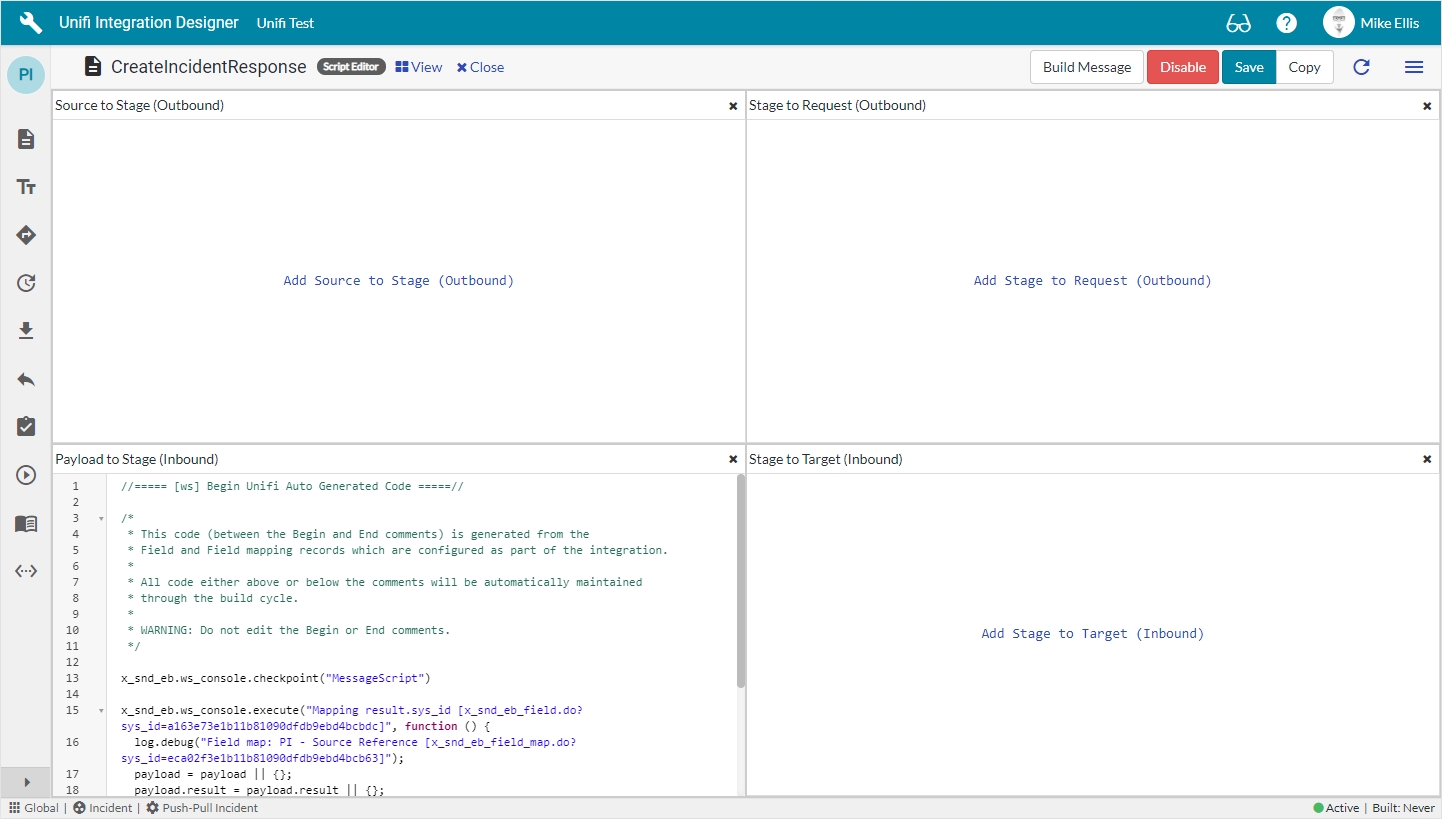
Your Script Editor fields should now look like this:
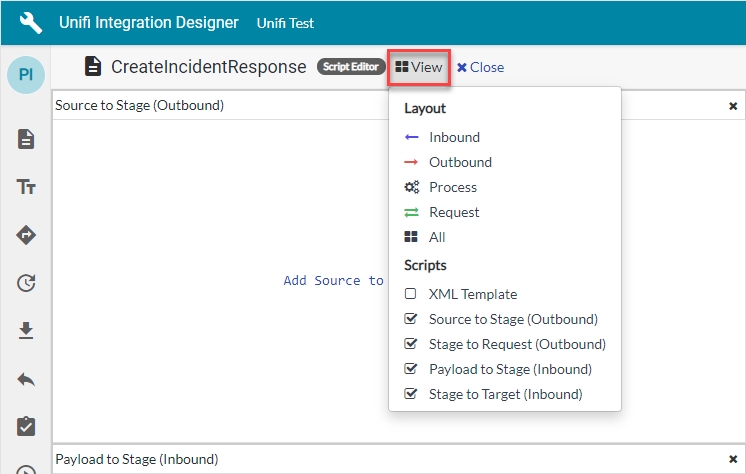
You can click View to adjust the layout and change the view to show various combinations of, or individual script fields.
We will now examine our new, auto-generated Message Script.
Payload to Stage:
Once you have finished examining the code, click 'Close' to navigate back to the Fields page of the CreateIncidentResponse Message.
Next, we will configure the CreateIncident Message.
We will test our CreateIncident Message.
Navigate to Incident > Create New.
The Incident fields to configure are as follows:
Your Incident form should look like this:
Right-click & Save.
Note the values entered (including State & Priority), so that you can check them against the mapped fields on the corresponding record in the instance being integrated to.
You should see an Info Message, confirming the CreateIncident Message is being sent to your Integration:
You should also see a note in the Activities stream:
When you scroll down to the 'Unifi Integrations' related list (you may have to configure the related lists to add it to your Incident form), notice:
A Bond has been created. The State remains 'Pending' until the list is refreshed.
Refresh the list by clicking Bonds.
You should see the External reference populated & the State changed to 'Open':
Click the Bond Number link to open the Bond record.
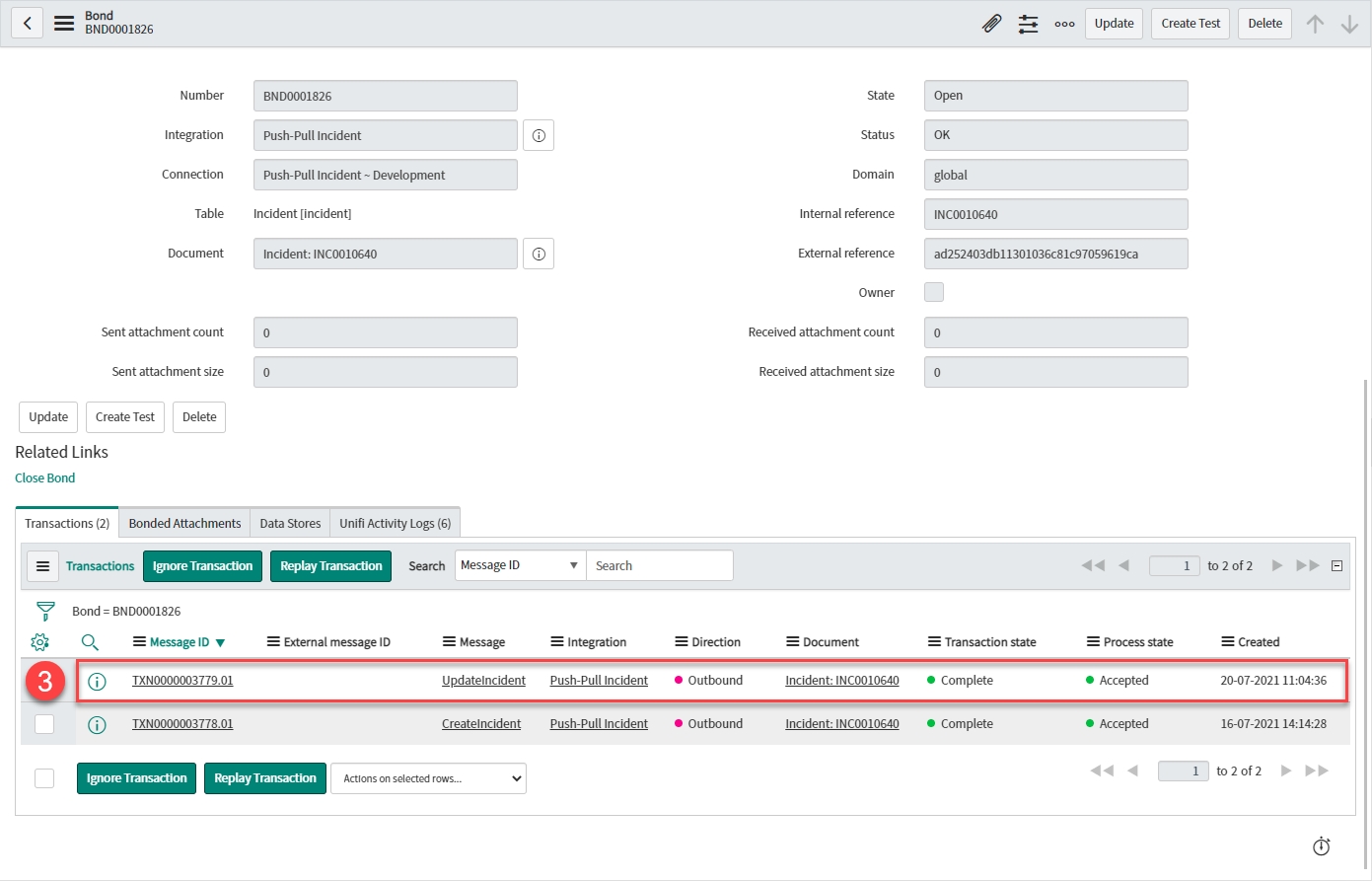
Your Bond record should look like this:
Bond details:
Integration: < Your Integration >
Connection: < Your Connection >
Table: 'Incident [incident]'
Document: < Your Incident >
Transaction:
Message: 'Createincident'
Direction: 'Outbound'
Transaction state: 'Complete' (The data has been successfully transported)
Process state: 'Accepted' (The transaction was accepted as within the scope of the business logic that's in place)
Transaction process next queued: Logs from checking whether there are any other transactions queued and processing those.
Transaction sending: Logs from taking the Stage data, building the Request record & sending the Request to the integrated system.
Business rule: < Your Trigger >: Logs from the Business Rule that triggers Unifi.
Click through to the Transaction record from the related list on the Bond.
Your Transaction record should look like this:
Transaction details:
Table: 'Incident [incident]'
Document: < Your Incident >
Integration: < Your Integration >
Connection: < Your Connection >
Errors:
Error: (If there was a transactional error the Transaction state would show as 'Error' and the details would be captured here).
Process error: (If there was a process error the Process state would show as 'Rejected' and the details would be captured here)
Stage:
Direction: 'Outbound'
Message: 'CreateIncident'
Internal reference: < ServiceNow ticket reference > (Same as 'Document')
External reference: < External system's ticket reference >
Click through to the Stage record from the related list on the Transaction.
Check the values in the fields match what you expect.
Your Stage record should look like this:
Stage details:
Direction: 'Outbound'
External reference: < External system's ticket reference >
Internal reference: < ServiceNow ticket reference >
Snapshot: < Snapshot record reference >
Mapped Staged Data fields (yours may differ depending on which Field records you created):
Caller ID: < Your caller.id >
Short description: < Your Short description >
State: '1'
Click through to the HTTP Request record from the related list on the Transaction.
Your HTTP Request record should look like this:
HTTP Request details:
Integration: < Your Integration >
Connection: < Your Connection >
Transaction: < Your Transaction >
Message: 'CreateIncident'
Response details:
Status code: '200'
Response headers: < The header of the response being received >
Response payload: < The payload of the response being received >
Navigate to the corresponding Incident in the external system.
Check the values in the fields match those you noted when you saved the Incident in the internal system.
Your external system's Incident record should look like this (depending on the system you're integrating with, your record may look different; the important matter is that the values match):
Caller: < Your Caller >
State: < Your State >
Short description: < Your Short description >
Activities: < Note showing activity on the Incident > (Opened by < your.external.system.user > configured in the Connection)
We are now ready to move on to the Update Scenario.
The Field Map this Field record is linked with.
'PI - Source Reference'**
Map to field*
Use this Field record to represent a field on a source/target table.
<false>
Path
Where in the payload the data will be placed.
'result'
Property
The property in the payload the data will be written to.
'sys_id'
Inbound*
Set to true to use for inbound Messages.
<true>
Outbound
Set to true to use for outbound Messages.
<false>
Name*
The name of your field map. (If left unedited, it will append the word 'Copy' to the existing name.)
<Your Name>
Message*
The Message this Field record is linked with.
'CreateIncidentResponse'
Description
Describe what this field is for and any specific details that might help you in future.
'Extract returned sys_id & store in stage.external_reference'
Active*
Set to true to use this Field record for processing.
<true>
Field map
State: 'Open' (Message exchange is available)
Status: 'OK' (All transactions have completed)
Internal reference: < ServiceNow ticket reference > (Same as 'Document')
External reference: < External system's ticket reference >
Bond: < Your Bond >
Message: 'CreateIncident'
Direction: 'Outbound'
Transaction state: 'Complete' (The data has been successfully transported)
Process state: 'Accepted' (The transaction was accepted as within the scope of the business logic that's in place)
Message: 'CreateIncident'
Transaction: < Your Transaction >
Integration: < Your Integration >
Direction: 'Outbound'
Request state: 'OK' (There are no errors with the HTTP Request.)
Attempt number: < Number of HTTP Request attempts > (Failed requests are retried up to the maximum attempts number as configured on the Integration.)
Endpoint URL: < The external system’s access URL >
Action Method: 'POST'
Request headers: < The header of the request being sent >
Request payload: < The payload of the request being sent >
Caller*
Person who reported or is affected by this incident.
<Your Caller>
State*
The Incident lifecycle state.
'New' - Default (Automatically populated)
Short description*
A brief description of the incident.
<Your Short description>
x_snd_eb_integration
Inbound user**
The user profile used by the external system for authentication. An active connection must be found for the user to gain access.
lookup: <Your Inbound user>



//===== [ws] Begin Unifi Auto Generated Code =====//

/*
 * This code (between the Begin and End comments) is generated from the
 * Field and Field mapping records which are configured as part of the integration.
 *
 * All code either above or below the comments will be automatically maintained
 * through the build cycle.
 *
 * WARNING: Do not edit the Begin or End comments.
 */

(New auto-generated code will appear here)

//===== [ws] End Unifi Auto Generated Code =====//

(Old pre-existing code will appear here)//===== [ws] Begin Unifi Auto Generated Code =====//
/*
* This code (between the Begin and End comments) is generated from the
* Field and Field mapping records which are configured as part of the integration.
*
* All code either above or below the comments will be automatically maintained
* through the build cycle.
*
* WARNING: Do not edit the Begin or End comments.
*/
x_snd_eb.ws_console.checkpoint("MessageScript")
x_snd_eb.ws_console.execute("Mapping result.sys_id [x_snd_eb_field.do?sys_id=a163e73e1b11b81090dfdb9ebd4bcbdc]", function () {
log.debug("Field map: PI - Source Reference [x_snd_eb_field_map.do?sys_id=eca02f3e1b11b81090dfdb9ebd4bcb63]");
payload = payload || {};
payload.result = payload.result || {};
var $payload = payload.result;
stage.external_reference = '' + ($payload.sys_id || '');
});
var error = x_snd_eb.ws_console.findCheckpointError("MessageScript");
if (error) throw error.message;
//===== [ws] End Unifi Auto Generated Code =====//




We will utilise the Field & Field Map records to configure the Message Scripts for the UpdateIncident Message.
From the UpdateIncident page, navigate to Message > Fields.
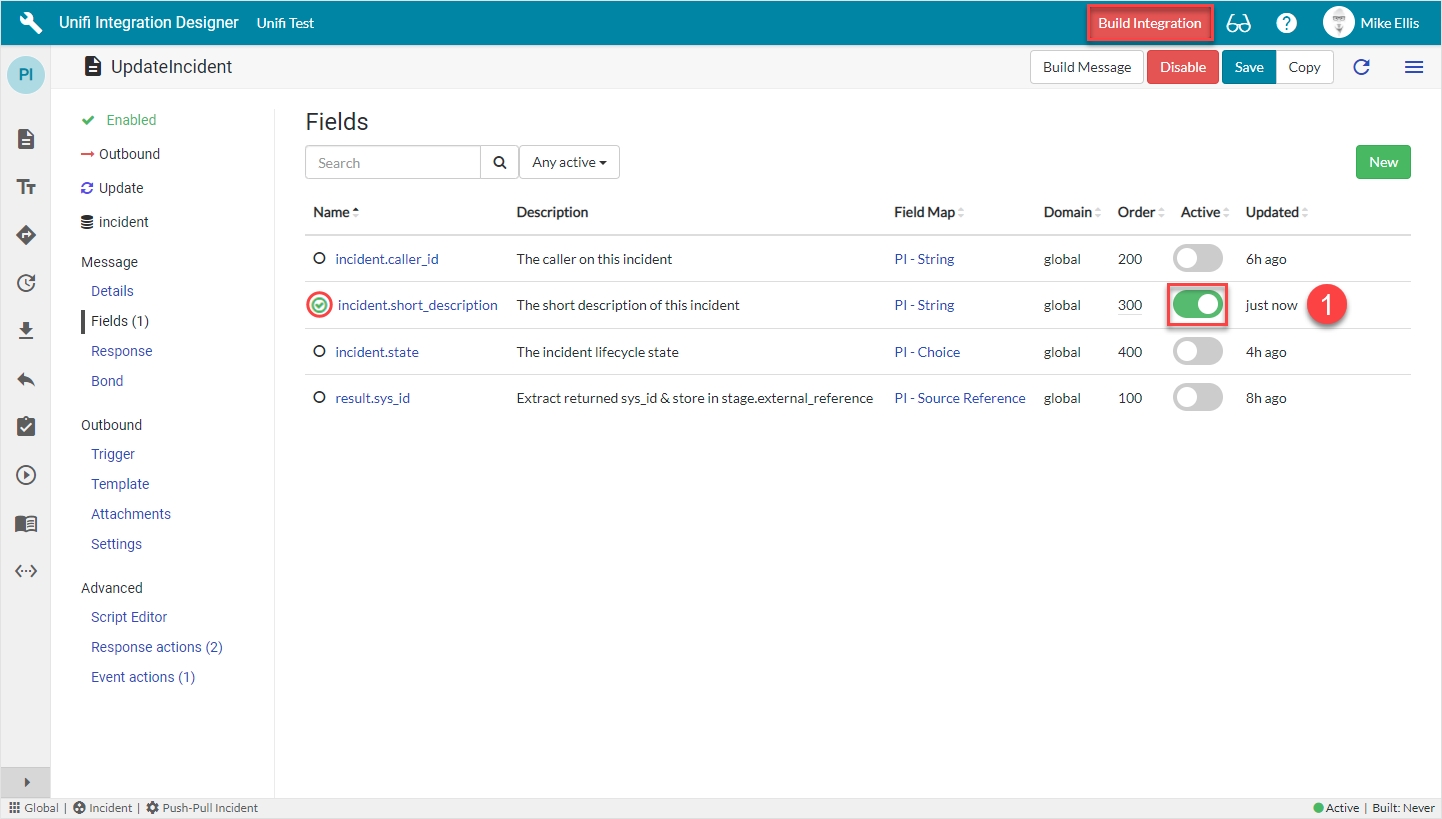
Find the incident.short_description (Integration level) Field & set Active to true.
The 'Build Integration' button becomes visible in the banner and the empty circle icon next to the Field name turns green & contains a green 'check' (to indicate that Message level configuration exists for this Field).
By simply setting the Active flag to true on the Integration level Field record listed on the Message, Unifi has automatically created the Message level counterpart. The Integration level record still exists (and can be seen when you click on the 'Fields' icon to navigate to the Fields page), but is no longer visible in the list view on the Message because the Message level record has been created.)
Hints & Tips: Unifi automatically creates Integration level Fields when we first create the Message level equivalent records; those Integration level Fields are visible on the Fields list of the Messages we subsequently create. Therefore, if a Field is required for multiple Messages, create it once for the first Message and then simply set active to true for its Integration level counterpart from the Fields list of each of the relevant Messages that Field is required on.
We will now configure Field records for two other Incident record field elements.
The table below lists the Incident fields above and the relevant Field Maps required to configure each Field record.
*Field map: Values may vary (dependent on your configuration of the copies). Choose the copy Field Maps you created earlier.
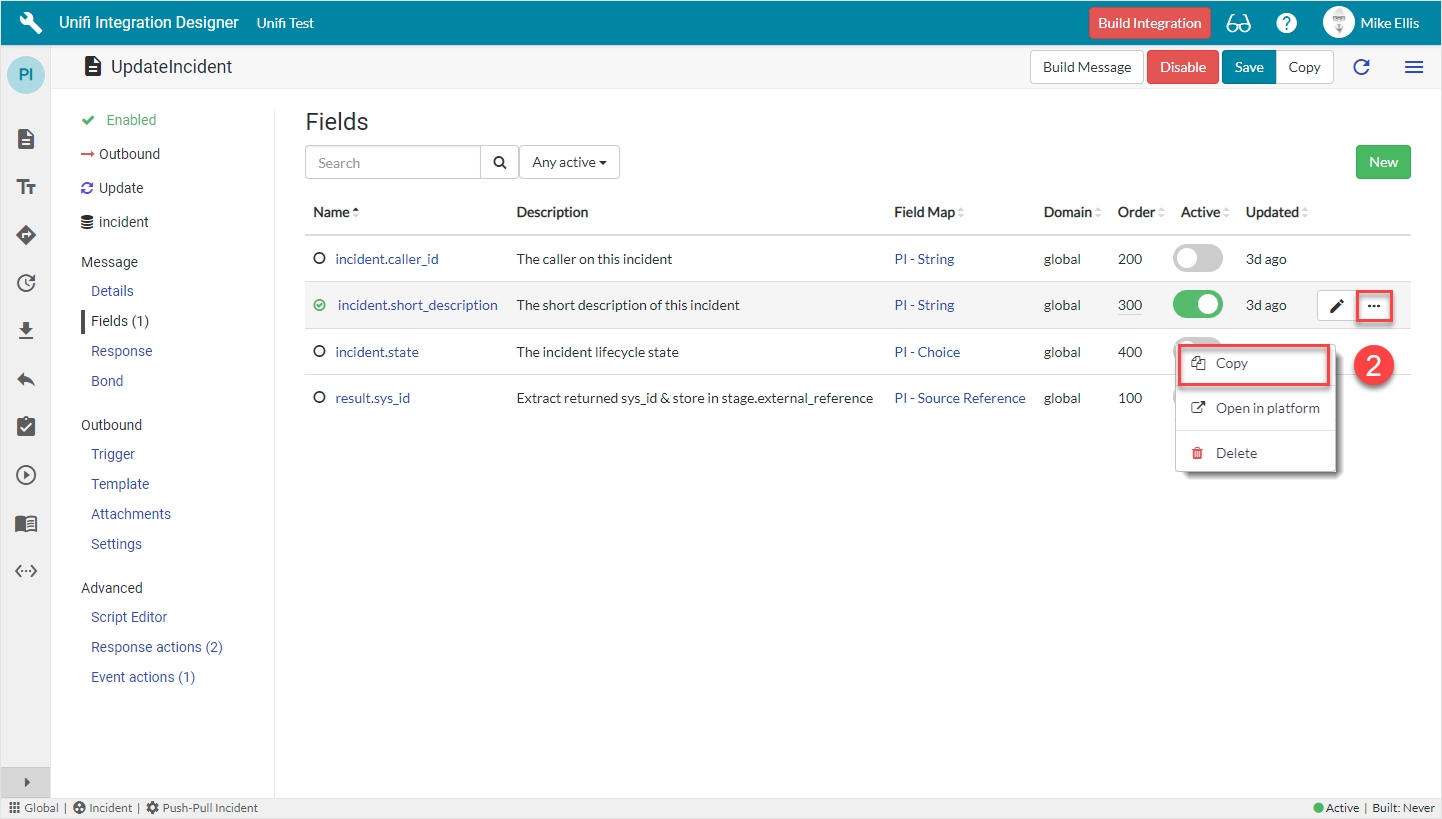
Because the incident.comments Field record is the same 'type' (IS - String) & the majority of the settings are the same as the previously configured Field, it will be quicker to copy the incident.short_description Field & make a few minor changes.
Click the ellipsis next to the incident.short_description Field record & click Copy.
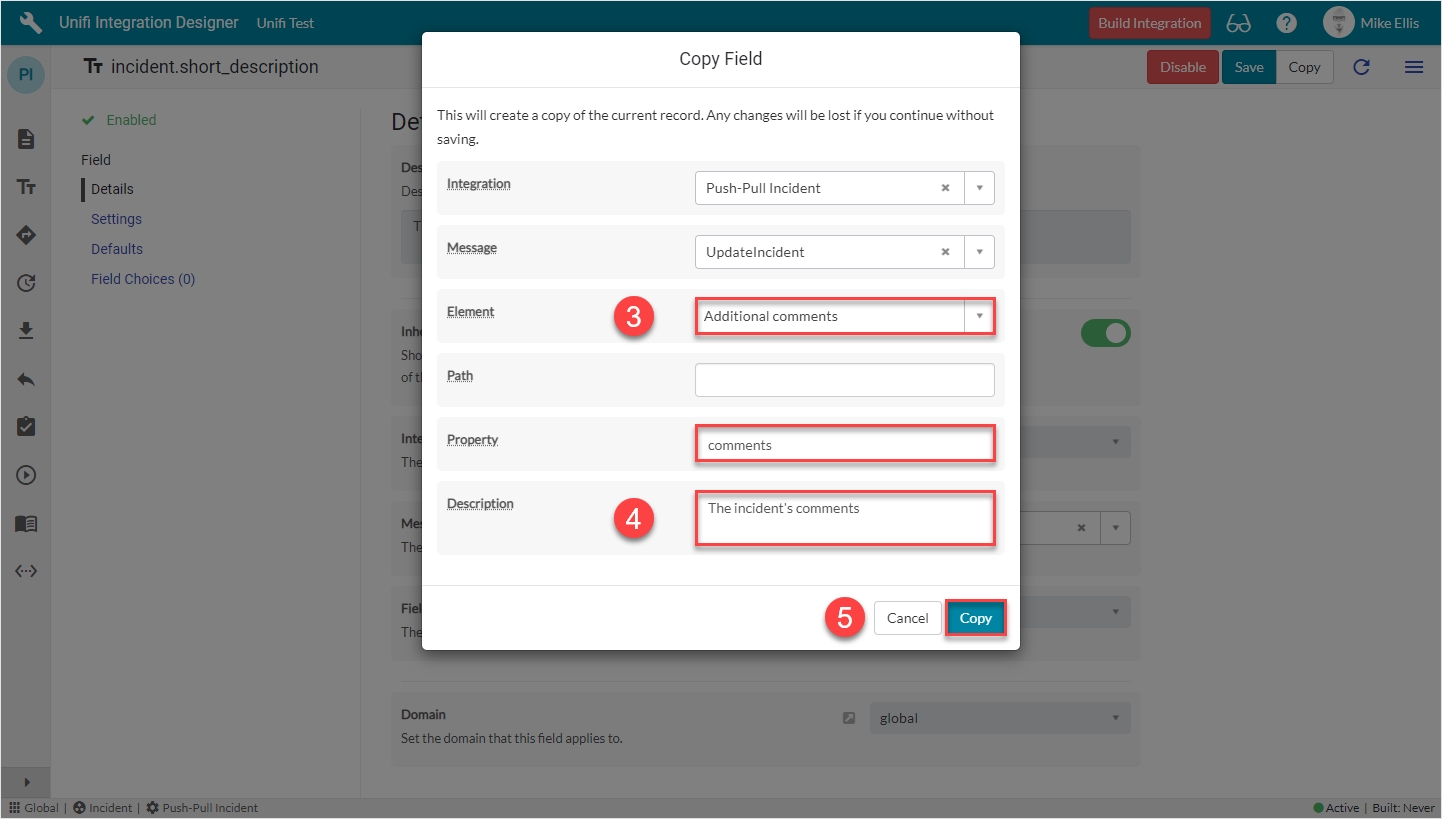
The fields to edit for the Copy Field modal are as follows:
*This field is automatically populated.
Your Copy Field modal should look like this:
Click Copy.
You will be redirected to the Details page of the newly created incident.comments Field record.
It will again be quicker to copy the previously configured incident.comments Field & make a few minor changes.
To quickly navigate back to the UpdateIncident Message, click the 'Preview' icon next to the Message field on the Details page of newly created incident.comments Field record.
Navigate to Message > Fields.
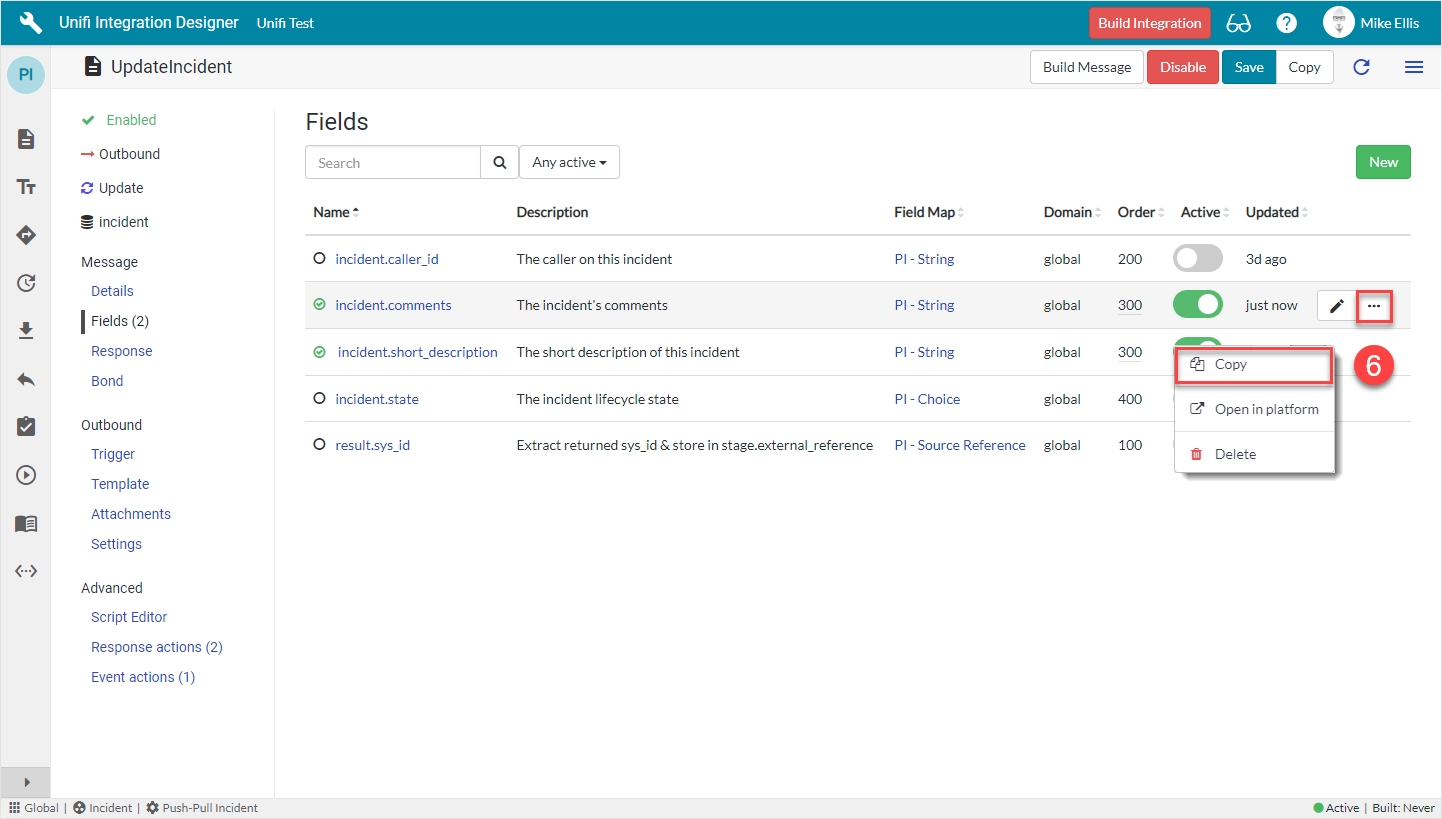
Click the ellipsis next to the incident.comments Field record & click Copy.
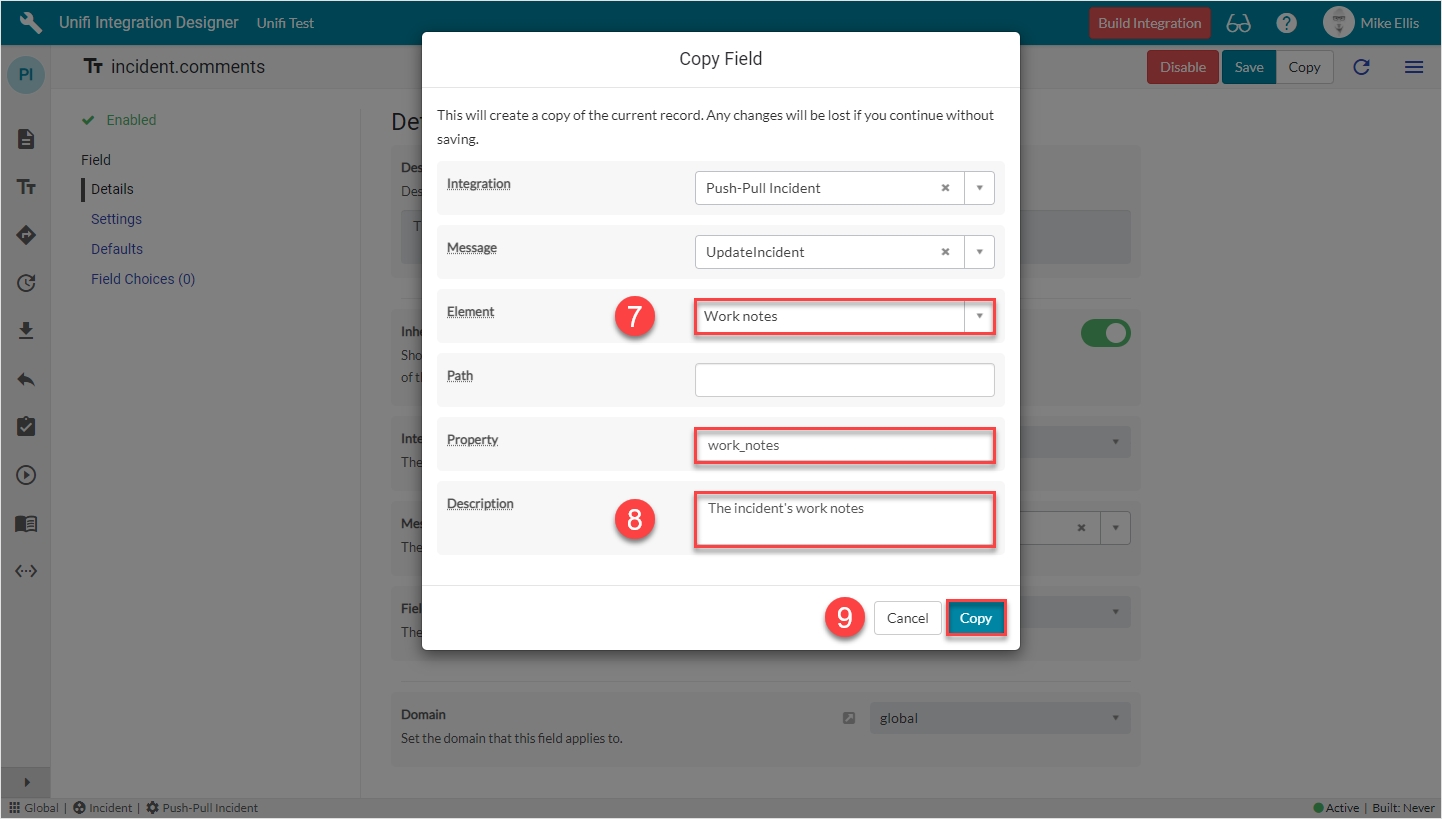
The fields to edit for the Copy Field modal are as follows:
*This field is automatically populated.
Your Copy Field modal should look like this:
Click Copy.
You will be redirected to the Details page of newly created incident.work_notes Field record.
Now that we’ve configured the Field records for the UpdateIncident message, we are ready to build our message scripts.
Navigate to the UpdateIncident Message, then navigate to Message > Fields.
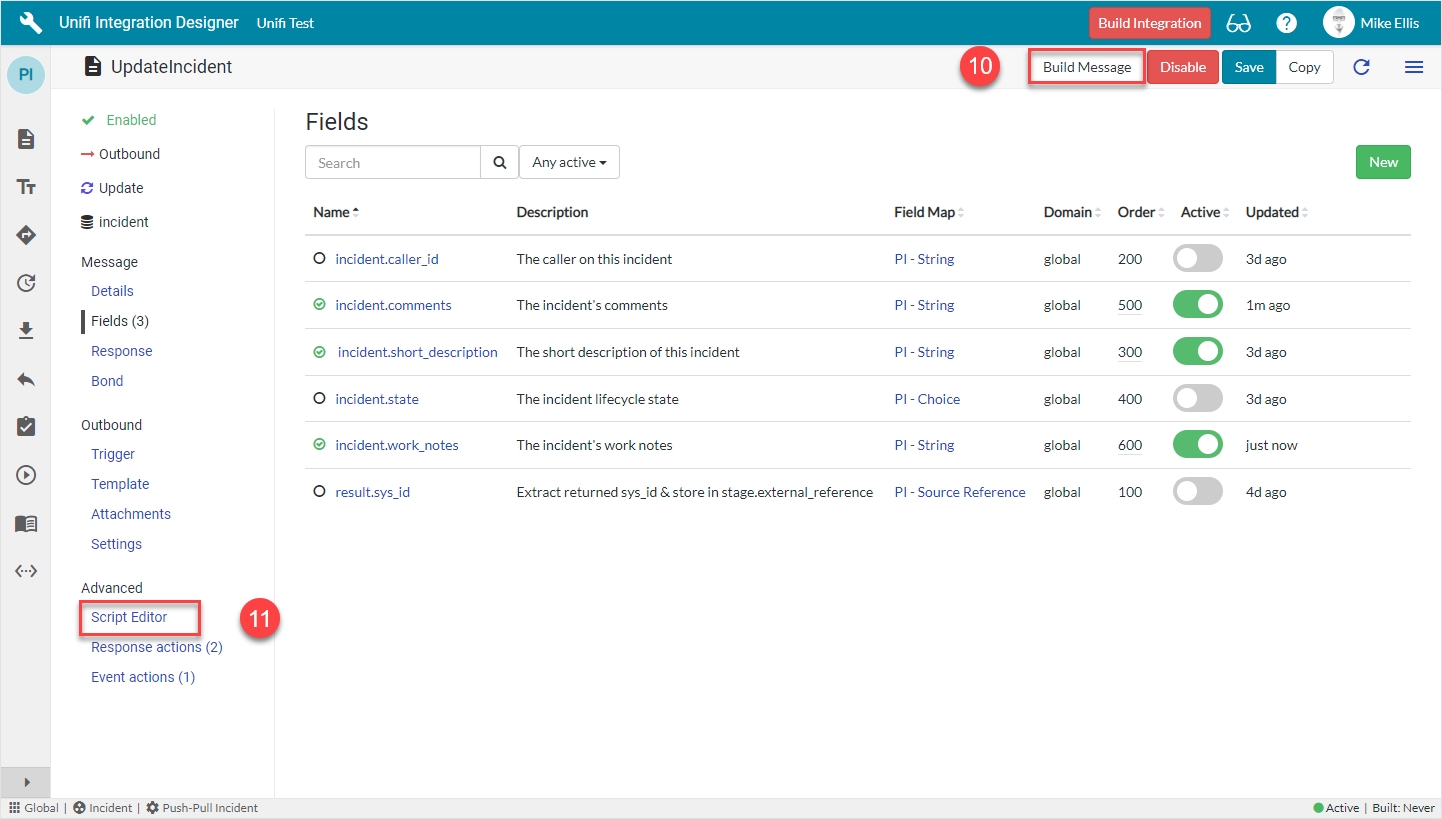
The following Field records should now be in place for your UpdateIncident messsage:
Click on Build Message.
You will see the 'Message build successful' Info Message.
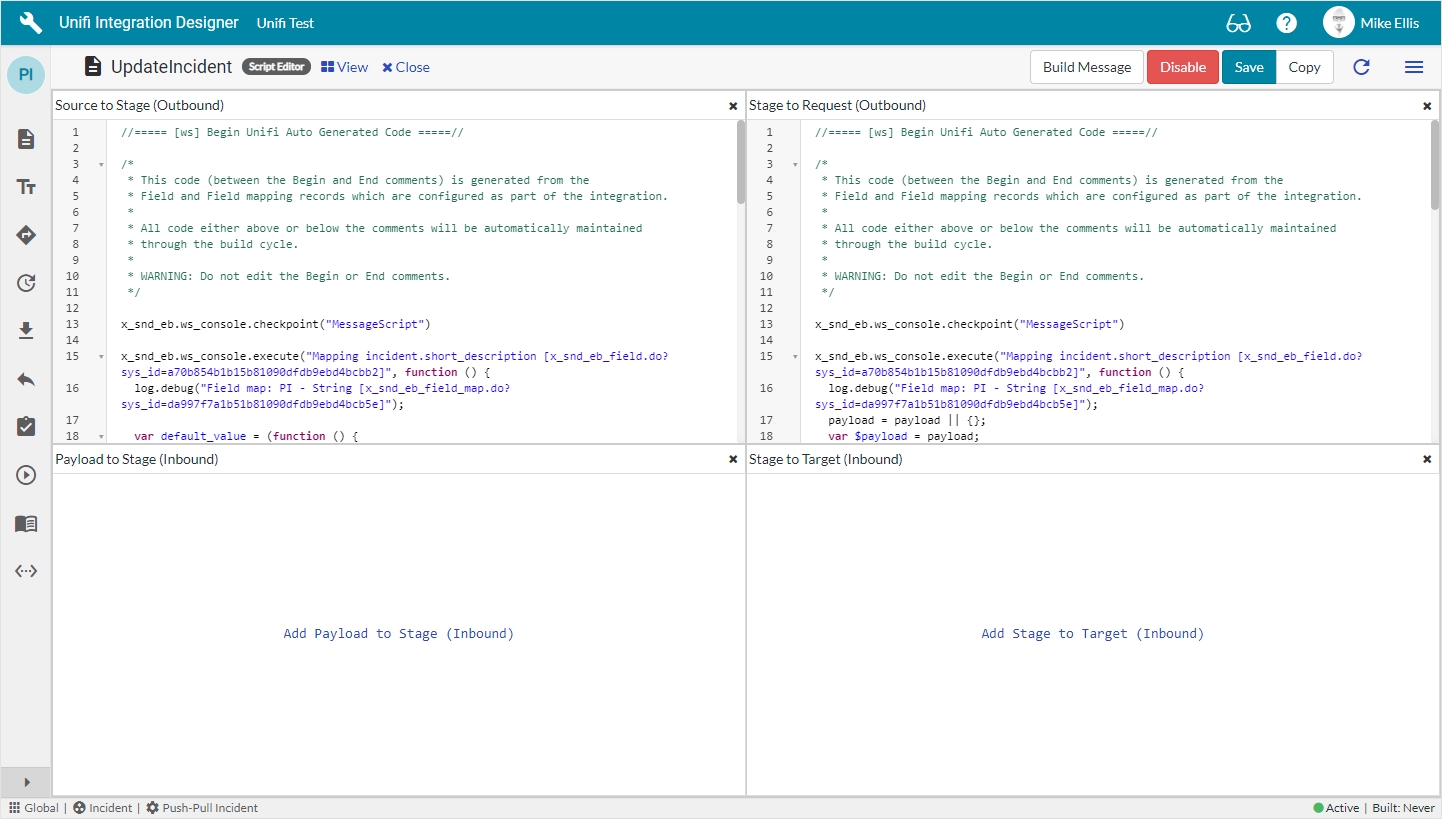
Navigate to Advanced > Script Editor to view the auto-generated code.
Your Script Editor fields should look like this:
We will now examine our new, auto-generated Message Scripts.
Source to Stage:
Stage to Request:
We are now ready to Test the UpdateIncident Message.



comments
'PI - String'*
work_notes
'PI - String'*
Element
The field on the source/target table this Field record is mapped to.
Additional comments
Property*
The property in the payload the data will be written to.
Automatically populated
Description
Describe what this field is for and any specific details that might help you in future.
'The incident's comments'
Element
The field on the source/target table this Field record is mapped to.
'Work notes'
Property*
The property in the payload the data will be written to.
Automatically populated
Description
Describe what this field is for and any specific details that might help you in future.
'The incident's work notes'
//===== [ws] Begin Unifi Auto Generated Code =====//

/*
 * This code (between the Begin and End comments) is generated from the
 * Field and Field mapping records which are configured as part of the integration.
 *
 * All code either above or below the comments will be automatically maintained
 * through the build cycle.
 *
 * WARNING: Do not edit the Begin or End comments.
 */

(New auto-generated code will appear here)

//===== [ws] End Unifi Auto Generated Code =====//

(Old pre-existing code will appear here)//===== [ws] Begin Unifi Auto Generated Code =====//
/*
* This code (between the Begin and End comments) is generated from the
* Field and Field mapping records which are configured as part of the integration.
*
* All code either above or below the comments will be automatically maintained
* through the build cycle.
*
* WARNING: Do not edit the Begin or End comments.
*/
x_snd_eb.ws_console.checkpoint("MessageScript")
x_snd_eb.ws_console.execute("Mapping incident.short_description [x_snd_eb_field.do?sys_id=a70b854b1b15b81090dfdb9ebd4bcbb2]", function () {
log.debug("Field map: PI - String [x_snd_eb_field_map.do?sys_id=da997f7a1b51b81090dfdb9ebd4bcb5e]");
var default_value = (function () {
return '';
})();
// Determines whether this instance of the field map is for a mandatory field
var is_mandatory = false;
if (is_mandatory) {
$stage.short_description = '' + (source.short_description || default_value);
} else if (source.short_description != '') {
$stage.short_description = '' + source.short_description;
}
});
x_snd_eb.ws_console.execute("Mapping incident.comments [x_snd_eb_field.do?sys_id=1a5efe331b953c1090dfdb9ebd4bcbfc]", function () {
log.debug("Field map: PI - String [x_snd_eb_field_map.do?sys_id=da997f7a1b51b81090dfdb9ebd4bcb5e]");
var default_value = (function () {
return '';
})();
// Determines whether this instance of the field map is for a mandatory field
var is_mandatory = false;
if (is_mandatory) {
$stage.comments = '' + (source.comments || default_value);
} else if (source.comments != '') {
$stage.comments = '' + source.comments;
}
});
x_snd_eb.ws_console.execute("Mapping incident.work_notes [x_snd_eb_field.do?sys_id=99ffb6371b953c1090dfdb9ebd4bcb22]", function () {
log.debug("Field map: PI - String [x_snd_eb_field_map.do?sys_id=da997f7a1b51b81090dfdb9ebd4bcb5e]");
var default_value = (function () {
return '';
})();
// Determines whether this instance of the field map is for a mandatory field
var is_mandatory = false;
if (is_mandatory) {
$stage.work_notes = '' + (source.work_notes || default_value);
} else if (source.work_notes != '') {
$stage.work_notes = '' + source.work_notes;
}
});
var error = x_snd_eb.ws_console.findCheckpointError("MessageScript");
if (error) throw error.message;
//===== [ws] End Unifi Auto Generated Code =====////===== [ws] Begin Unifi Auto Generated Code =====//
/*
* This code (between the Begin and End comments) is generated from the
* Field and Field mapping records which are configured as part of the integration.
*
* All code either above or below the comments will be automatically maintained
* through the build cycle.
*
* WARNING: Do not edit the Begin or End comments.
*/
x_snd_eb.ws_console.checkpoint("MessageScript")
x_snd_eb.ws_console.execute("Mapping incident.short_description [x_snd_eb_field.do?sys_id=a70b854b1b15b81090dfdb9ebd4bcbb2]", function () {
log.debug("Field map: PI - String [x_snd_eb_field_map.do?sys_id=da997f7a1b51b81090dfdb9ebd4bcb5e]");
payload = payload || {};
var $payload = payload;
// Determines whether this instance of the field map is for a mandatory field
var is_mandatory = false;
if (is_mandatory) {
$payload.short_description = '' + $stage.short_description;
} else if ($stage.short_description) {
$payload.short_description = '' + $stage.short_description;
}
});
x_snd_eb.ws_console.execute("Mapping incident.comments [x_snd_eb_field.do?sys_id=1a5efe331b953c1090dfdb9ebd4bcbfc]", function () {
log.debug("Field map: PI - String [x_snd_eb_field_map.do?sys_id=da997f7a1b51b81090dfdb9ebd4bcb5e]");
payload = payload || {};
var $payload = payload;
// Determines whether this instance of the field map is for a mandatory field
var is_mandatory = false;
if (is_mandatory) {
$payload.comments = '' + $stage.comments;
} else if ($stage.comments) {
$payload.comments = '' + $stage.comments;
}
});
x_snd_eb.ws_console.execute("Mapping incident.work_notes [x_snd_eb_field.do?sys_id=99ffb6371b953c1090dfdb9ebd4bcb22]", function () {
log.debug("Field map: PI - String [x_snd_eb_field_map.do?sys_id=da997f7a1b51b81090dfdb9ebd4bcb5e]");
payload = payload || {};
var $payload = payload;
// Determines whether this instance of the field map is for a mandatory field
var is_mandatory = false;
if (is_mandatory) {
$payload.work_notes = '' + $stage.work_notes;
} else if ($stage.work_notes) {
$payload.work_notes = '' + $stage.work_notes;
}
});
var error = x_snd_eb.ws_console.findCheckpointError("MessageScript");
if (error) throw error.message;
//===== [ws] End Unifi Auto Generated Code =====//




We will utilise the Field & Field Map records to configure the Message Scripts for the ResolveIncident Message.
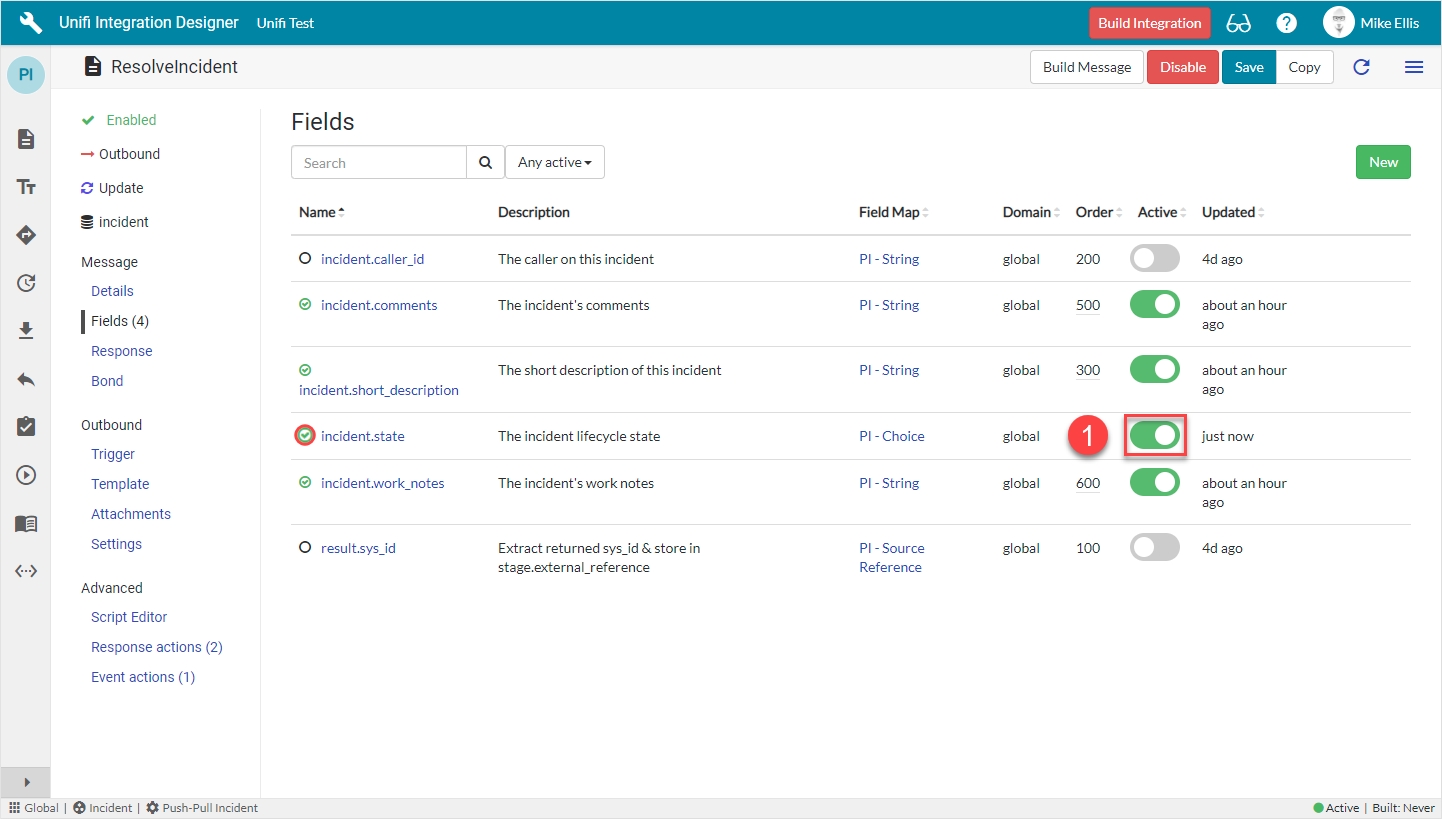
The 'incident.comments', 'incident.work_notes' and 'incident.short_description' Field records are already in place because they were also copied when we copied the Message. We can choose to include, or exclude as many of those and the Integration level ones that are available depending on our requirements (by either activating or deactivating the relevant Fields). We will choose to keep the existing Message level Fields and add the available incident.state (Integration level) Field.
By simply setting the Active flag to true on the Integration level Field record listed on the Message, Unifi will automatically create the Message level counterpart.
Navigate to Message > Fields.
Your ResolveIncident Message Fields page should look like this:
Find the incident.state (Integration level) Field & set Active to true.
The empty circle icon next to the Field name turns green & contains a green 'check' (to indicate that Message level configuration exists for this Field).
We will now configure Field records for the two remaining Incident record field elements which are required.
The table below lists the Incident record field elements we will map and the relevant Field Maps required to configure each Field record.
*Field map: Values may vary (dependent on your configuration of the copies). Choose the copy Field Maps you created earlier.
As with 'incident.state' the 'incident.close_code' Field record is a Choice 'type' Field. We will, therefore, configure the choices once at the Integration level. We'll first configure the Message level Field and then move on to configure the choices on its Integration level counterpart.
From the Fields page, click New.
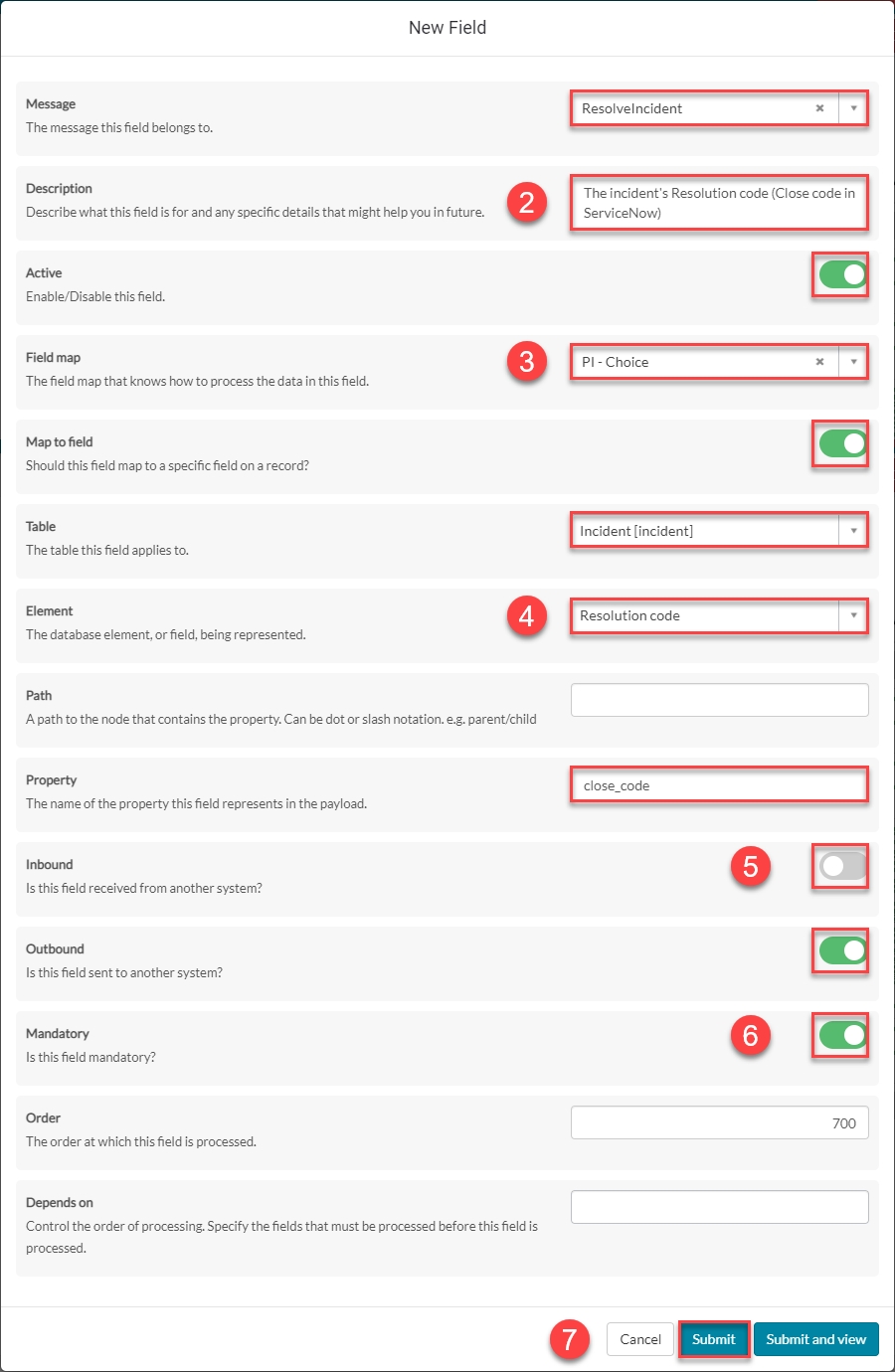
The fields to be configured for our incident.close_code (Message level) New Field modal are as follows:
*These fields are automatically defaulted to true, or automatically populated.
**Field map: Value may vary. Choose the copy Field Map you created for your Integration.
Your 'incident.close_code' (Message level) New Field modal should look like this:
Submit the record.
You will be redirected back to the Fields page of the ResolveIncident Message.
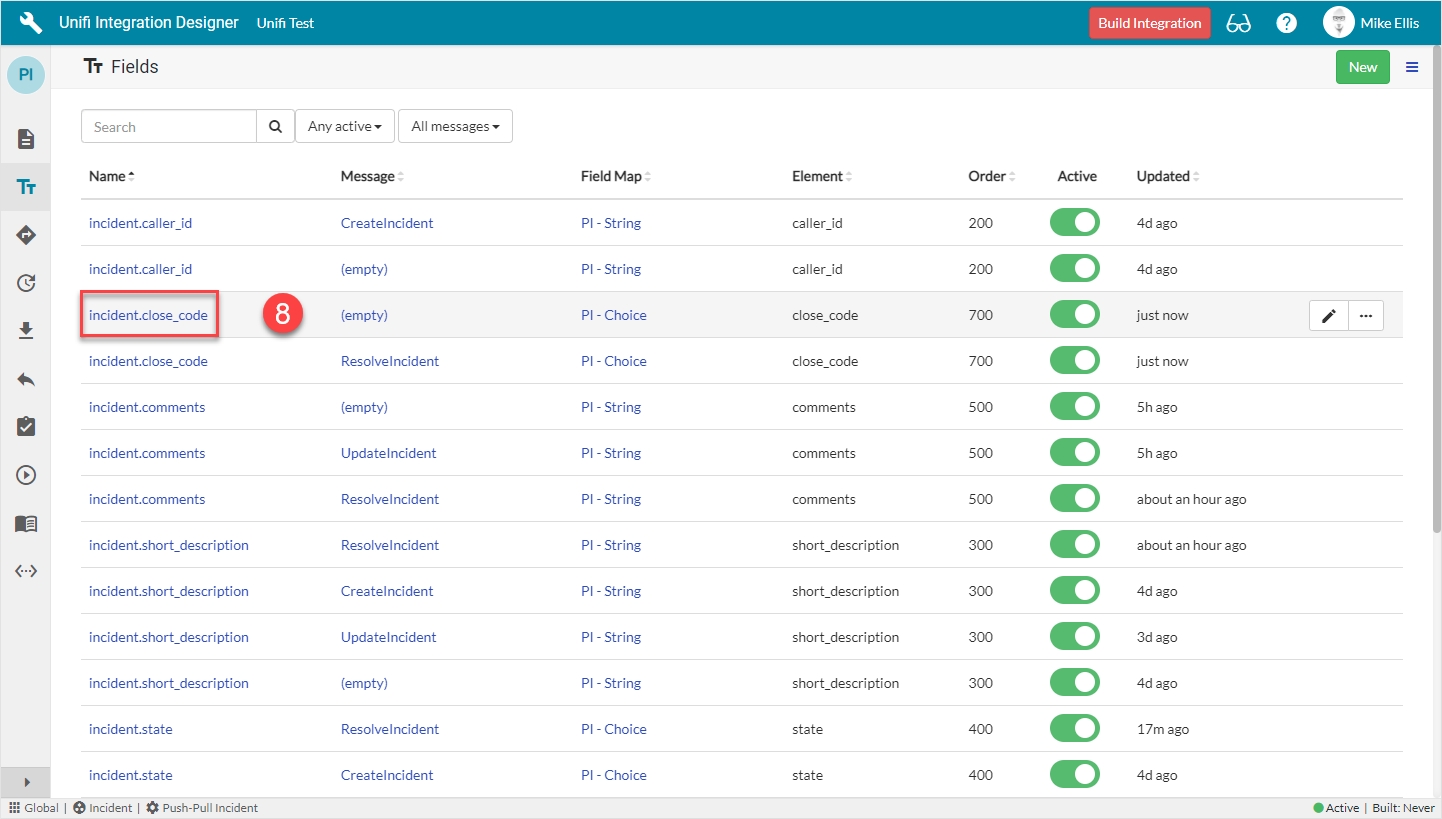
Navigate to the 'Fields' icon to open the Fields page.
Click to open the incident.close_code (Integration level) Field record (the one where Message is empty).
The incident.close_code Field record opens to the Details page.
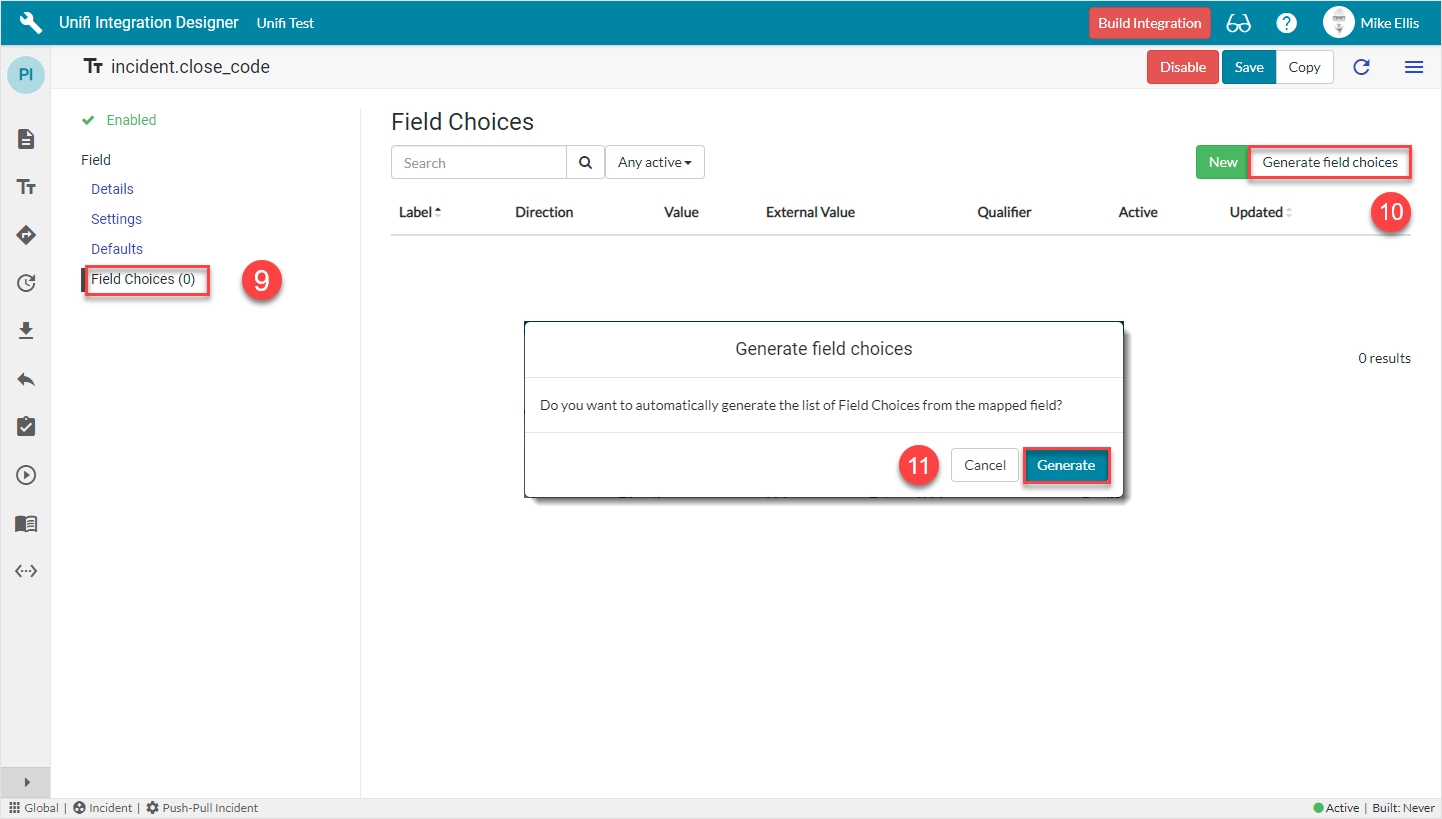
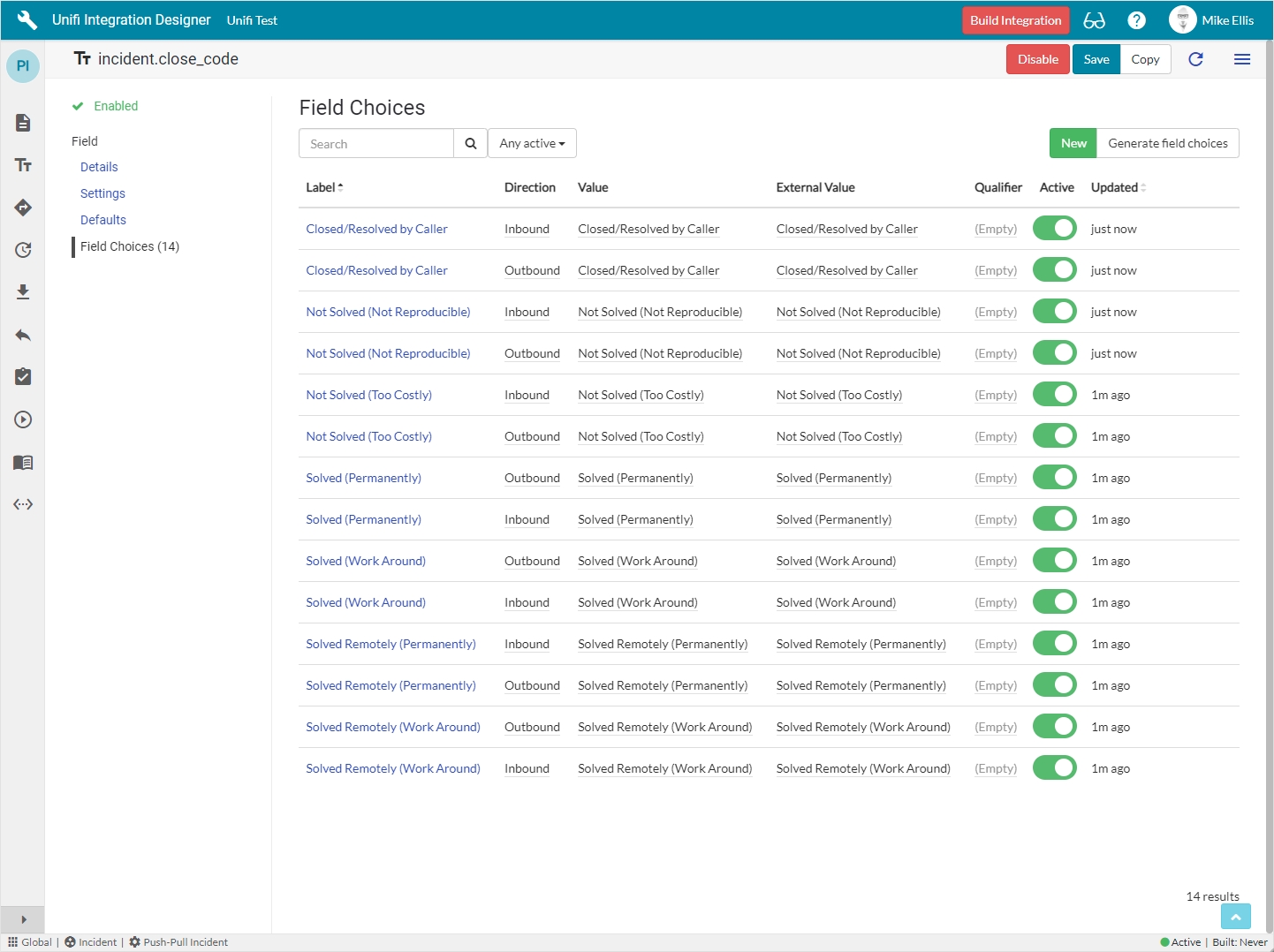
Navigate to Field > Field Choices.
Click Generate field choices.
Click Generate on the 'Generate field choices' modal which displays.
The Field Choices are generated & now visible in the list.
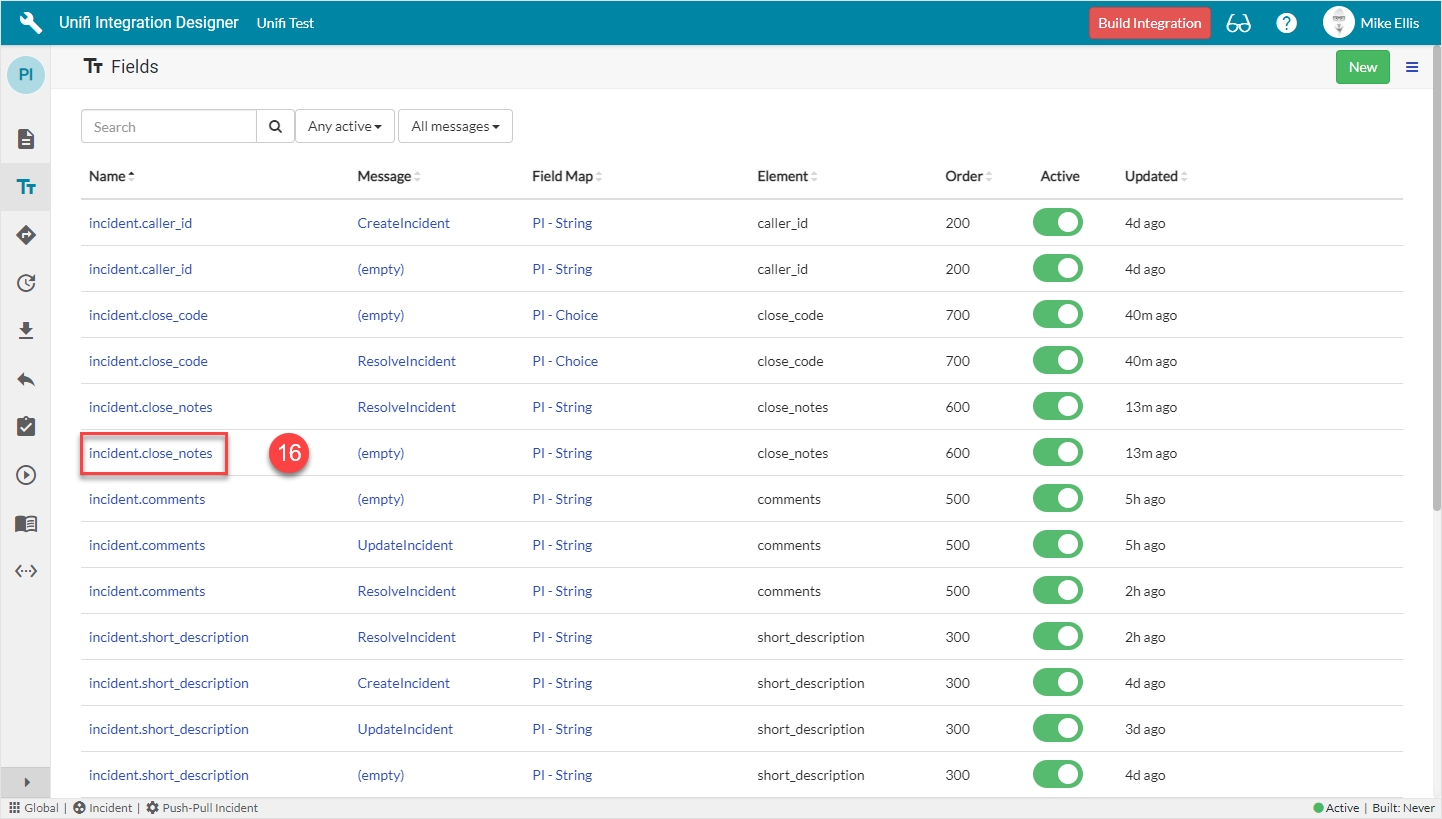
Because the incident.close_notes Field record is the same 'type' (PI - String) & the majority of the settings are the same as the incident.work_notes Field, it will be quicker to copy that Field & make a few minor changes.
From the ResolveIncident Message, navigate to Message > Fields.
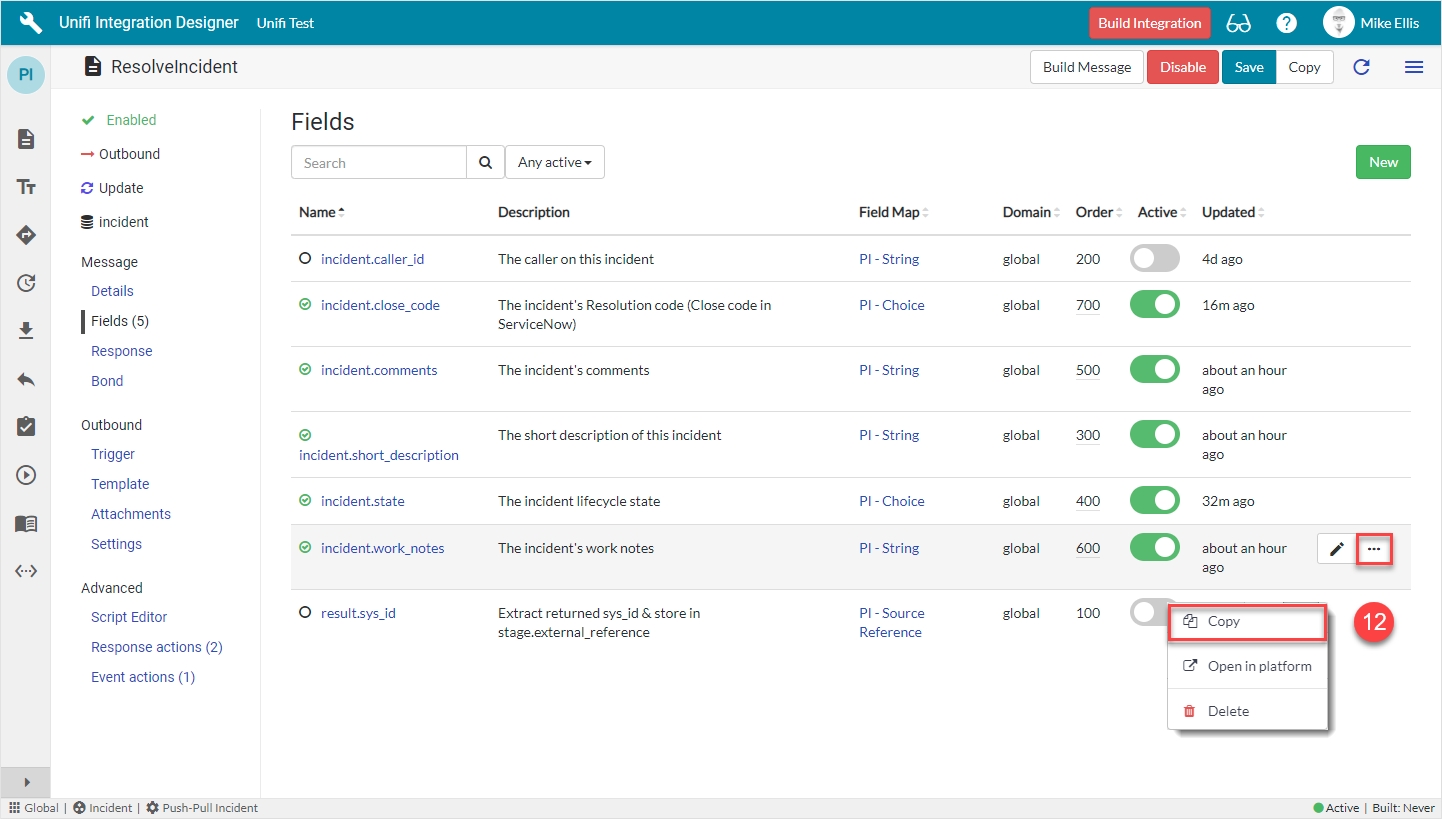
Click the ellipsis next to the incident.work_notes Field record & click Copy.
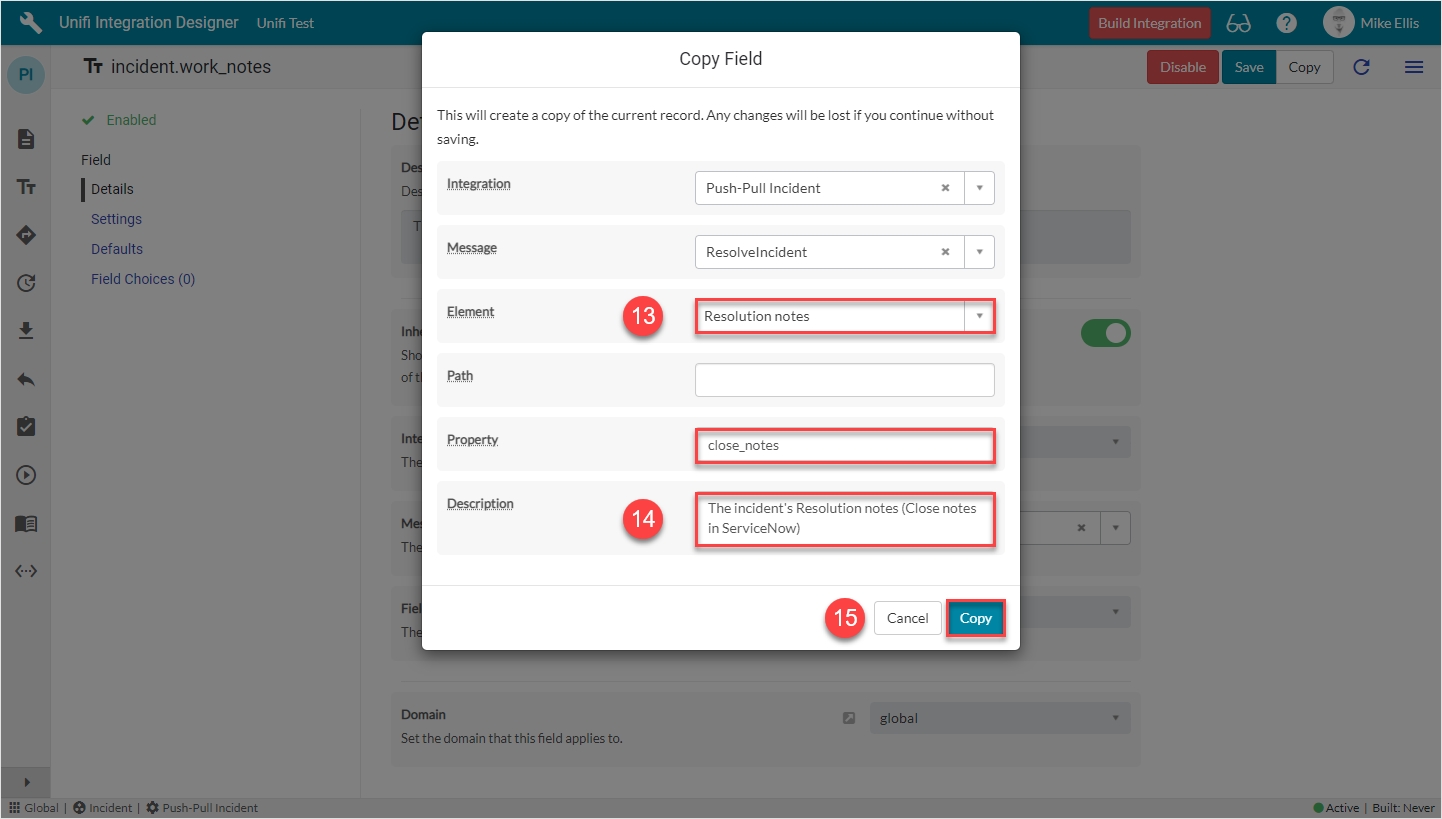
The fields to edit for the Copy Field modal are as follows:
*This field is automatically populated.
Your 'incident.close_notes' Copy Field modal should look like this:
Click Copy.
You will be redirected to the Details page of the newly created incident.close_notes Field record.
The "This message inherits its configuration from the integration-level field..." info message is also displayed (which can be closed).
Navigate to the 'Fields' icon to open the Fields page.
Click to open the incident.close_notes (Integration level) Field record (the one where Message is empty).
The incident.close_notes Field record opens to the Details page.
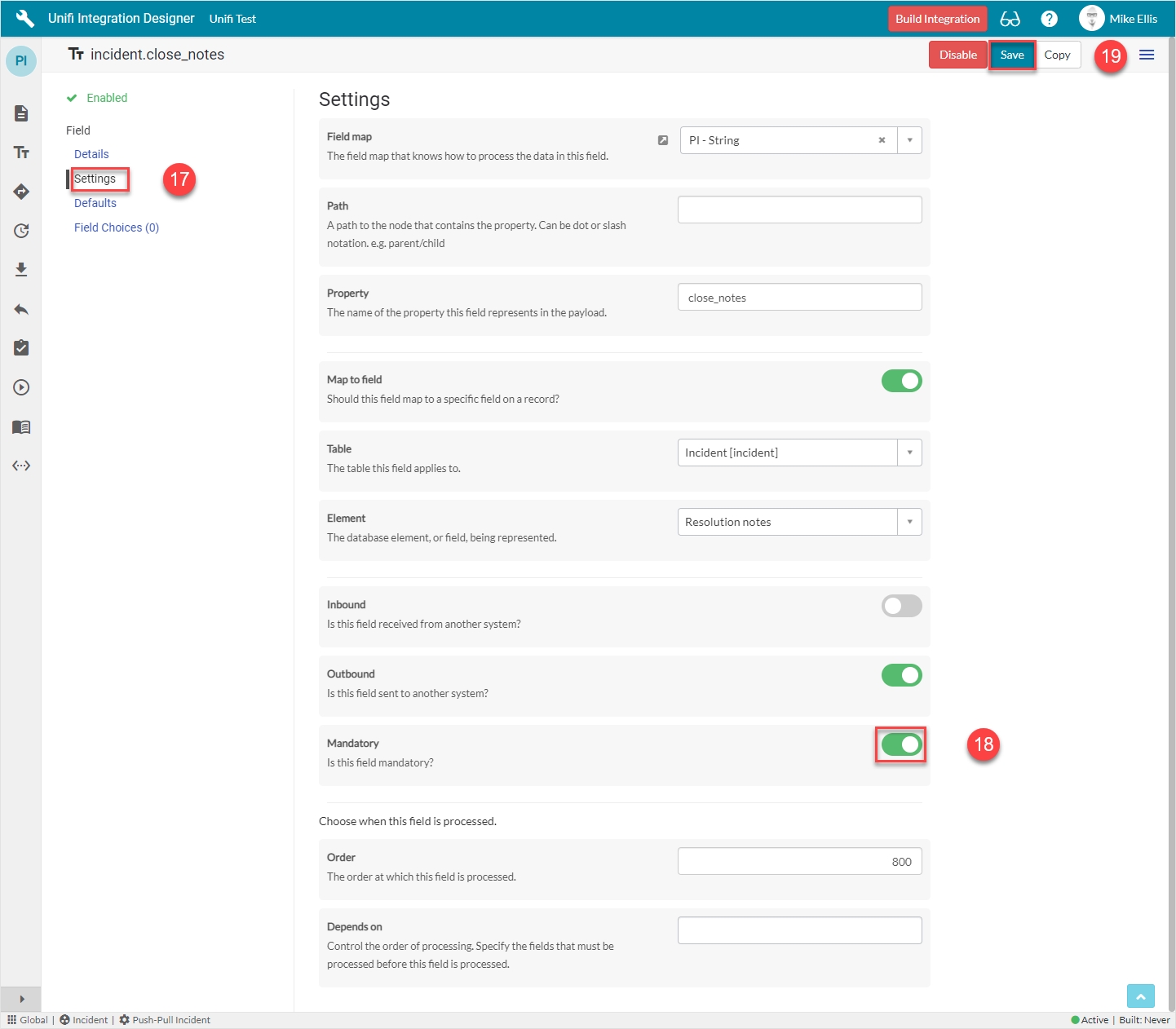
Navigate to Field > Settings.
Set Mandatory to true.
Click Save.
Now that we’ve configured the Field records for the ResolveIncident message, we are ready to build our message scripts.
Navigate to the ResolveIncident message, then navigate to Message > Fields.
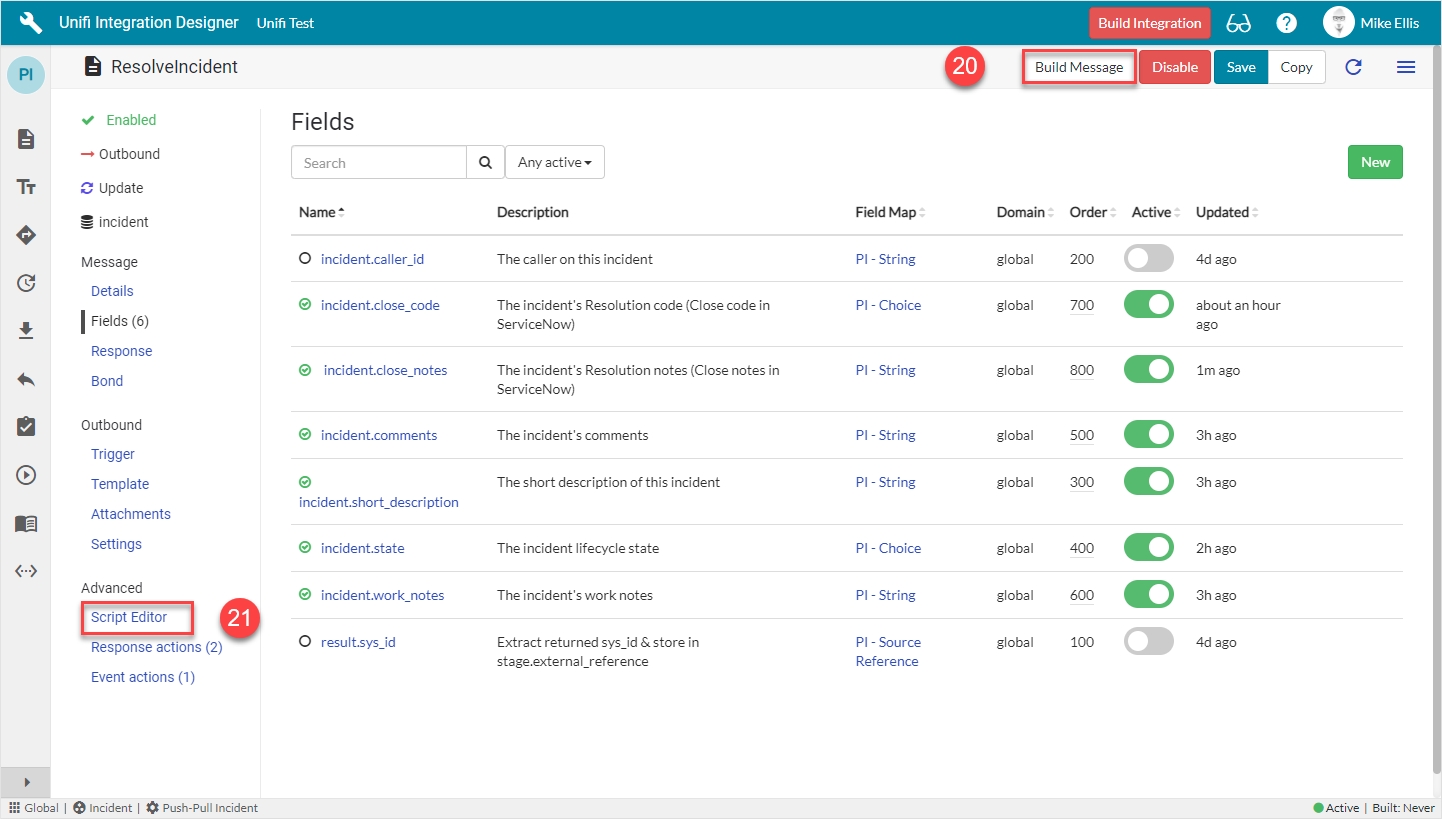
The following Field records should now be in place for your ResolveIncident messsage:
Click on Build Message.
You will see the 'Message build successful' Info Message.
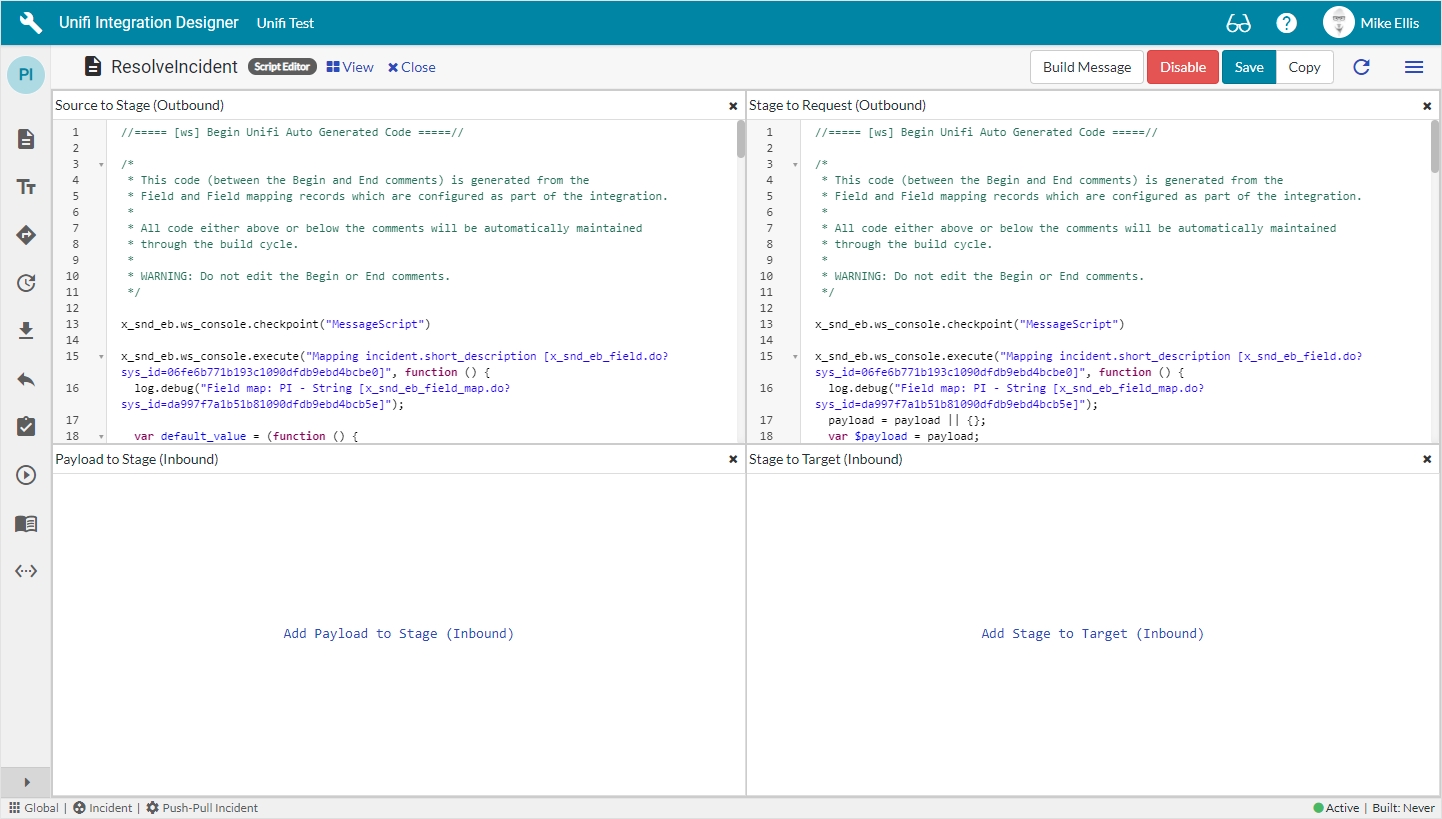
Navigate to Advanced > Script Editor to view the auto-generated code.
Your Script Editor fields should look like this:
We will now examine our new, auto-generated Message Scripts.
Source to Stage:
Stage to Request:
We are now ready to Test the ResolveIncident Message.
The Field Map this Field record is linked with.
'PI - Choice'**
Map to field*
Use this Field record to represent a field on a source/target table.
<true>
Table*
The primary source/target table that this Field record is mapped to.
'Incident' [incident]
Element
The field on the source/target table this Field record is mapped to.
'Resolution code'
Property*
The property in the payload the data will be written to.
Automatically populated
Inbound*
Set to true to use for inbound Messages.
<false>
Outbound*
Set to true to use for outbound Messages.
<true>
Mandatory
Set to true to make mandatory.
<true>
close_code
'PI - Choice'*
close_notes
'PI - String'*
Message*
The Message this Field record is linked with.
'ResolveIncident'
Description
The description of this Field record.
'The incident's Resolution code (Close code in ServiceNow)'
Active*
Set to true to use this Field record for processing.
<true>
Element
The field on the source/target table this Field record is mapped to.
'Resolution notes'
Property*
The property in the payload the data will be written to.
Automatically populated
Description
The description of this Field record.
'The incident's Resolution notes (Close notes in ServiceNow)'
Field map
We will utilise the Field & Field Map records to configure the Message Scripts for the CreateIncident Message.
Depending on your requirements, you will need to create Field records for each of the relevant Incident record field elements (see the table below for an example). For the sake of brevity, this Guide will focus on a select few. If you wish, however, you are free to continue & configure the remaining Field records. The table below lists an example of the Incident record field elements you may wish to map and the relevant Field Maps required to configure each Field record. For a fuller definition of available Field Maps, please see the relevant page in our technical documentation.
The Field records we will focus on will be for Caller (String), Short description (String) and State (Choice).
If you haven't already, you will need to copy the relevant additional Field Maps for the CreateIncident Field records as follows:
String
Choice
See (on the 'CreateIncidentResponse Fields' page) for details.
In Unifi Integration Designer, from the CreateIncident page, navigate to Message > Fields. Click New.
The fields to be configured for the 'incident.caller_id' New Field modal are as follows:
*These fields are automatically defaulted to true, or automatically populated.
**Field map: Value may vary. Choose the copy Field Map you created for your Integration.
Your 'incident.caller_id' New Field modal should look like this:
Submit the record.
You will be redirected back to the Fields page of the CreateIncident Message.
Feature Alert: The 'result.sys_id' Field is visible and inactive. It is an integration level Field which was automatically created by Unifi at the time we created the Message level record (in CreateIncidentResponse Fields). We'll talk in more detail about this feature in the following section.
Click the ellipsis next to the incident.caller_id Field record & click Copy.
The fields to edit for the Copy Field modal are as follows:
*This field is automatically populated.
Your Copy Field modal should look like this:
Click Copy.
You will be redirected to the Details page of the newly created incident.short_description Field record.
The following info message is also displayed (which can be closed):
Field records can exist at both the Integration and the Message level (a Field record exists at the Integration level if it isn't linked to a Message i.e. the 'Message' field element is left blank). We noted previously that an Integration level Field record is automatically created when we create one at the Message level. We will utilise and configure both when mapping 'incident.state'.
The 'incident.state' Field record is a Choice 'type' Field. These are used when you’re mapping choice field elements with static values that don't change per Message (e.g. State, Impact, Urgency) i.e. you're not going to have one set of choices/values for create and another for update.
Rather than configure choices for each Message, configure choices once at the Integration level. This means we only need define them once. The Field Map will take care of it and any 'incident.state' Field records that are set at the Message level (i.e. with a value in the 'Message' field) would use the choices configured at the Integration level.
We'll first configure the Message level Field and then move on to configure the choices on its Integration level counterpart.
To quickly navigate to the CreateIncident Message from the Details page of the newly created incident.short_description Field record...
...click the 'Preview' icon to the left of the Message field.
From the CreatIncident Message, navigate to Message > Fields. Click New.
The fields to be configured for our 'incident.state' (Message level) New Field modal are as follows:
*These fields are automatically defaulted to true, or automatically populated.
**Field map: Value may vary. Choose the copy Field Map you created for your Integration.
Your 'incident.state' (Message level) New Field modal should look like this:
Submit the record.
You will be redirected back to the Fields page of the CreateIncident Message.
Navigate to the 'Fields' icon to open the Fields page.
Click to open the incident.state (Integration level) Field record (the one where Message is empty).
The incident.state Field record opens to the Details page.
Navigate to Field > Field Choices.
Click Generate field choices.
Click Generate on the 'Generate field choices' modal which displays.
The Field Choices are generated & now visible in the list.
At this stage, you could carry on and configure the remaining Field records for the rest of the Incident fields (as per the table at the top of this section). However, we will now run the Build process to auto-generate our Message Scripts.
Now that we’ve configured the Field records for the CreateIncident message, we are ready to build our message scripts.
From the CreateIncident Message, navigate to Message > Fields.
The following Field records should now be in place for your CreateIncident messsage:
Click on Build Message.
You will see the 'Message build successful' Info Message.
Navigate to Advanced > Script Editor to view the auto-generated code.
Your Script Editor fields should look like this:
We will now examine our new, auto-generated Message Scripts.
Source to Stage:
Stage to Request:
We are now ready to Test our CreateIncident Message.
Before we do, let's view the Trigger which Unifi automatically created when we ran 'Build Message'.
//===== [ws] Begin Unifi Auto Generated Code =====//

/*
 * This code (between the Begin and End comments) is generated from the
 * Field and Field mapping records which are configured as part of the integration.
 *
 * All code either above or below the comments will be automatically maintained
 * through the build cycle.
 *
 * WARNING: Do not edit the Begin or End comments.
 */

(New auto-generated code will appear here)

//===== [ws] End Unifi Auto Generated Code =====//

(Old pre-existing code will appear here)//===== [ws] Begin Unifi Auto Generated Code =====//
/*
* This code (between the Begin and End comments) is generated from the
* Field and Field mapping records which are configured as part of the integration.
*
* All code either above or below the comments will be automatically maintained
* through the build cycle.
*
* WARNING: Do not edit the Begin or End comments.
*/
x_snd_eb.ws_console.checkpoint("MessageScript")
x_snd_eb.ws_console.execute("Mapping incident.short_description [x_snd_eb_field.do?sys_id=06fe6b771b193c1090dfdb9ebd4bcbe0]", function () {
log.debug("Field map: PI - String [x_snd_eb_field_map.do?sys_id=da997f7a1b51b81090dfdb9ebd4bcb5e]");
var default_value = (function () {
return '';
})();
// Determines whether this instance of the field map is for a mandatory field
var is_mandatory = false;
if (is_mandatory) {
$stage.short_description = '' + (source.short_description || default_value);
} else if (source.short_description != '') {
$stage.short_description = '' + source.short_description;
}
});
x_snd_eb.ws_console.execute("Mapping incident.state [x_snd_eb_field.do?sys_id=f2db33f71b193c1090dfdb9ebd4bcbc5]", function () {
log.debug("Field map: PI - Choice [x_snd_eb_field_map.do?sys_id=c7b97f7a1b51b81090dfdb9ebd4bcb62]");
var default_value = (function () {
return '';
})();
var field_choice;
var is_mandatory = false;
if (!source.state.nil()) {
field_choice = new GlideRecord('x_snd_eb_field_choice');
field_choice.addQuery('table', '=', 'incident');
field_choice.addQuery('element', '=', 'state');
field_choice.addQuery('integration', '=', '27be43a91b9db41090dfdb9ebd4bcb2e');
field_choice.addQuery('field.message', '=', '');
field_choice.addQuery('direction', '=', 'Outbound');
field_choice.addQuery('value', '=', source.state);
field_choice.addQuery('active', '=', 'true');
field_choice.query();
if (field_choice.next()) {
$stage.state = '' + field_choice.external_value;
}
}
if (!$stage.state) {
$stage.state = '' + (source.state || '');
}
if (is_mandatory) {
$stage.state = '' + (source.state || '');
}
});
x_snd_eb.ws_console.execute("Mapping incident.comments [x_snd_eb_field.do?sys_id=79fe6b771b193c1090dfdb9ebd4bcbcd]", function () {
log.debug("Field map: PI - String [x_snd_eb_field_map.do?sys_id=da997f7a1b51b81090dfdb9ebd4bcb5e]");
var default_value = (function () {
return '';
})();
// Determines whether this instance of the field map is for a mandatory field
var is_mandatory = false;
if (is_mandatory) {
$stage.comments = '' + (source.comments || default_value);
} else if (source.comments != '') {
$stage.comments = '' + source.comments;
}
});
x_snd_eb.ws_console.execute("Mapping incident.work_notes [x_snd_eb_field.do?sys_id=4efe6b771b193c1090dfdb9ebd4bcbd1]", function () {
log.debug("Field map: PI - String [x_snd_eb_field_map.do?sys_id=da997f7a1b51b81090dfdb9ebd4bcb5e]");
var default_value = (function () {
return '';
})();
// Determines whether this instance of the field map is for a mandatory field
var is_mandatory = false;
if (is_mandatory) {
$stage.work_notes = '' + (source.work_notes || default_value);
} else if (source.work_notes != '') {
$stage.work_notes = '' + source.work_notes;
}
});
x_snd_eb.ws_console.execute("Mapping incident.close_code [x_snd_eb_field.do?sys_id=eaaff7bb1b193c1090dfdb9ebd4bcb6f]", function () {
log.debug("Field map: PI - Choice [x_snd_eb_field_map.do?sys_id=c7b97f7a1b51b81090dfdb9ebd4bcb62]");
var default_value = (function () {
return '';
})();
var field_choice;
var is_mandatory = true;
if (!source.close_code.nil()) {
field_choice = new GlideRecord('x_snd_eb_field_choice');
field_choice.addQuery('table', '=', 'incident');
field_choice.addQuery('element', '=', 'close_code');
field_choice.addQuery('integration', '=', '27be43a91b9db41090dfdb9ebd4bcb2e');
field_choice.addQuery('field.message', '=', '');
field_choice.addQuery('direction', '=', 'Outbound');
field_choice.addQuery('value', '=', source.close_code);
field_choice.addQuery('active', '=', 'true');
field_choice.query();
if (field_choice.next()) {
$stage.close_code = '' + field_choice.external_value;
}
}
if (!$stage.close_code) {
$stage.close_code = '' + (source.close_code || '');
}
if (is_mandatory) {
$stage.close_code = '' + (source.close_code || '');
}
});
x_snd_eb.ws_console.execute("Mapping incident.close_notes [x_snd_eb_field.do?sys_id=0bd508401b693c1090dfdb9ebd4bcb5a]", function () {
log.debug("Field map: PI - String [x_snd_eb_field_map.do?sys_id=da997f7a1b51b81090dfdb9ebd4bcb5e]");
var default_value = (function () {
return '';
})();
// Determines whether this instance of the field map is for a mandatory field
var is_mandatory = true;
if (is_mandatory) {
$stage.close_notes = '' + (source.close_notes || default_value);
} else if (source.close_notes != '') {
$stage.close_notes = '' + source.close_notes;
}
});
var error = x_snd_eb.ws_console.findCheckpointError("MessageScript");
if (error) throw error.message;
//===== [ws] End Unifi Auto Generated Code =====////===== [ws] Begin Unifi Auto Generated Code =====//
/*
* This code (between the Begin and End comments) is generated from the
* Field and Field mapping records which are configured as part of the integration.
*
* All code either above or below the comments will be automatically maintained
* through the build cycle.
*
* WARNING: Do not edit the Begin or End comments.
*/
x_snd_eb.ws_console.checkpoint("MessageScript")
x_snd_eb.ws_console.execute("Mapping incident.short_description [x_snd_eb_field.do?sys_id=06fe6b771b193c1090dfdb9ebd4bcbe0]", function () {
log.debug("Field map: PI - String [x_snd_eb_field_map.do?sys_id=da997f7a1b51b81090dfdb9ebd4bcb5e]");
payload = payload || {};
var $payload = payload;
// Determines whether this instance of the field map is for a mandatory field
var is_mandatory = false;
if (is_mandatory) {
$payload.short_description = '' + $stage.short_description;
} else if ($stage.short_description) {
$payload.short_description = '' + $stage.short_description;
}
});
x_snd_eb.ws_console.execute("Mapping incident.state [x_snd_eb_field.do?sys_id=f2db33f71b193c1090dfdb9ebd4bcbc5]", function () {
log.debug("Field map: PI - Choice [x_snd_eb_field_map.do?sys_id=c7b97f7a1b51b81090dfdb9ebd4bcb62]");
payload = payload || {};
var $payload = payload;
var is_mandatory = false;
if (is_mandatory) {
$payload.state = $stage.state;
} else if ($stage.state) {
$payload.state = $stage.state;
}
});
x_snd_eb.ws_console.execute("Mapping incident.comments [x_snd_eb_field.do?sys_id=79fe6b771b193c1090dfdb9ebd4bcbcd]", function () {
log.debug("Field map: PI - String [x_snd_eb_field_map.do?sys_id=da997f7a1b51b81090dfdb9ebd4bcb5e]");
payload = payload || {};
var $payload = payload;
// Determines whether this instance of the field map is for a mandatory field
var is_mandatory = false;
if (is_mandatory) {
$payload.comments = '' + $stage.comments;
} else if ($stage.comments) {
$payload.comments = '' + $stage.comments;
}
});
x_snd_eb.ws_console.execute("Mapping incident.work_notes [x_snd_eb_field.do?sys_id=4efe6b771b193c1090dfdb9ebd4bcbd1]", function () {
log.debug("Field map: PI - String [x_snd_eb_field_map.do?sys_id=da997f7a1b51b81090dfdb9ebd4bcb5e]");
payload = payload || {};
var $payload = payload;
// Determines whether this instance of the field map is for a mandatory field
var is_mandatory = false;
if (is_mandatory) {
$payload.work_notes = '' + $stage.work_notes;
} else if ($stage.work_notes) {
$payload.work_notes = '' + $stage.work_notes;
}
});
x_snd_eb.ws_console.execute("Mapping incident.close_code [x_snd_eb_field.do?sys_id=eaaff7bb1b193c1090dfdb9ebd4bcb6f]", function () {
log.debug("Field map: PI - Choice [x_snd_eb_field_map.do?sys_id=c7b97f7a1b51b81090dfdb9ebd4bcb62]");
payload = payload || {};
var $payload = payload;
var is_mandatory = true;
if (is_mandatory) {
$payload.close_code = $stage.close_code;
} else if ($stage.close_code) {
$payload.close_code = $stage.close_code;
}
});
x_snd_eb.ws_console.execute("Mapping incident.close_notes [x_snd_eb_field.do?sys_id=0bd508401b693c1090dfdb9ebd4bcb5a]", function () {
log.debug("Field map: PI - String [x_snd_eb_field_map.do?sys_id=da997f7a1b51b81090dfdb9ebd4bcb5e]");
payload = payload || {};
var $payload = payload;
// Determines whether this instance of the field map is for a mandatory field
var is_mandatory = true;
if (is_mandatory) {
$payload.close_notes = '' + $stage.close_notes;
} else if ($stage.close_notes) {
$payload.close_notes = '' + $stage.close_notes;
}
});
var error = x_snd_eb.ws_console.findCheckpointError("MessageScript");
if (error) throw error.message;
//===== [ws] End Unifi Auto Generated Code =====//comments
String
worknotes
String
The Field Map this Field record is linked with.
'PI - String'**
Map to field*
Use this Field record to represent a field on a source/target table.
<true>
Table*
The primary source/target table that this Field record is mapped to.
'Incident '[incident]
Element
The field on the source/target table this Field record is mapped to.
'Caller'
Property*
The property in the payload the data will be written to.
Automatically populated
Inbound*
Set to true to use for inbound Messages.
<false>
Outbound*
Set to true to use for outbound Messages.
<true>
The Field Map this Field record is linked with.
'PI - Choice'**
Map to field*
Use this Field record to represent a field on a source/target table.
<true>
Table*
The primary source/target table that this Field record is mapped to.
'Incident' [incident]
Element
The field on the source/target table this Field record is mapped to.
'State'
Property*
The property in the payload the data will be written to.
Automatically populated
Inbound*
Set to true to use for inbound Messages.
<false>
Outbound*
Set to true to use for outbound Messages.
<true>
caller_id*
String
short_description
String
description
String
category
Choice
impact
Choice
urgency
Choice
state
Message*
The Message this Field record is linked with.
'CreateIncident'
Description
Describe what this field is for and any specific details that might help you in future.
'The caller on this incident'
Active*
Set to true to use this Field record for processing.
<true>
Element
The field on the source/target table this Field record is mapped to.
'Short description'
Property*
The property in the payload the data will be written to.
Automatically populated
Description
Describe what this field is for and any specific details that might help you in future.
'The short description of this incident'
Message*
The Message this Field record is linked with.
'CreateIncident'
Description
Describe what this field is for and any specific details that might help you in future.
'The incident lifecycle state'
Active*
Set to true to use this Field record for processing.
<true>
Choice
Field map
Field map
//===== [ws] Begin Unifi Auto Generated Code =====//

/*
 * This code (between the Begin and End comments) is generated from the
 * Field and Field mapping records which are configured as part of the integration.
 *
 * All code either above or below the comments will be automatically maintained
 * through the build cycle.
 *
 * WARNING: Do not edit the Begin or End comments.
 */

(New auto-generated code will appear here)

//===== [ws] End Unifi Auto Generated Code =====//

(Old pre-existing code will appear here)//===== [ws] Begin Unifi Auto Generated Code =====//
/*
* This code (between the Begin and End comments) is generated from the
* Field and Field mapping records which are configured as part of the integration.
*
* All code either above or below the comments will be automatically maintained
* through the build cycle.
*
* WARNING: Do not edit the Begin or End comments.
*/
x_snd_eb.ws_console.checkpoint("MessageScript")
x_snd_eb.ws_console.execute("Mapping incident.caller_id [x_snd_eb_field.do?sys_id=3a5cbbbe1b51b81090dfdb9ebd4bcb66]", function () {
log.debug("Field map: PI - String [x_snd_eb_field_map.do?sys_id=da997f7a1b51b81090dfdb9ebd4bcb5e]");
var default_value = (function () {
return '';
})();
// Determines whether this instance of the field map is for a mandatory field
var is_mandatory = false;
if (is_mandatory) {
$stage.caller_id = '' + (source.caller_id || default_value);
} else if (source.caller_id != '') {
$stage.caller_id = '' + source.caller_id;
}
});
x_snd_eb.ws_console.execute("Mapping incident.short_description [x_snd_eb_field.do?sys_id=49debf3e1b51b81090dfdb9ebd4bcba5]", function () {
log.debug("Field map: PI - String [x_snd_eb_field_map.do?sys_id=da997f7a1b51b81090dfdb9ebd4bcb5e]");
var default_value = (function () {
return '';
})();
// Determines whether this instance of the field map is for a mandatory field
var is_mandatory = false;
if (is_mandatory) {
$stage.short_description = '' + (source.short_description || default_value);
} else if (source.short_description != '') {
$stage.short_description = '' + source.short_description;
}
});
x_snd_eb.ws_console.execute("Mapping incident.state [x_snd_eb_field.do?sys_id=f32e8cc31b91b81090dfdb9ebd4bcb09]", function () {
log.debug("Field map: PI - Choice [x_snd_eb_field_map.do?sys_id=c7b97f7a1b51b81090dfdb9ebd4bcb62]");
var default_value = (function () {
return '';
})();
var field_choice;
var is_mandatory = false;
if (!source.state.nil()) {
field_choice = new GlideRecord('x_snd_eb_field_choice');
field_choice.addQuery('table', '=', 'incident');
field_choice.addQuery('element', '=', 'state');
field_choice.addQuery('integration', '=', '27be43a91b9db41090dfdb9ebd4bcb2e');
field_choice.addQuery('field.message', '=', '');
field_choice.addQuery('direction', '=', 'Outbound');
field_choice.addQuery('value', '=', source.state);
field_choice.addQuery('active', '=', 'true');
field_choice.query();
if (field_choice.next()) {
$stage.state = '' + field_choice.external_value;
}
}
if (!$stage.state) {
$stage.state = '' + (source.state || '');
}
if (is_mandatory) {
$stage.state = '' + (source.state || '');
}
});
var error = x_snd_eb.ws_console.findCheckpointError("MessageScript");
if (error) throw error.message;
//===== [ws] End Unifi Auto Generated Code =====////===== [ws] Begin Unifi Auto Generated Code =====//
/*
* This code (between the Begin and End comments) is generated from the
* Field and Field mapping records which are configured as part of the integration.
*
* All code either above or below the comments will be automatically maintained
* through the build cycle.
*
* WARNING: Do not edit the Begin or End comments.
*/
x_snd_eb.ws_console.checkpoint("MessageScript")
x_snd_eb.ws_console.execute("Mapping incident.caller_id [x_snd_eb_field.do?sys_id=3a5cbbbe1b51b81090dfdb9ebd4bcb66]", function () {
log.debug("Field map: PI - String [x_snd_eb_field_map.do?sys_id=da997f7a1b51b81090dfdb9ebd4bcb5e]");
payload = payload || {};
var $payload = payload;
// Determines whether this instance of the field map is for a mandatory field
var is_mandatory = false;
if (is_mandatory) {
$payload.caller_id = '' + $stage.caller_id;
} else if ($stage.caller_id) {
$payload.caller_id = '' + $stage.caller_id;
}
});
x_snd_eb.ws_console.execute("Mapping incident.short_description [x_snd_eb_field.do?sys_id=49debf3e1b51b81090dfdb9ebd4bcba5]", function () {
log.debug("Field map: PI - String [x_snd_eb_field_map.do?sys_id=da997f7a1b51b81090dfdb9ebd4bcb5e]");
payload = payload || {};
var $payload = payload;
// Determines whether this instance of the field map is for a mandatory field
var is_mandatory = false;
if (is_mandatory) {
$payload.short_description = '' + $stage.short_description;
} else if ($stage.short_description) {
$payload.short_description = '' + $stage.short_description;
}
});
x_snd_eb.ws_console.execute("Mapping incident.state [x_snd_eb_field.do?sys_id=f32e8cc31b91b81090dfdb9ebd4bcb09]", function () {
log.debug("Field map: PI - Choice [x_snd_eb_field_map.do?sys_id=c7b97f7a1b51b81090dfdb9ebd4bcb62]");
payload = payload || {};
var $payload = payload;
var is_mandatory = false;
if (is_mandatory) {
$payload.state = $stage.state;
} else if ($stage.state) {
$payload.state = $stage.state;
}
});
var error = x_snd_eb.ws_console.findCheckpointError("MessageScript");
if (error) throw error.message;
//===== [ws] End Unifi Auto Generated Code =====//