> For the complete documentation index, see [llms.txt](https://docs.sharelogic.com/unifi/llms.txt). Markdown versions of documentation pages are available by appending `.md` to page URLs; this page is available as [Markdown](https://docs.sharelogic.com/unifi/4.1/troubleshooting/diagnostic.md).
# Diagnostic
The first step when encountering any issue with Unifi or the configuration of your integrations is to run the Diagnostic.
The Diagnostic can be executed for all integrations or just the one you are specifically interested in.
## Execute
### Platform Diagnostic
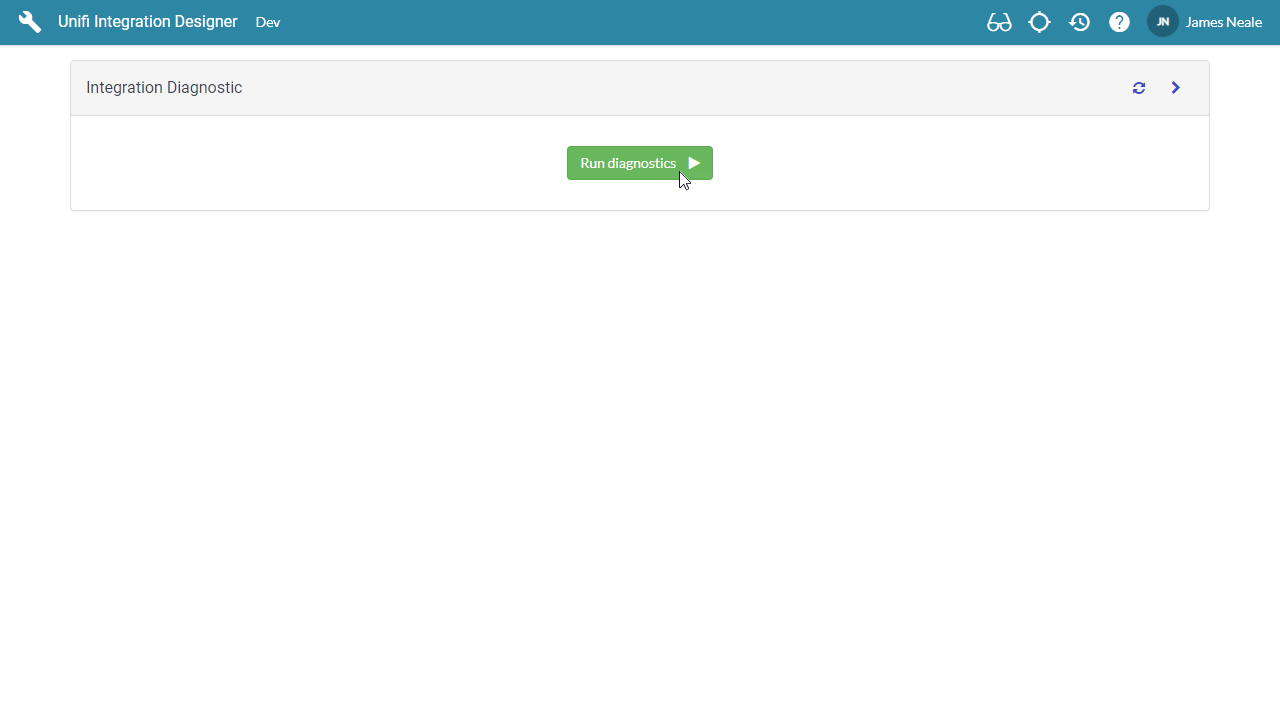
To execute the Diagnostic for all integrations, click Diagnostic from the Configuration menu group in ServiceNow, or click the Diagnostic target icon from the Designer header. You can then click Run diagnostics to perform a diagnostic on the whole instance.
Unifi Platform Diagnostic
### Integration Diagnostic
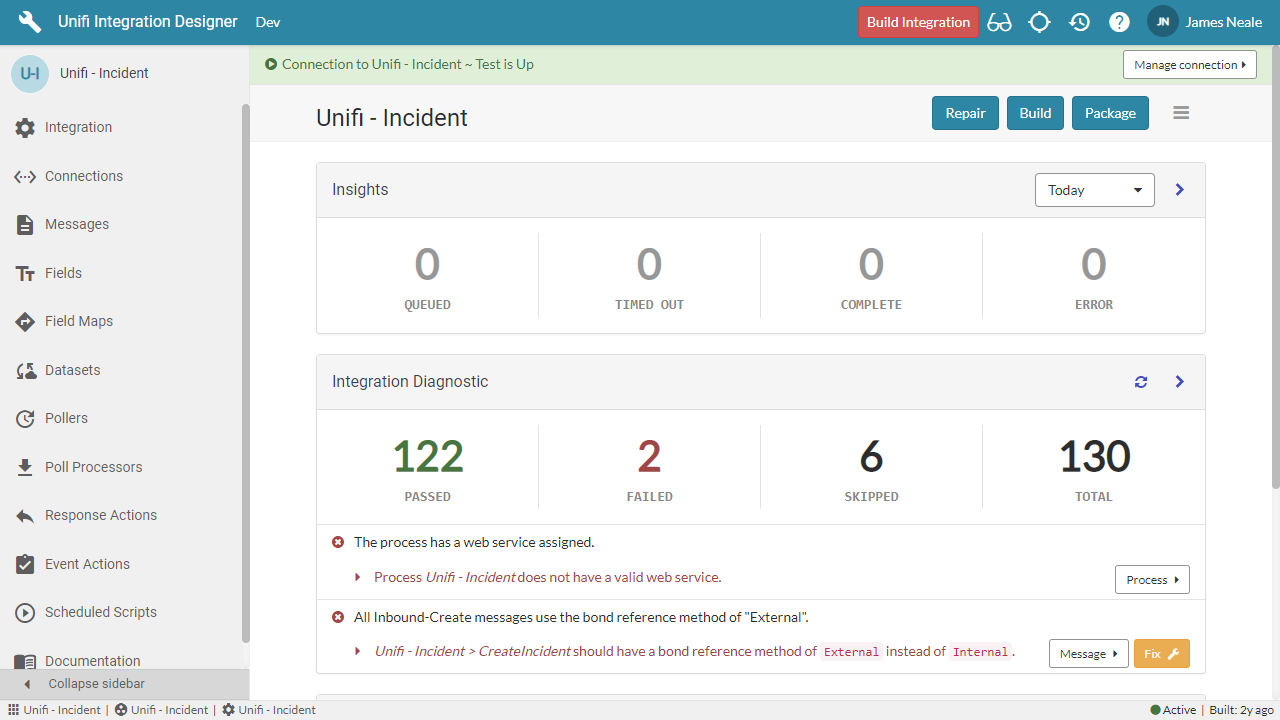
Diagnostics for single integrations are automatically performed when you open the integration in Unifi Designer. Version 4 introduces the integration dashboard which includes the diagnostic.
Unifi Integration Dashboard Diagnostic
## Visibility
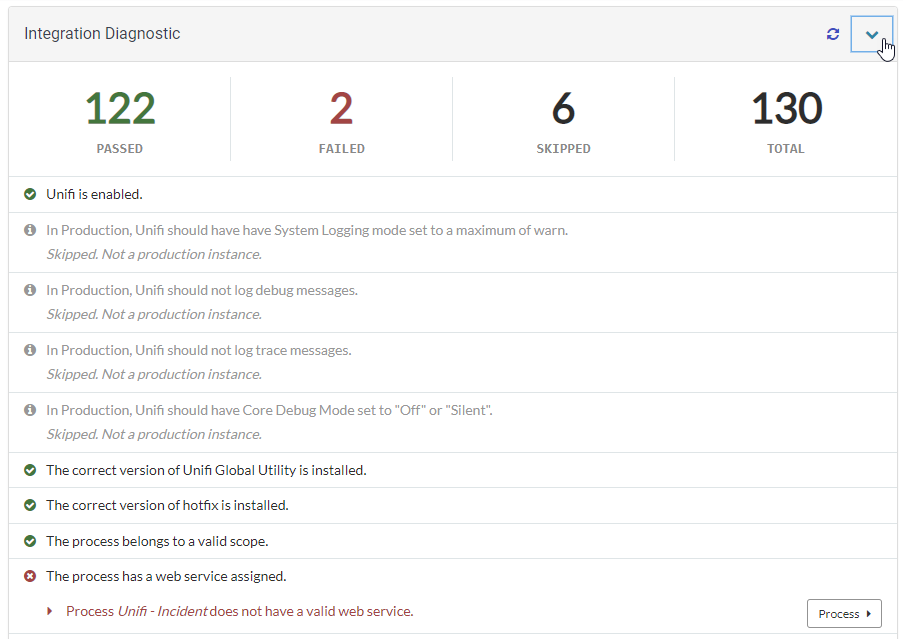
Only diagnostics that fail are shown. To view all diagnostics that have been executed, click the Chevron to open the Diagnostic panel.
 from the Designer header. You can then click Run diagnostics to perform a diagnostic on the whole instance.